Chatting with Customers on the Inquiry Link
Every inquiry includes a private chat link customers can use to reply. Messages land in your Inbox in real-time — no phone tag, no inbox digging.
Chatting with Customers on the Inquiry Link
This article explains how to use the private chat link feature to communicate with customers about their inquiries. You'll learn how to view customer messages, reply to them, and manage conversations directly from your BakeOnyx Inbox.
- Understand how the inquiry chat link works for customers.
- View and respond to customer messages in your BakeOnyx Inbox.
- Manage conversations across different communication channels.
How the Inquiry Chat Link Works
Every inquiry you create in BakeOnyx, whether it comes from your website's inquiry form, is entered manually, or logged from a phone call, automatically generates a private chat link. This link is sent to the customer via email. They can use this link to communicate with you directly without needing to log in to BakeOnyx.
When a customer clicks the link, they see a branded page showing your bakery's name and logo, the specific inquiry reference number, and the event date. They can type messages directly into a chat thread on this page. These messages are sent instantly to your BakeOnyx Inbox.
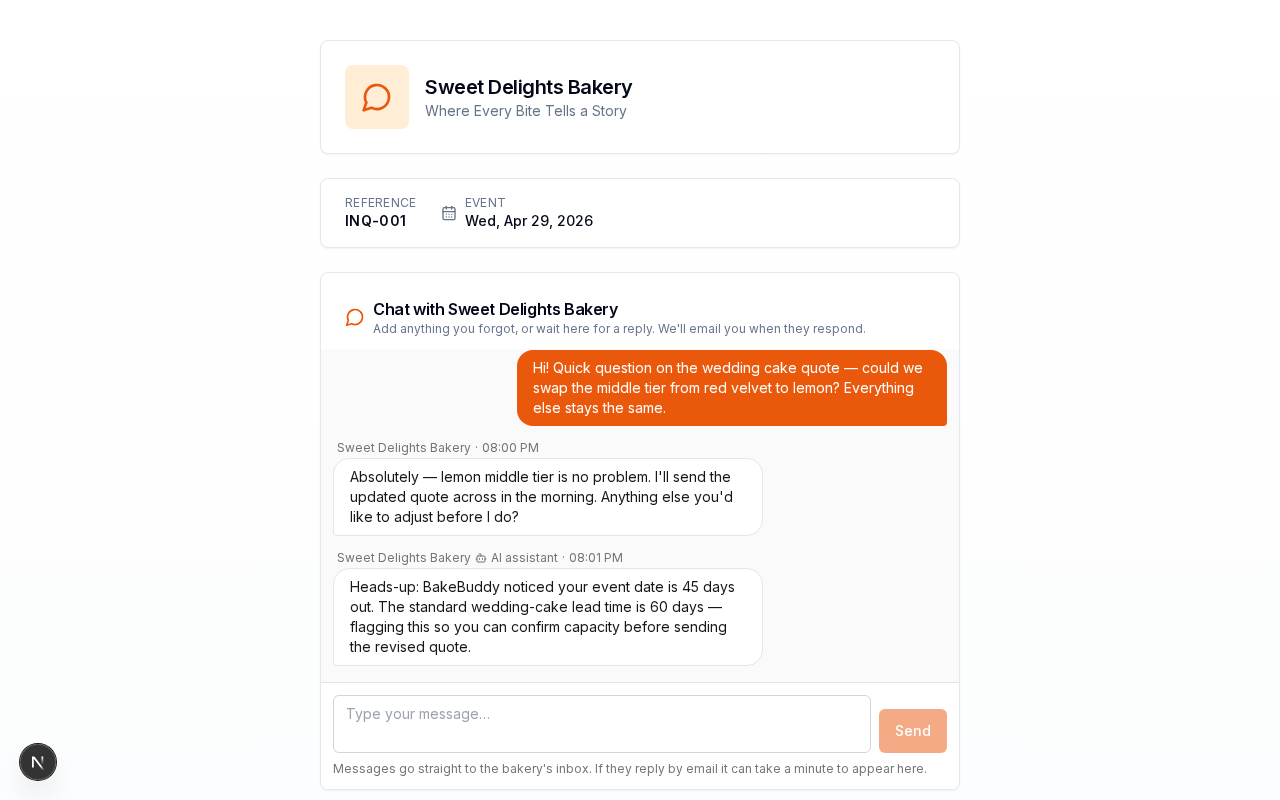
The customer's message drafts are auto-saved as they type, so they won't lose their work if they refresh the page or close their browser. A reminder at the bottom of their chat page states: "Messages go straight to the bakery's inbox. If they reply by email it can take a minute to appear here."
Managing Conversations in Your Inbox
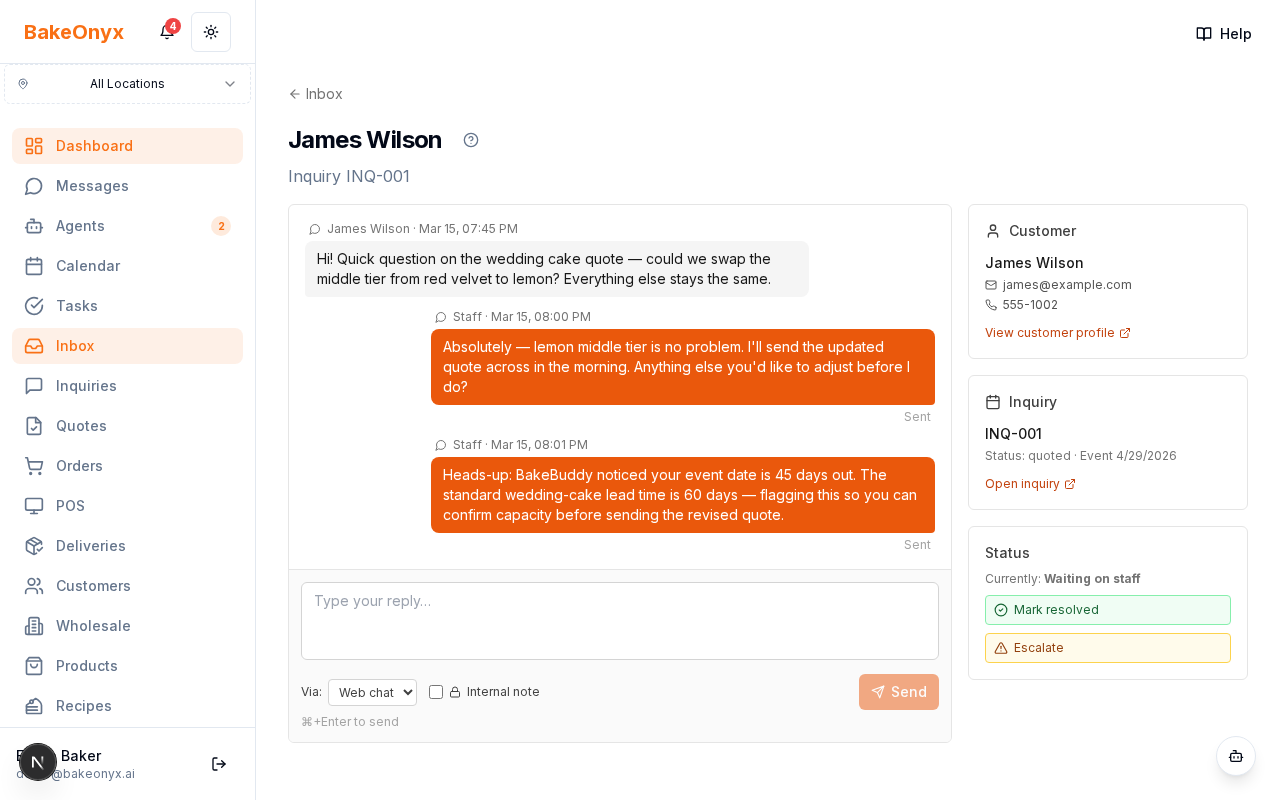
All customer messages, whether sent via the chat link or as a reply to an inquiry email, appear in your BakeOnyx Inbox. The Inbox displays a list of all active conversations, showing the customer's name, a preview of the last message, an unread message badge, and an icon indicating the communication channel.
The default view in your Inbox is set to Open, which includes all conversations that require your attention, such as new customer replies, threads where you last responded, and any escalated issues.
Viewing a Conversation Thread
To view a specific conversation:
- Navigate to your Inbox by clicking Inbox in the main navigation menu.
- Click on any row in the list to open the full conversation thread.
Inside the thread, you'll see every message exchanged with the customer. Channel badges, such as a Mail icon for email replies and a MessageCircle icon for web chat, clearly indicate how each message was sent. You can easily switch between replying via email or the web chat interface.
Replying to Customers
To reply to a customer:
- Open the conversation thread as described above.
- Locate the reply composer at the bottom of the thread.
- Type your message in the composer.
- Choose your reply channel:
- Web: For instant replies that appear immediately on the customer's chat page.
- Email: To send a reply to the customer's regular email inbox.
- Click the Send button.
Internal Notes and AI Assistant
Within a conversation thread, you can also add Internal Notes. These are messages visible only to your staff and are not sent to the customer. This is useful for tracking internal discussions or notes about the inquiry.
If you use the AI Assistant (BakeBuddy) to draft or send replies, the message will be clearly marked with a Bot icon and "AI assistant" text. This ensures both you and the customer can easily identify AI-generated messages.

Handling Email Replies
If a customer replies directly to an inquiry email instead of using the chat link, their response will still appear in the same conversation thread within your BakeOnyx Inbox. BakeOnyx automatically cleans up the email body, removing quoted text and filtering out auto-replies, so the thread remains easy to read. The message will be displayed with a Mail icon.