Managing Wholesale Customers
Set up wholesale customer profiles with business details, credit limits, and payment terms.
Managing Wholesale Customers
- How to create and set up wholesale customer profiles with business details
- How to configure credit limits, payment terms, and pricing tiers
- How to enable the wholesale portal for self-service ordering
What is a Wholesale Customer?
Wholesale customers are businesses that buy from you in bulk—such as restaurants, cafés, grocery stores, or corporate catering companies. Unlike retail customers who buy small quantities, wholesale customers typically have special pricing, extended payment terms, and credit arrangements. BakeOnyx lets you manage all these details in one place.
Access Your Wholesale Customer List
- Log in to BakeOnyx and click Customers in the main navigation menu.
- Select Wholesale from the customer type filter or menu.
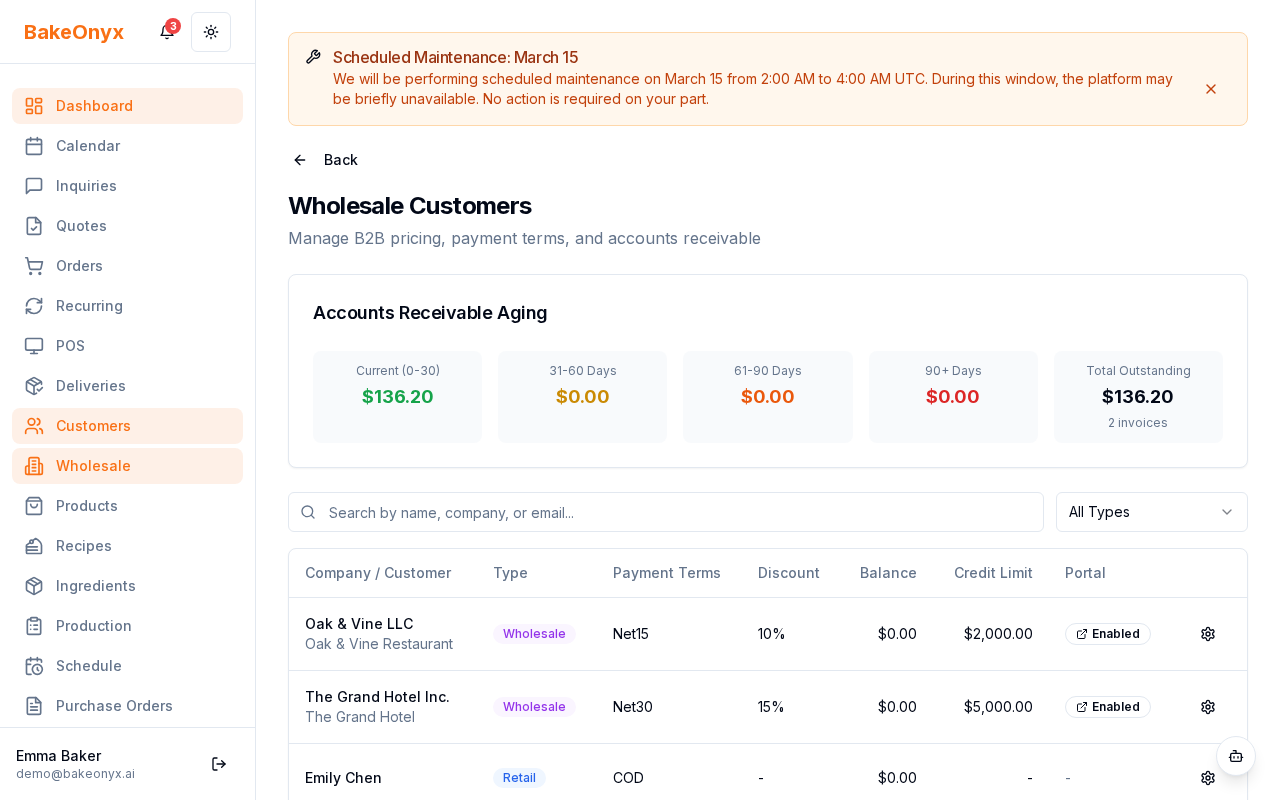
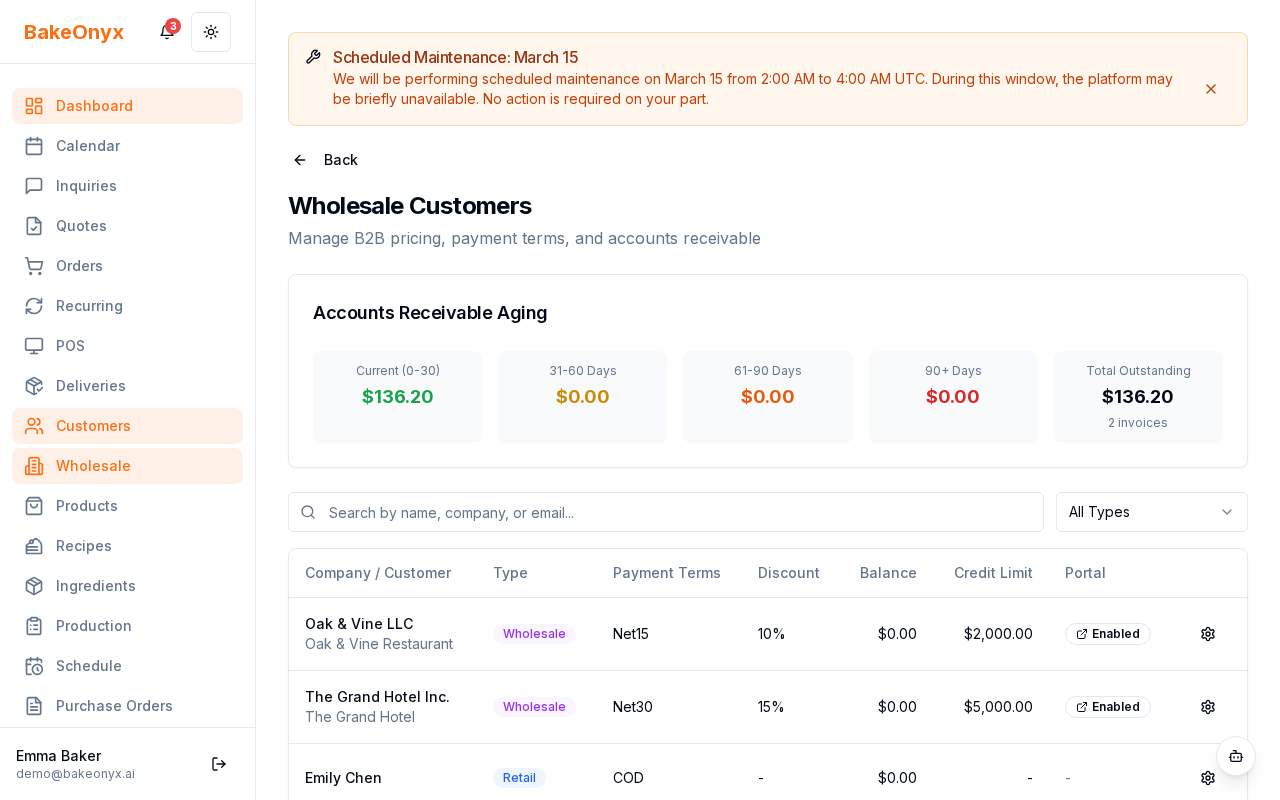
- You'll see a list of all your wholesale, corporate, and wedding customers with their company names, customer types, credit usage, and portal status.
Create a New Wholesale Customer
- From the wholesale customer list, click the + Add Customer button.
- Fill in the basic contact information:
- Name: The primary contact person's name
- Email: Business email address
- Phone: Business phone number
- Address: Delivery or billing address
- Select Wholesale, Corporate, or Wedding from the Customer Type dropdown.
- Enter the Company Name (the legal business name).
- Add the Tax ID if applicable (for invoicing and tax purposes).
Set Up Pricing and Credit Terms
- In the pricing section, select a Pricing Tier from the dropdown. This determines which product prices apply to this customer.
- Enter a Global Discount Percent if you want to apply a percentage discount to all orders (for example,
10for 10% off). - Set a Credit Limit—the maximum amount this customer can owe you at any time. For example,
$5,000. - Choose Payment Terms from the dropdown:
- COD: Cash on delivery (payment due immediately)
- Net 7, 15, 30, 45, or 60: Payment due in that many days after invoice
Enable the Wholesale Portal
The wholesale portal lets your customers place orders, check inventory, and view invoices on their own—saving you time on order entry.
- In the customer form, check the Enable Wholesale Portal checkbox.
- BakeOnyx will generate a secure password for the customer. You can share this with them via email or display it in the form.
- Click Save Customer.
- Share the portal login link and credentials with your customer. They can now log in and place orders independently.
Monitor Credit Usage
The wholesale customer list shows each customer's current balance against their credit limit. For example, if a customer has a $5,000 limit and a current balance of $3,200, they have $1,800 available credit remaining.
Review this regularly to:
- Prevent orders that would exceed the credit limit
- Identify customers who need to pay their invoices
- Adjust credit limits as your relationship grows
Edit or Update a Wholesale Customer
- From the wholesale list, click on the customer's name or the Edit button.
- Update any field (company name, payment terms, credit limit, pricing tier, etc.).
- Click Save Changes.
Next Steps
- Wholesale Pricing and Volume Breaks — Learn how to set up tiered pricing based on order quantity
- Managing Customers — Overview of all customer types and features
- Creating a New Order — How to manually create orders for wholesale customers