Setting Up Delivery Zones
Create delivery zones with postal codes, fees, and time slots for organized delivery management.
Set up delivery zones under Delivery → Zones: each zone is a group of postal codes with its own delivery fee and time slots, so customers only see delivery when you actually serve their area — at the right price. Here's how to create and manage them.

Note: Delivery zones are a Professional+ tier feature. If you don't see the Delivery section in your dashboard, contact support to upgrade your plan.
Creating Your First Delivery Zone
Start by navigating to your delivery zones page and creating a zone that matches your service area.
- From your BakeOnyx dashboard, click Delivery in the left menu.
- Select Zones from the submenu.
- Click the + New Zone button in the top right.
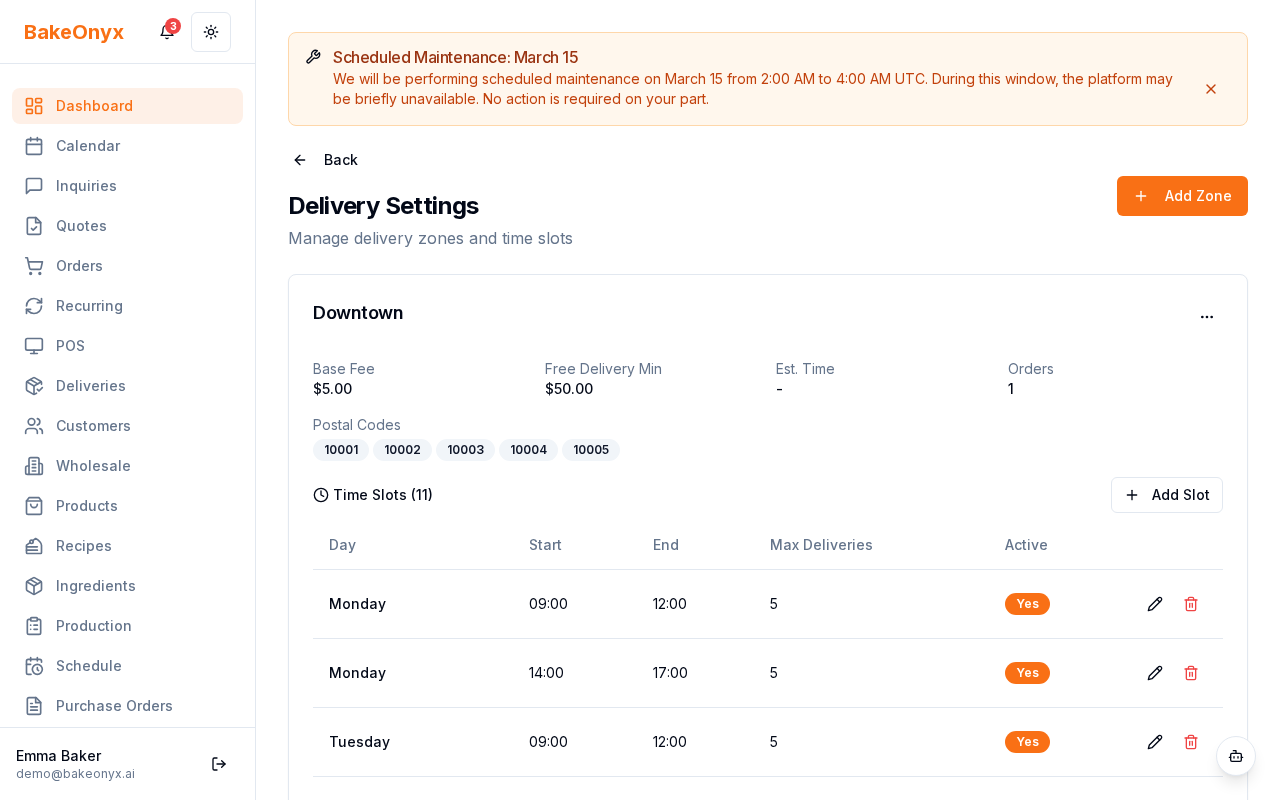
Fill in zone details
- Zone Name: Enter a name customers will recognize, like "Downtown," "Suburbs," or "North Side." This appears in your online store at checkout.
- Postal Codes: Add all postal codes this zone covers. Click + Add Postal Code and enter each code. You can add as many as needed for your service area.
- Base Delivery Fee: Set the flat fee you charge for deliveries in this zone (e.g., $5.00).
- Free Delivery Minimum: Enter the order total that qualifies for free delivery. For example, if you set this to $50, orders of $50 or more get free delivery in this zone.
- Status: Toggle Active to enable this zone immediately, or leave it off to set it up now and activate it later.
- Sort Order: Enter a number to control how zones appear in your online store (1 appears first, 2 second, etc.).
Tip: Start with 2–3 main zones (like "Downtown," "Inner Suburbs," "Outer Suburbs") rather than creating one zone per postal code. This keeps your setup simple and easier to manage.
Setting Up Delivery Time Slots
Time slots define when customers can request delivery in each zone. You can set different hours for weekdays, weekends, or specific days.
- Scroll down to the Delivery Time Slots section.
- Click + Add Time Slot.
- Select the Day of Week (Monday, Tuesday, etc.).
- Set the Start Time and End Time for deliveries. For example, 9:00 AM to 12:00 PM.
- Enter the Max Deliveries per Slot — this limits how many orders you can deliver during that window. If you have one delivery driver, you might set this to 5–8 deliveries per slot.
- Click + Add Time Slot again to add another window on the same day (e.g., 2:00 PM to 5:00 PM).
- Repeat for each day of the week you deliver.
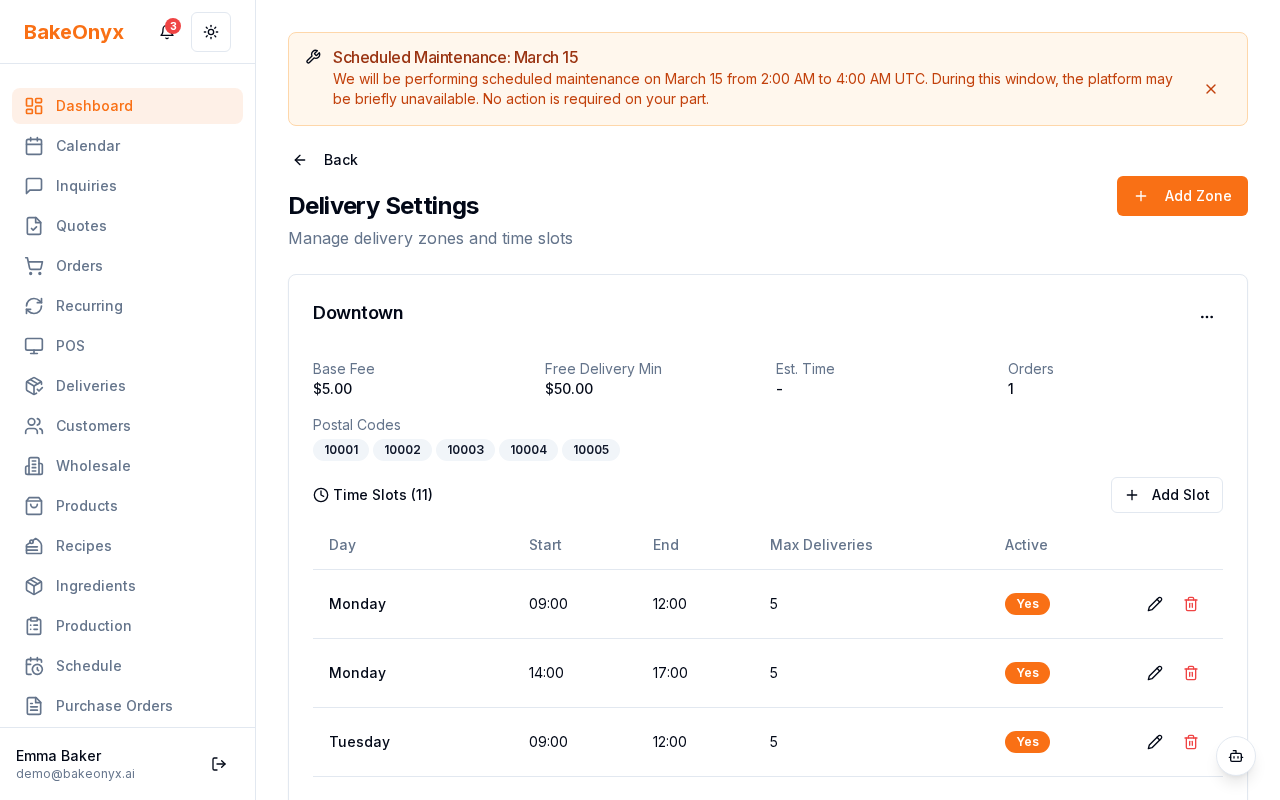
Warning: If you don't set any time slots for a day, customers won't be able to select that zone for delivery on that day. Make sure you cover all your delivery days.
Saving and Managing Your Zones
- Click Save Zone at the bottom of the form.
- Your zone now appears in the zones list. You can edit or delete it anytime by clicking the zone name.
- Reorder zones by dragging them in the list, or update the sort order number in each zone's settings.
Best Practices
- Match your capacity: Set max deliveries per slot based on your actual delivery resources. Overestimating leads to late deliveries and unhappy customers.
- Offer flexibility: Create multiple time slots per day so customers have options.
- Test before going live: Set zones to inactive while you test, then activate when ready.
- Review and adjust: After a few weeks, check if your slots fill up. If they do, add more slots or increase max deliveries.
Next steps
- Managing Daily Deliveries — Learn how to view and fulfill orders on your delivery board.
- Creating a New Order — Manually create orders with delivery options.
- Setting Up Your Online Store — Ensure your zones display correctly to customers.
Was this article helpful?