Setting Up Your Online Store
Enable your public storefront and configure settings for your online bakery shop.

Setting Up Your Online Store
- Enable your public storefront so customers can browse and order online
- Configure your store name, description, and welcome message
- Choose display settings like pricing visibility and catalog layout
- Set up delivery options, deposits, and order limits
What You'll Need
To set up your online store, you'll need a BakeOnyx Professional+ plan. Your online store gives customers a dedicated URL where they can view your products, place orders, and complete checkout—all without needing to call or email.
Enable Your Online Storefront
- From your BakeOnyx dashboard, click Settings in the left menu.
- Select Storefront from the settings options.
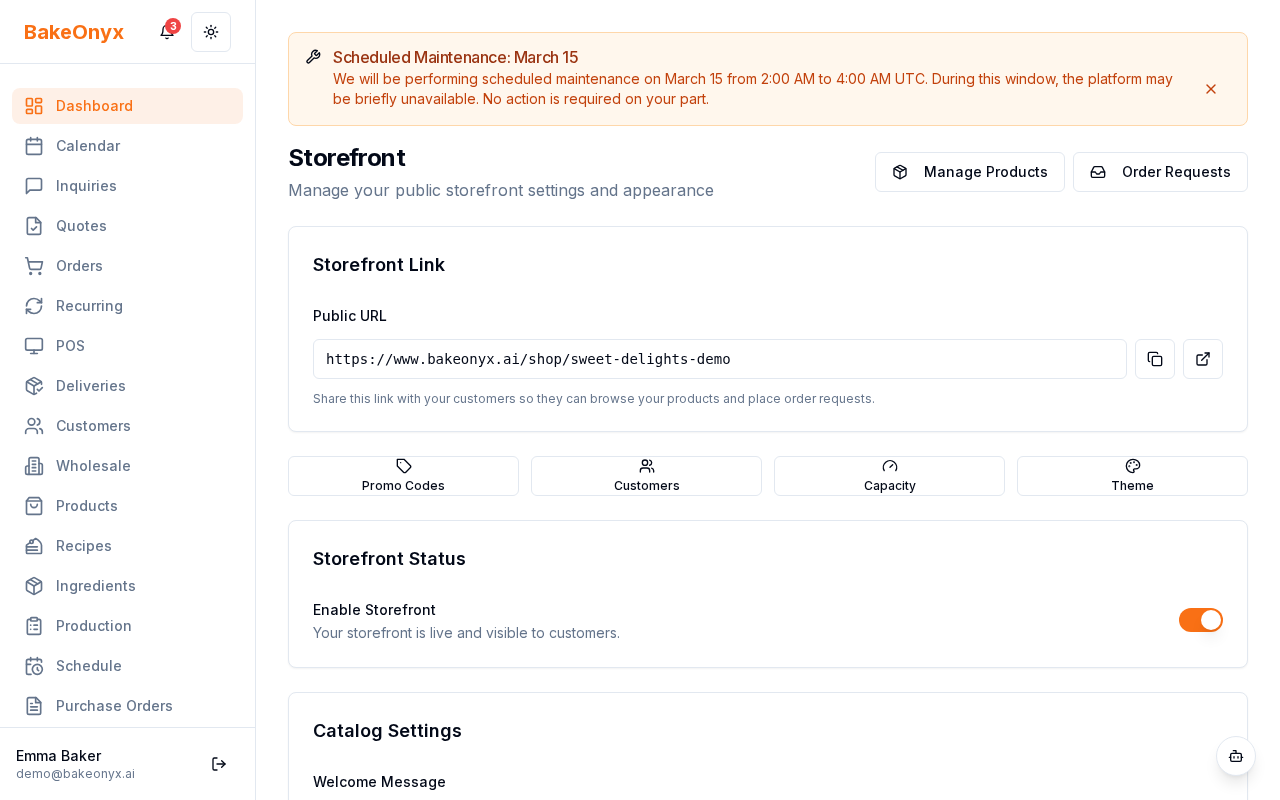
- Toggle Enable Public Storefront to the "on" position.
- Click Save.
Once enabled, your online store will be live at a public URL. You'll see your unique store link displayed on the Storefront settings page—this is the URL you'll share with customers.
Configure Your Store Details
Store Name and Description
- In the Store Name field, enter your bakery's name as you'd like it to appear online.
- In the Store Description field, write a brief description of your bakery (50–150 words works well). This helps customers understand what you offer.
- In the Welcome Message field, add a greeting that appears at the top of your storefront. For example: "Welcome to Sweet Treats Bakery! Order fresh cakes, pastries, and custom designs."
Display Settings
Configure how your products and pricing appear to customers:
- Show Prices: Toggle on to display product prices. Toggle off if you prefer customers to request a quote.
- Catalog Layout: Choose between Grid (products displayed in boxes) or List (products displayed as rows). Grid layout is more visually appealing for bakeries.
- Customer Accounts: Enable customer accounts to let buyers create profiles, save favorites, and track order history. You can also allow guest checkout if you prefer.
Set Up Delivery and Payment Options
Delivery Methods
- Scroll to the Delivery Options section.
- Check the boxes for delivery methods you offer:
- Pickup: Customers collect orders from your location.
- Local Delivery: You deliver to customers within a set area.
- Shipping: Orders are shipped via mail or courier.
- For each method, set any applicable fees or minimum order amounts.
Deposits and Order Limits
- In the Deposit Percentage field, enter the percentage of the order total customers must pay upfront (e.g., 50 for 50%). This helps secure custom orders.
- Set your Maximum Daily Orders to prevent overbooking. For example, if you can fulfill 20 orders per day, enter 20.
- Set your Lead Time (in days) to specify how far in advance customers must order.
Tip: Start with a 50% deposit for custom cakes and 25% for standard items. Adjust based on your business needs after a few weeks of orders.
Choose Your Store Theme
- Scroll to the Theme section.
- Preview available themes by clicking on each option.
- Select the theme that best matches your bakery's brand.
- Click Save to apply your changes.
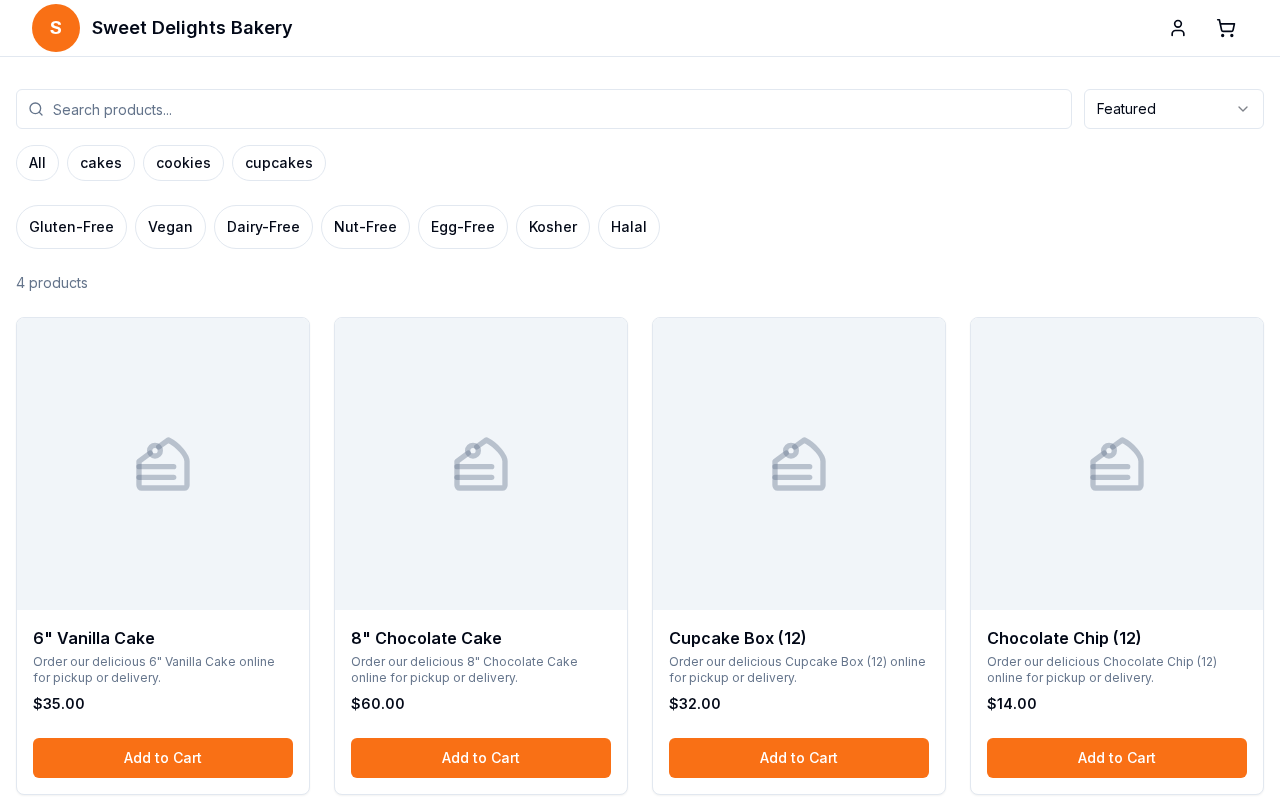
Note: Your storefront URL is public and can be shared anywhere—social media, email, your website, or printed materials. Customers can access it anytime to browse and place orders.
Next Steps
Now that your online store is set up, you're ready to:
Was this article helpful?