Managing Daily Deliveries
Use the daily delivery board to assign drivers, track delivery status, and manage your delivery schedule.

Managing Daily Deliveries
- Access your daily delivery board and view all pending deliveries
- Assign drivers to deliveries and track their progress
- Update delivery status as orders move through your fulfillment process
What Is the Delivery Board?
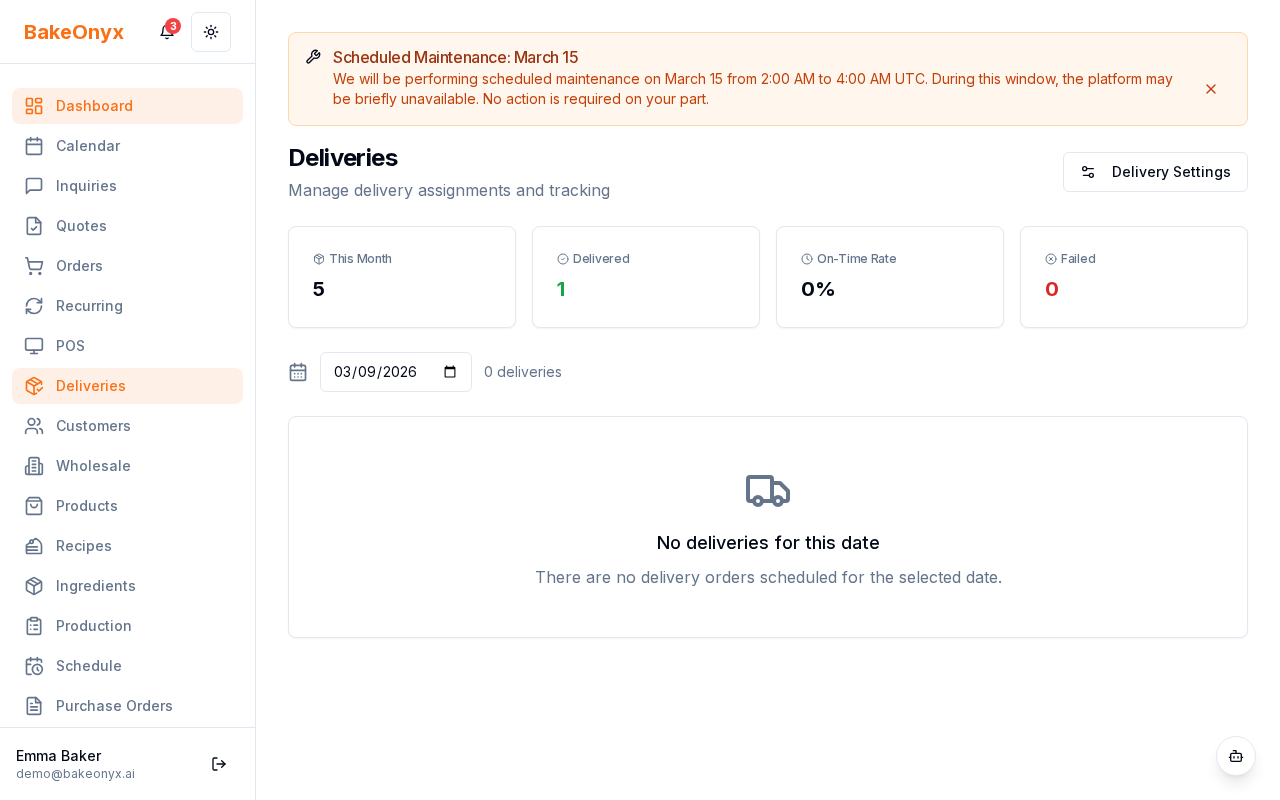
The delivery board is your command center for managing all outgoing orders. It displays today's deliveries in columns organized by status, making it easy to see at a glance which orders are ready to go, which drivers are assigned, and which deliveries are already out on the road. This feature is available on the Professional+ tier.
Accessing Your Delivery Board
- Log in to your BakeOnyx dashboard
- Click Deliveries in the main navigation menu
- You'll land on the daily delivery board, which shows today's orders by default
The board displays five columns: Pending, Assigned, In Transit, Delivered, and Failed. Each delivery card shows the order number, customer name, delivery address, time slot, and assigned driver (if applicable).
Assigning Drivers to Deliveries
- Find the delivery card in the Pending column that you want to assign
- Click on the delivery card to open its details
- Look for the Assign Driver field
- Click the dropdown menu and select a driver from your staff list
- Click Save to confirm the assignment
Once assigned, the delivery card will automatically move to the Assigned column. Your driver will receive a notification about their new delivery (if notifications are enabled in your account settings).
Updating Delivery Status
As your drivers complete their deliveries, you'll update the status to keep your records accurate and your customers informed.
- Click on a delivery card in the Assigned column
- When your driver leaves with the order, click the Mark as In Transit button
- The card will move to the In Transit column
- Once the customer receives their order, click Mark as Delivered
- The card will move to the Delivered column
If a delivery cannot be completed (customer not home, address issue, etc.), click Mark as Failed to move it to the Failed column. You can then reschedule or contact the customer to arrange an alternative delivery time.
Understanding Delivery Fees
BakeOnyx calculates delivery fees from your delivery zones' base fees. Each zone has a set fee that applies to all deliveries within that geographic area. This fee is added to the customer's order total and appears clearly on their invoice.
To review or adjust your delivery zones and fees, visit your store settings. For more details, see the "Setting Up Your Online Store" article linked below.
Best Practices for Daily Delivery Management
- Assign early: Assign drivers to deliveries as soon as orders are confirmed, ideally the day before or early in the morning
- Group by area: Assign multiple deliveries in the same neighborhood to one driver to reduce travel time
- Update status regularly: Keep the board updated in real time so customers can track their orders and you have accurate records
- Monitor failed deliveries: Check the Failed column daily and follow up with customers promptly