Recurring Expenses
Set up recurring expenses for rent, subscriptions, and other regular costs (Growth plan and above).
Recurring Expenses
Recurring expenses help you automate tracking of costs that happen regularly—like rent, utilities, subscriptions, and supplier contracts. Instead of manually entering the same expense every month, you can set it up once and let BakeOnyx generate each occurrence automatically.
- Create recurring expenses for regular costs (daily, weekly, monthly, or yearly)
- Automatically generate the next occurrence when you're ready
- Keep your expense tracking organized and up-to-date with minimal effort
How to Create a Recurring Expense
- From the main menu, go to Expenses.
- Click the + New Expense button.
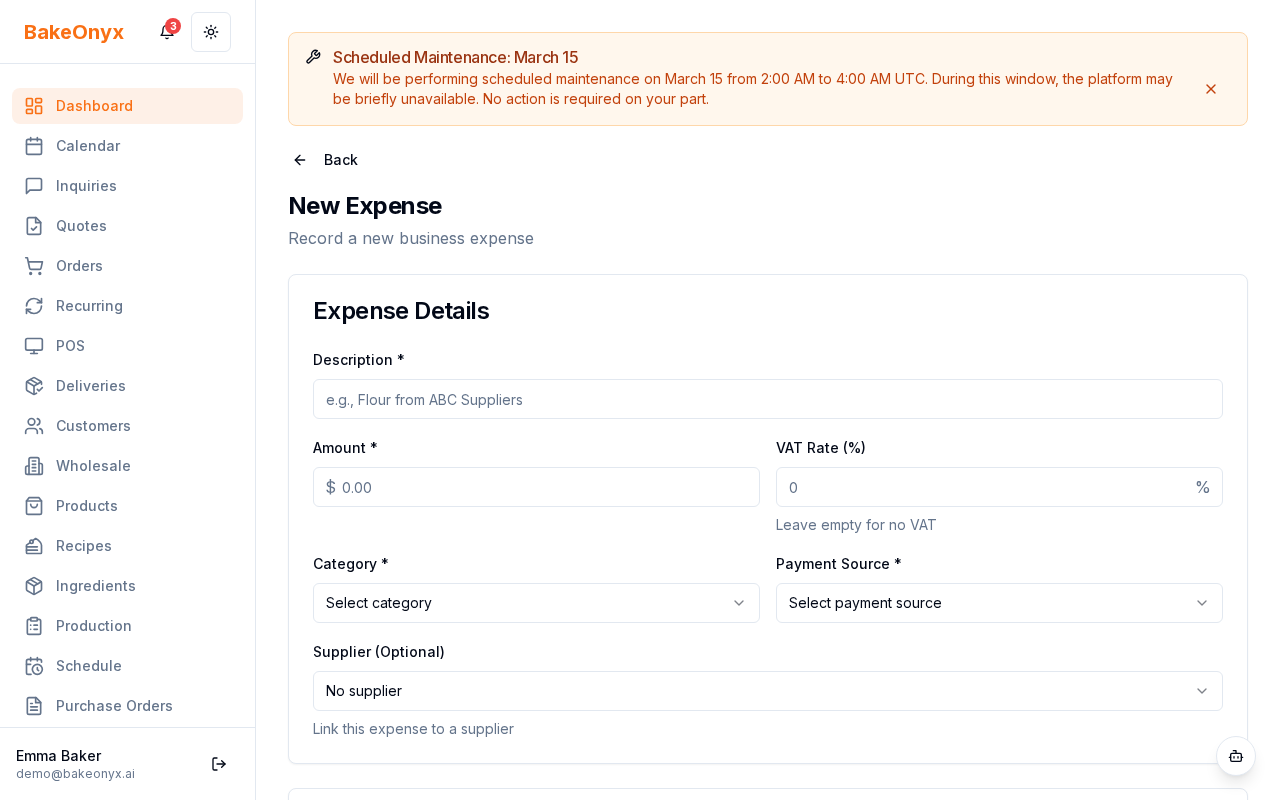
- Fill in the expense details:
- Description – Name of the expense (e.g., "Monthly Rent" or "Flour Supplier Contract")
- Category – Choose from your expense categories (Rent, Utilities, Subscriptions, etc.)
- Amount – The cost amount
- Date – The date this expense first occurs
- Vendor/Supplier – Who you're paying (optional but helpful for tracking)
- Notes – Any additional details (optional)
- Scroll down and toggle on Make this a recurring expense.
- Select the recurrence frequency:
- Daily – Repeats every day
- Weekly – Repeats every week on the same day
- Monthly – Repeats on the same date each month
- Yearly – Repeats on the same date each year
- Click Save Expense.
Generating the Next Occurrence
When a recurring expense is created, BakeOnyx doesn't automatically generate future occurrences. Instead, you generate them as needed. This gives you control and lets you adjust amounts if necessary.
- Go to Expenses and find the recurring expense you want to generate the next occurrence for.
- Click on the expense to open its details.
- Click the Generate Next Occurrence button.
- Review the details (date, amount, category). You can edit any field if needed.
- Click Confirm to create the new expense entry.
Editing and Managing Recurring Expenses
You can edit a recurring expense at any time. Changes apply to future occurrences, not past ones.
- Go to Expenses and find the recurring expense.
- Click on it to open the details view.
- Click Edit.
- Update the amount, category, frequency, or other details as needed.
- Click Save Changes.
To stop a recurring expense, click Deactivate Recurring Expense. This prevents future occurrences from being generated, but existing expense entries remain in your records.
Best Practices for Recurring Expenses
- Use clear descriptions – Include the vendor name or service type so you can easily identify expenses later.
- Set up categories – Organize recurring expenses by type (Rent, Utilities, Subscriptions, Supplies) for better reporting.
- Review monthly – Check your recurring expenses each month to catch any changes in vendor pricing or contract terms.
- Generate in batches – At the start of each month, generate all monthly recurring expenses at once to keep your records consistent.
Next Steps
- Expense Reports and VAT Summary – Learn how to generate detailed reports of all your expenses.
- Reports Overview – Explore all reporting features available in BakeOnyx.
- Business Profile Settings – Manage your bakery's business information and expense categories.