Business Profile Settings
Update your bakery name, address, logo, timezone, and currency settings.
Business Profile Settings
What you'll learn
- How to update your bakery's basic information (name, address, contact details)
- How to upload and manage your bakery logo
- How to set your timezone and currency for accurate scheduling and financial reporting
Overview
Your business profile is the foundation of your BakeOnyx account. It contains all the essential information about your bakery — from your name and address to your timezone and currency. These settings affect how BakeOnyx displays information across your dashboard, how your team sees greeting times in Bake Buddy, and how all financial data is calculated and displayed.
You'll only need to set up your business profile once, but you can update it anytime if your bakery's details change.
Accessing Your Business Profile
- Log in to your BakeOnyx dashboard.
- Click the Settings icon in the left sidebar (gear icon).
- Select Business Profile from the settings menu.
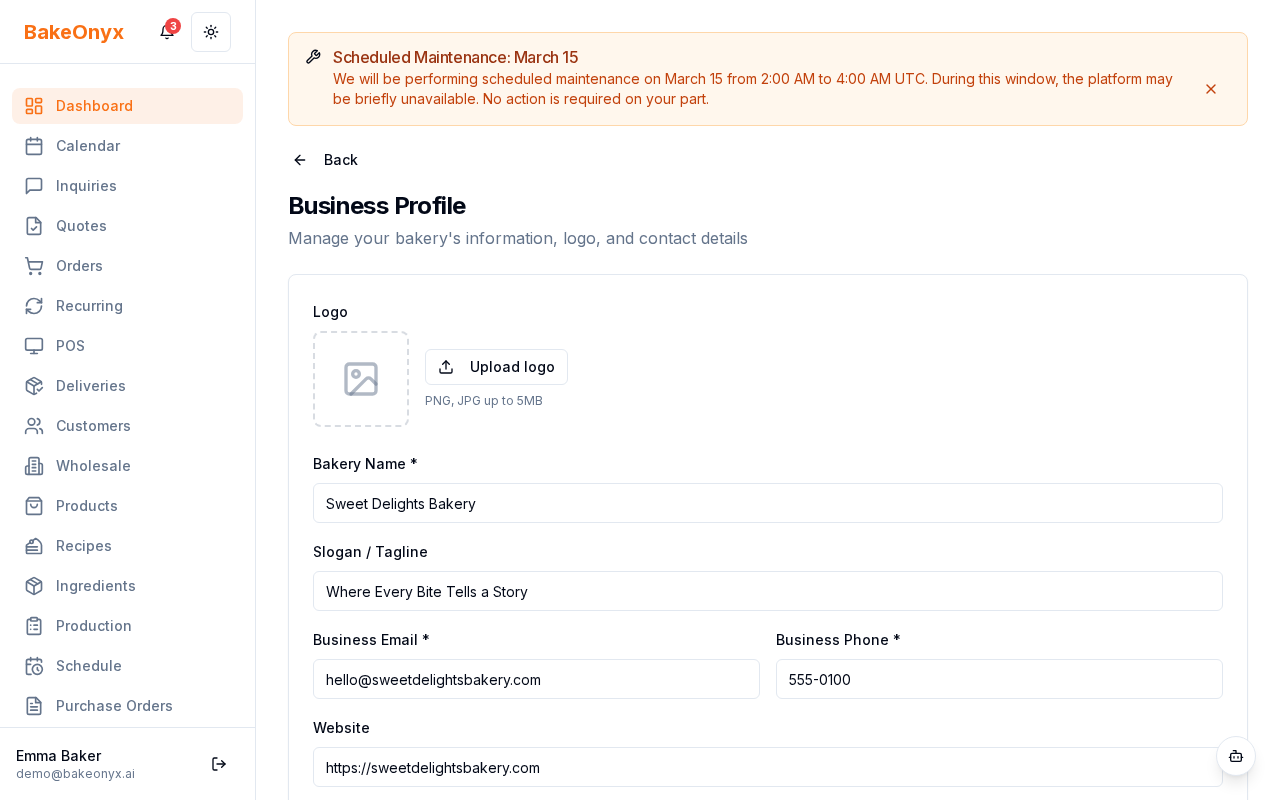
Updating Basic Bakery Information
- In the Bakery Name field, enter the name of your bakery as you'd like it to appear in BakeOnyx and on reports.
- Select your Business Type from the dropdown menu (e.g., Artisan Bakery, Cafe Bakery, Industrial Bakery, etc.).
- Enter your bakery's Phone number in the format shown.
- Enter your Email address — this is used for important account notifications.
- Optionally, add your bakery's Website URL if you have one.
Adding Your Address
- Fill in the Street Address field with your bakery's street location.
- Enter your City.
- Enter your State (or province, depending on your country).
- Enter your ZIP Code (or postal code).
- Select your Country from the dropdown menu.
Uploading Your Logo
- Click the Logo Upload area or the upload button.
- Select an image file from your computer (PNG, JPG, or GIF formats work best).
- Your logo will appear in reports, invoices, and team-facing areas of BakeOnyx.
- To replace your logo, click the upload area again and select a new image.
Setting Your Timezone
- Click the Timezone dropdown menu.
- Search for your timezone by city name or region (e.g., "New York," "London," "Sydney").
- Select your timezone from the list.
Your timezone affects when Bake Buddy sends morning briefings and how all time-based features in BakeOnyx calculate schedules. For example, if you're in Eastern Time and set your timezone correctly, Bake Buddy will greet your team at the right time in the morning.
Selecting Your Currency
- Click the Currency dropdown menu.
- Search for or select your currency (e.g., USD, EUR, GBP, CAD).
- Click to confirm your selection.
Your currency setting is used across all financial displays in BakeOnyx — including invoices, reports, pricing, and cost calculations. It also affects how AI features like Bake Buddy format financial information and recommendations.
Saving Your Changes
- Review all the information you've entered.
- Click the Save Changes button at the bottom of the page.
- You'll see a confirmation message when your business profile has been updated successfully.
Next steps
- Team Management and Roles — Add team members and assign permissions.
- Welcome to BakeOnyx — Get oriented with the platform's main features.
- Understanding Subscription Plans — Learn about billing and plan options.