Quick Start: Bakery Shop (3-15 Staff)
Setup guide for established bakeries — import data, configure teams, and set up suppliers.
Quick Start: Bakery Shop (3-15 Staff)
Welcome to BakeOnyx! This guide walks you through the essential setup steps to get your established bakery up and running. Whether you're moving from spreadsheets or upgrading your system, you'll be taking orders and managing production within hours.
- Import your existing customer, ingredient, and recipe data
- Set up your team with appropriate roles and permissions
- Configure suppliers, purchase orders, and delivery zones
Step 1: Import Your Existing Data
BakeOnyx makes it easy to bring your data over from spreadsheets or your old system. You'll import three key datasets:
- Go to Customers in the main menu and click Import CSV
- Download the customer template, fill in your existing customer list (name, email, phone, address), and upload
- Repeat this process for Ingredients and Recipes
- Each list page has an Import CSV button with a downloadable template — use these templates to ensure your data matches the right format
Step 2: Add Your Suppliers
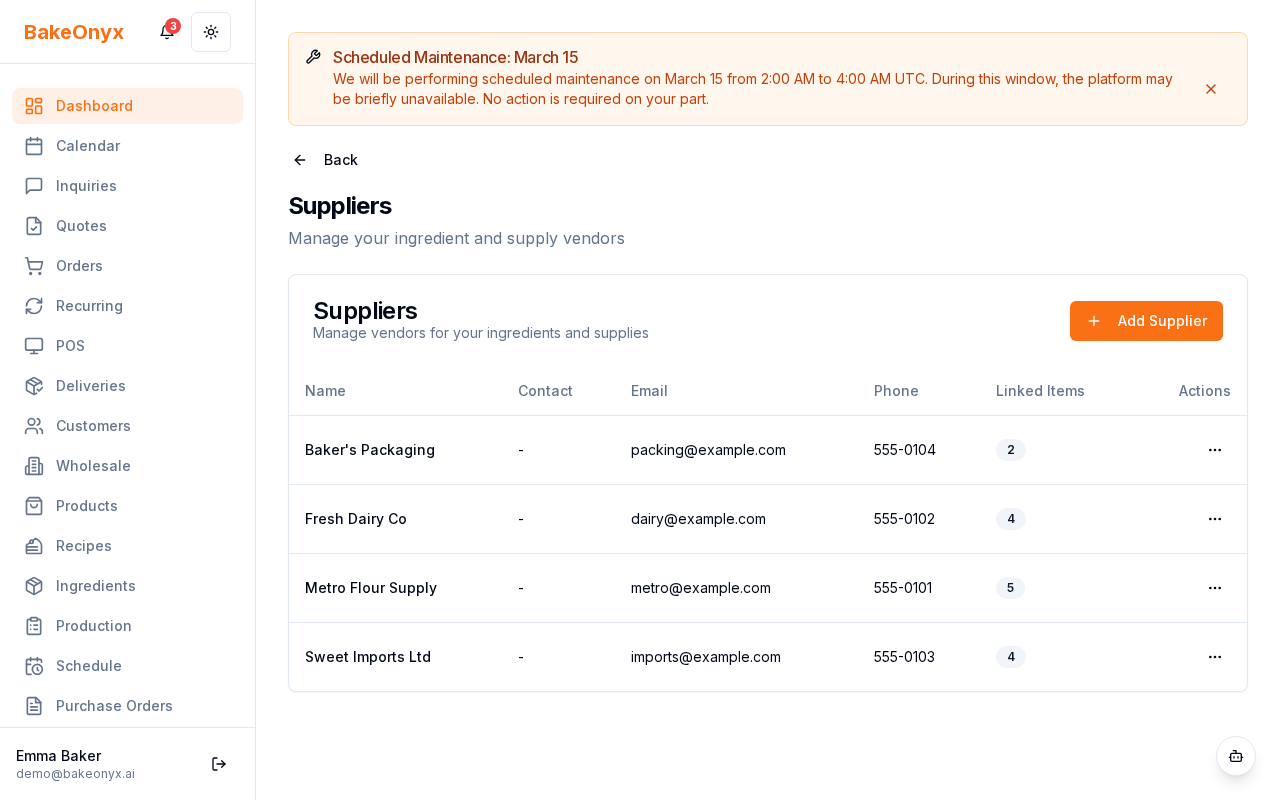
Set up your ingredient and material suppliers so you can track orders and manage inventory effectively.
- Navigate to Settings → Suppliers
- Click Add Supplier
- Enter supplier details: name, contact person, phone, email, and address
- Add payment terms (e.g., Net 30) and lead time (how many days until delivery)
- Save and repeat for each supplier
Step 3: Configure Your Team
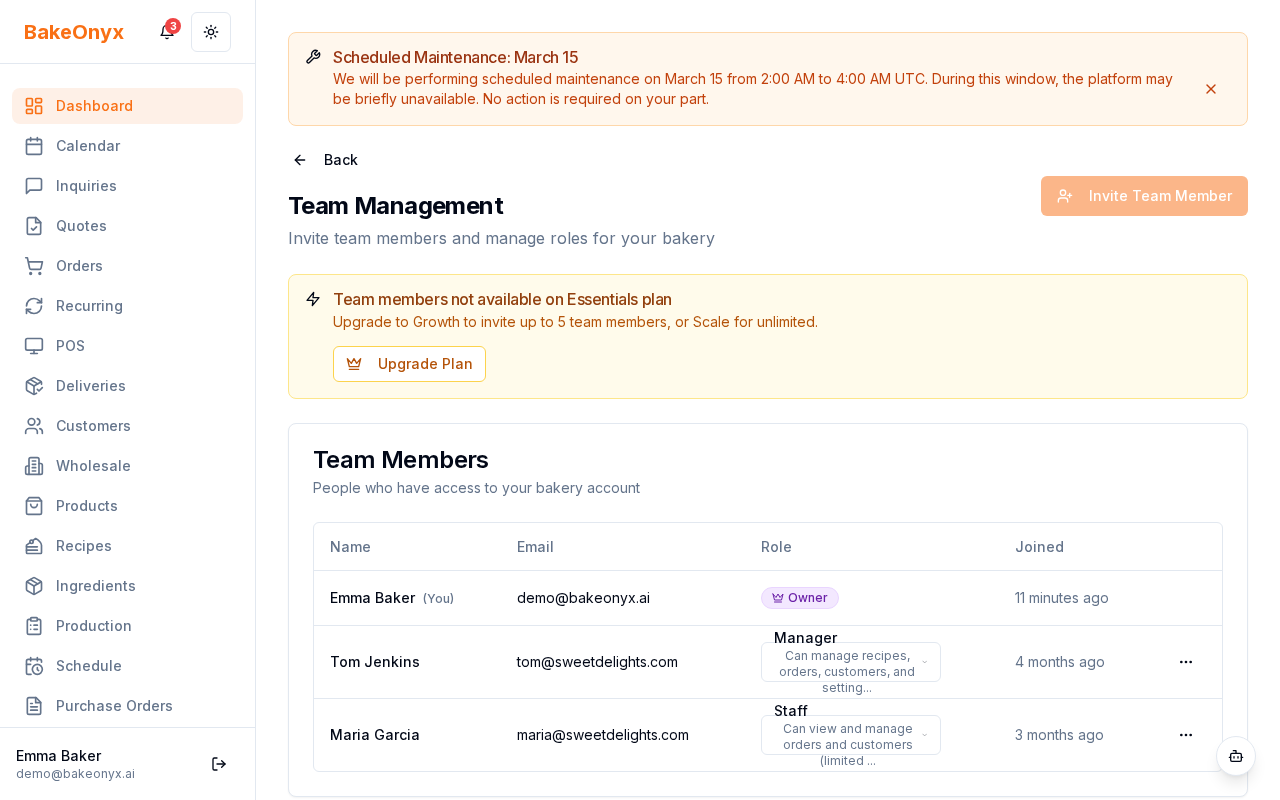
Add your staff members and assign roles that match their responsibilities. BakeOnyx offers three main role types:
- Owner: Full access to all settings, reporting, and financial data
- Manager: Can manage orders, production, inventory, and staff — but not financial settings
- Staff: Can view and update job sheets, mark tasks complete, and update inventory
- Go to Settings → Team
- Click Add Team Member
- Enter their email address and select their role
- They'll receive an invitation to set up their account
Step 4: Set Up Purchase Orders
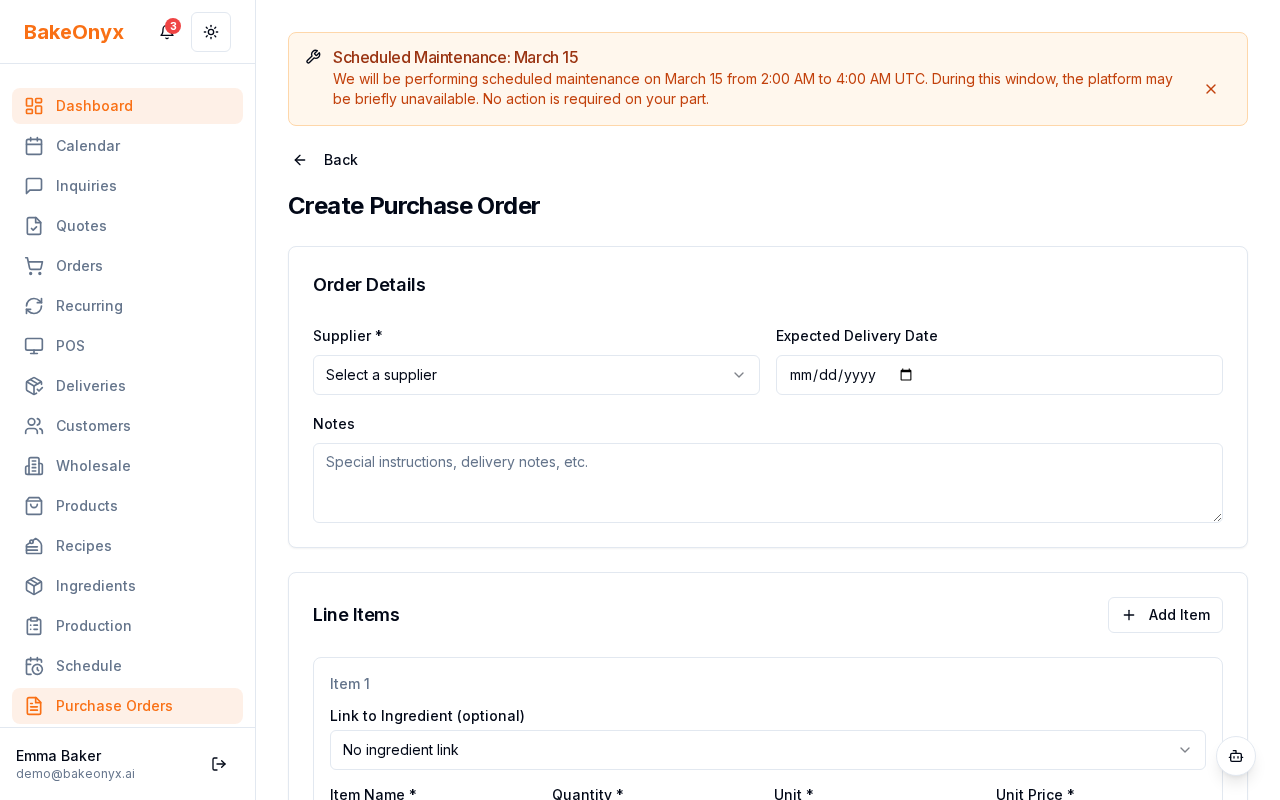
Purchase orders let you track ingredient orders from suppliers and automate reordering for items you buy regularly.
- Go to Orders → Purchase Orders
- Click New Purchase Order
- Select your supplier and add the ingredients you're ordering
- Set the delivery date and any special notes
- Save and track the order status as it arrives
Step 5: Enable Delivery & Online Ordering (Optional)
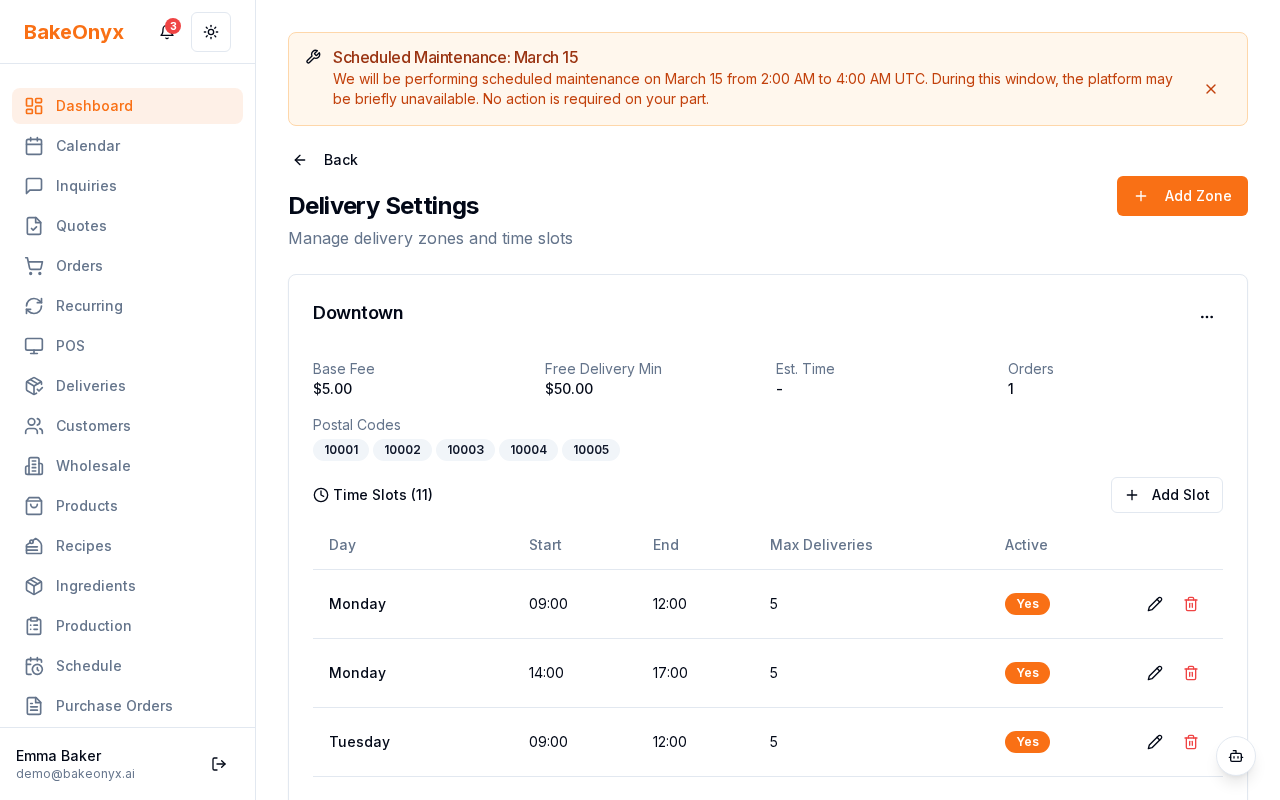
If you deliver to customers or want to accept online orders, set these up now:
- Delivery Zones: Go to Settings → Delivery Zones and define your service areas with delivery fees
- Online Store: Enable your storefront at Settings → Storefront to let customers order directly
- Payment Processing: Connect Stripe or Square for online payments
Step 6: Sync Your Accounting & Calendar
Connect BakeOnyx to your existing tools for a seamless workflow:
- QuickBooks or Xero: Sync invoices and expenses automatically
- Google Calendar: See order due dates alongside your team's schedule
Both integrations are available in Settings → Integrations.
You're Ready to Go!
Your bakery is now set up in BakeOnyx. Start by creating your first order from the dashboard or your online store. Your team will receive job sheets automatically, and you'll track inventory in real time.