Creating a Recipe
Add a recipe with ingredients, instructions, prep time, and yield.

Creating a Recipe
- Add a new recipe with ingredients, cooking times, and yield information
- Automatically calculate recipe costs based on your ingredient prices
- Organize recipes by category for easy reference
Recipes are the foundation of your bakery operations in BakeOnyx. Whether you're tracking a signature sourdough, a batch of croissants, or custom cake designs, creating recipes helps you standardize production, manage costs, and fulfill orders consistently.
Getting Started
To create a new recipe, navigate to the Recipes section in your BakeOnyx dashboard and click + New Recipe. This opens the recipe creation form where you'll enter all the details about your product.
Step 1: Fill in Basic Recipe Information
- Enter a Recipe Name — use a clear, descriptive name like "Sourdough Boule" or "Chocolate Croissant"
- Select a Category — organize your recipes by type (Bread, Pastries, Cakes, Cookies, etc.)
- Add a Description (optional) — include notes like "Contains nuts" or "Vegan option" to help your team
- Enter Prep Time — the time needed to prepare ingredients and dough (in minutes)
- Enter Cook Time — the time in the oven or on the griddle (in minutes)
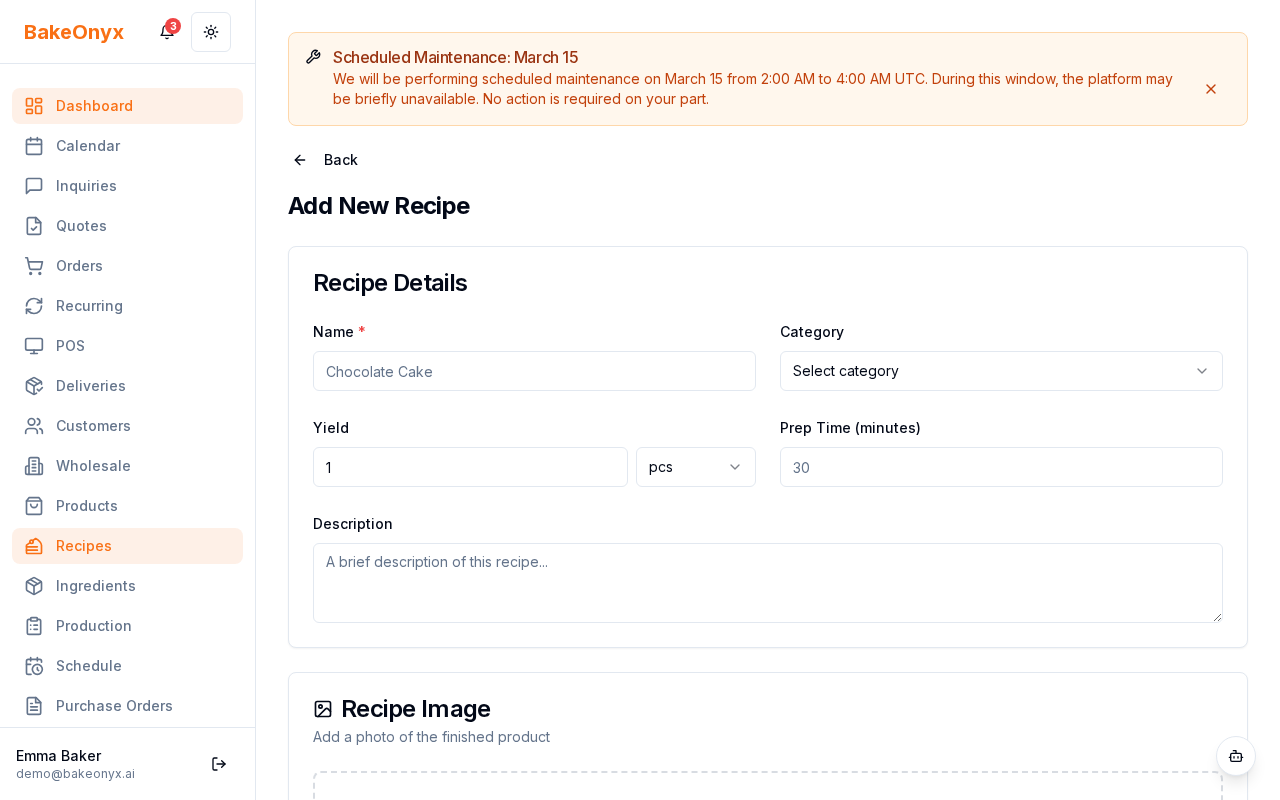
Step 2: Set Your Yield
Yield tells BakeOnyx how much your recipe produces, which is essential for costing and order fulfillment.
- Enter a Yield Number — for example, enter "12" if your recipe makes 12 items
- Select a Yield Unit from the dropdown:
- pcs (pieces) — for individual items like croissants or cookies
- servings — for cakes or desserts portioned by serving
- loaves — for bread products
- dozen — for bulk quantities
- g, oz, kg, lb — for weight-based yields like dough or batter
Step 3: Add Ingredients
Now you'll add each ingredient your recipe requires. BakeOnyx pulls from your ingredient inventory, so ingredient prices automatically update your recipe cost.
- Click + Add Ingredient
- Enter the Quantity — for example, "500" for 500 grams of flour
- Select the Unit — grams, ounces, cups, tablespoons, etc.
- Search for and select the ingredient from your bakery's ingredient list
- Repeat for each ingredient in your recipe
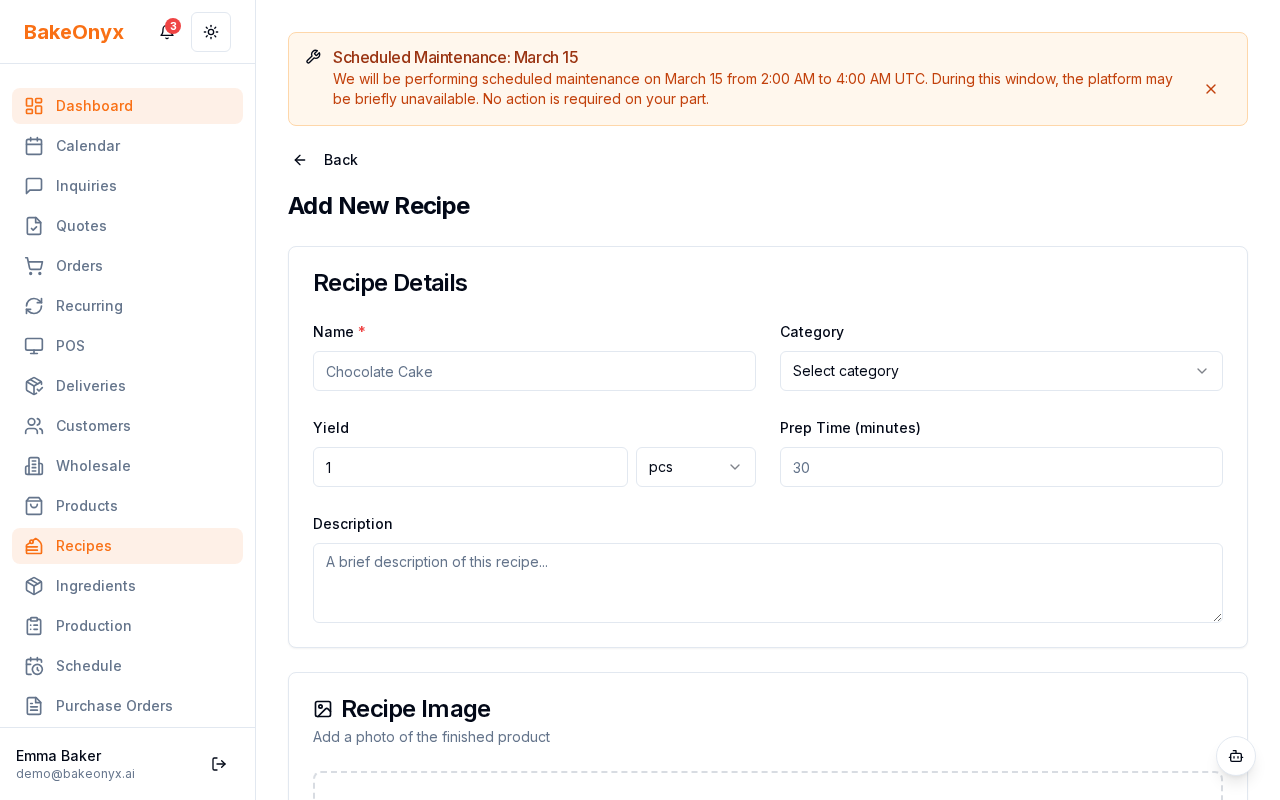
Step 4: Add Instructions
In the Instructions field, write clear, step-by-step directions for making your recipe. Include mixing times, temperatures, fermentation periods, and any special techniques. Your team will use these instructions during production, so be as detailed as helpful.
Step 5: Review and Save
Before saving, review your recipe:
- Check that all ingredient quantities are correct
- Verify prep and cook times are accurate
- Review the auto-calculated recipe cost at the bottom of the form
Once everything looks correct, click Save Recipe. Your recipe is now ready to use when creating orders or managing production.
Next Steps
- Understanding Recipe Costing — Learn how BakeOnyx calculates costs and margins for your recipes
- Adding and Managing Ingredients — Create new ingredients and update prices
- Creating a New Order — Use your recipes to fulfill customer orders