Setting Up Your Bakery Profile
Configure your bakery name, address, logo, timezone, currency, and business details.
Setting Up Your Bakery Profile
What you'll learn
- How to enter your bakery's basic information (name, address, contact details)
- How to upload your bakery logo and set your timezone and currency
- Why accurate profile setup matters for orders, invoices, and customer communications
Getting to your bakery profile
Your bakery profile is where BakeOnyx stores all the core information about your business. This is the first step in getting your bakery ready to use the platform.
- Log in to BakeOnyx and go to your Dashboard
- Click the Settings icon (gear icon) in the top right corner
- Select Business from the left menu
You'll now see the Business Profile form where you can add and update your bakery details.
Filling in your bakery information
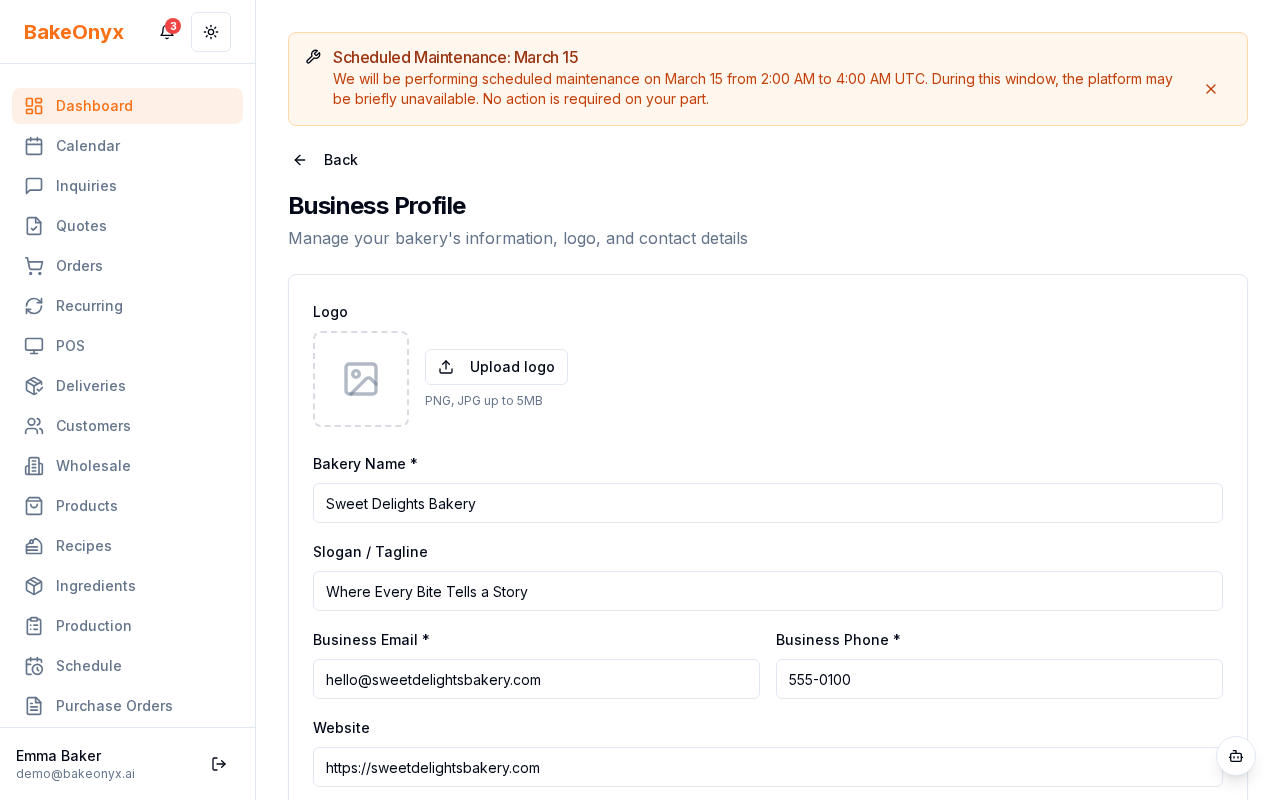
Complete the following fields to set up your profile:
Basic details
- Bakery Name — Enter the name of your bakery as you want it to appear on invoices, receipts, and customer communications
- Phone Number — Add your main contact phone number
- Email Address — Enter the email address customers and team members will use to reach you
Address
- Street Address — Enter your bakery's physical address
- City — Enter your city
- State/Province — Select or type your state or province
- Postal Code — Enter your postal or ZIP code
- Country — Select your country from the dropdown
Note: Your address will appear on invoices, receipts, and delivery labels. Make sure it's accurate so customers know where to pick up orders or where to send payments.
Logo upload
- Click the Upload Logo button
- Select an image file from your computer (PNG or JPG works best)
- Your logo will appear on invoices, receipts, and customer-facing documents
Tip: Use a square logo (1:1 ratio) for the best appearance. A minimum size of 200×200 pixels is recommended. If you don't have a logo yet, you can skip this step and add one later.
Setting your timezone and currency
These settings ensure that order times, delivery dates, and pricing display correctly for your team and customers.
Timezone
- Find the Timezone dropdown
- Search for your timezone or select it from the list (for example, "Eastern Time (US & Canada)")
- This timezone will be used for all order timestamps and delivery schedules in BakeOnyx
Currency
- Find the Currency dropdown
- Select your currency (for example, USD, CAD, EUR, GBP)
- All prices, invoices, and reports will display in this currency
Warning: Changing your timezone or currency after you've created orders may affect how historical data is displayed. Set these correctly from the start if possible.
Saving your profile
- Review all the information you've entered
- Click the Save Changes button at the bottom of the form
- You'll see a confirmation message that your profile has been updated
Your bakery profile is now set up! You can return to this page anytime to update your information.
Next steps
Now that your bakery profile is configured, you're ready to:
- Complete the full onboarding walkthrough to set up the rest of your bakery
- Create your first order to start taking customer orders
- Create recipes to track ingredients and production costs
Was this article helpful?