The Ingredient Lifecycle
Follow an ingredient from purchase through stock, recipe usage, production deduction, waste tracking, and reorder.
The Ingredient Lifecycle
- Follow an ingredient from purchase through stock, recipe use, production, and waste tracking
- Understand how ingredient costs flow into recipe pricing and order profitability
- Learn when and how to reorder ingredients before you run out
Overview: The Journey of an Ingredient
Every ingredient in BakeOnyx follows a predictable path: you add it to your system, purchase it, receive it into stock, use it in recipes, deduct it during production, track any waste, and reorder when supplies run low. Understanding this lifecycle helps you manage costs, avoid stockouts, and maintain accurate inventory.
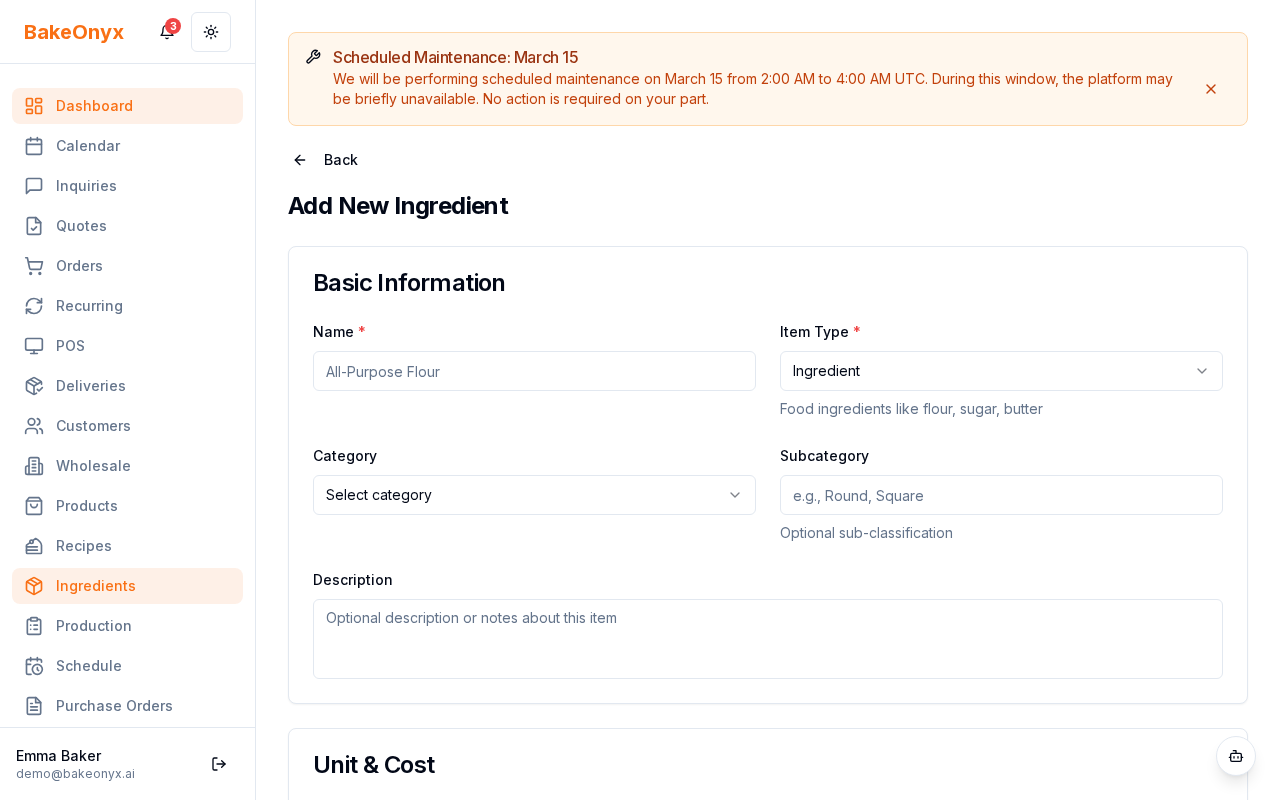
Step 1: Add Your Ingredient
Before you can purchase or use an ingredient, it must exist in your BakeOnyx system.
- Go to Dashboard → Ingredients
- Click + New Ingredient
- Fill in the ingredient details:
- Name — e.g., "All-Purpose Flour"
- Unit — kg, g, lbs, pcs, etc.
- Category — Flour, Sugar, Dairy, etc.
- Cost per Unit — your current purchase price
- Reorder Point — minimum stock level before alerts trigger
- Preferred Supplier — optional, for quick PO creation
- Click Save
Step 2: Create a Purchase Order
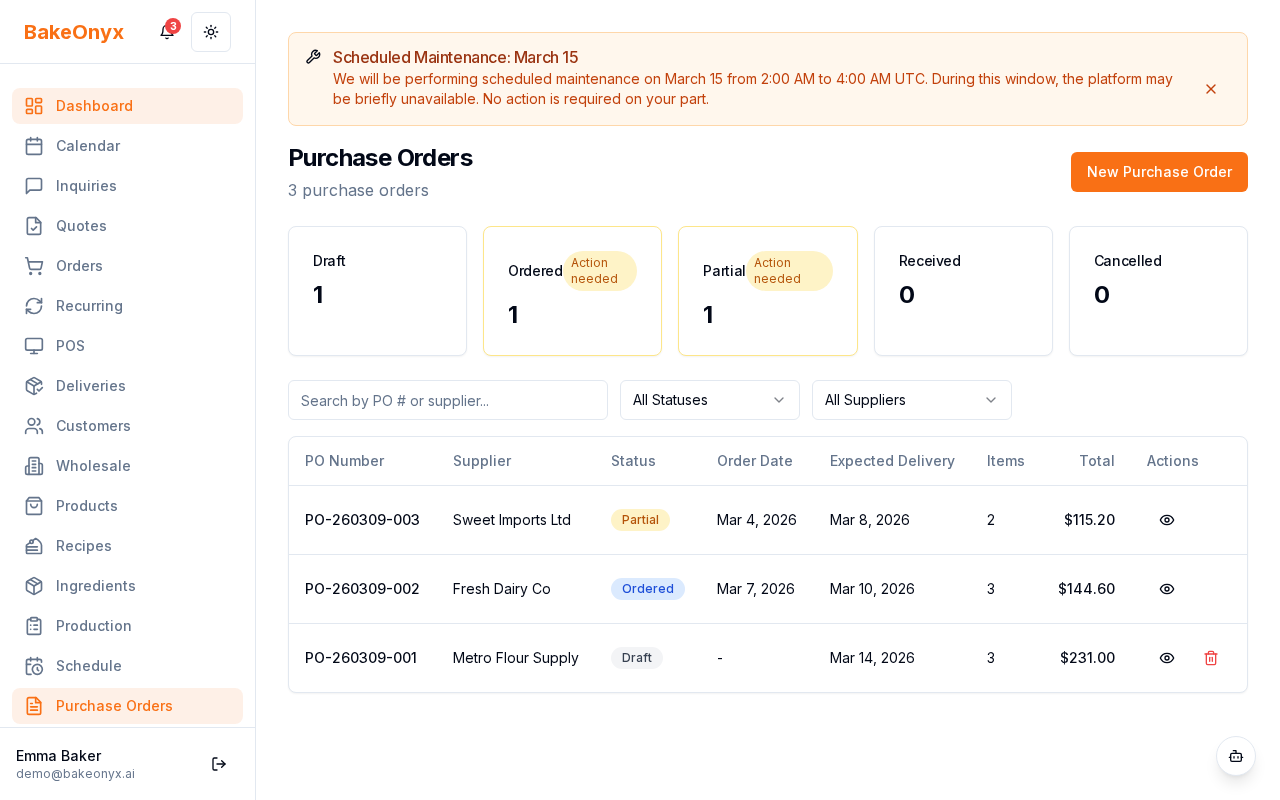
When you need to buy ingredients, create a Purchase Order (PO) to send to your supplier.
- Go to Dashboard → Purchase Orders
- Click + New Purchase Order
- Select your supplier and add line items with:
- The ingredient name
- Quantity ordered
- Unit price quoted by the supplier
- Review the total cost and click Send to Supplier
Step 3: Receive Stock
When your delivery arrives, you must receive the PO in BakeOnyx to update your stock levels and record the actual cost paid.
- Go to Dashboard → Purchase Orders
- Find the PO and click Receive
- For each line item, enter:
- Actual Quantity Received — may differ from what you ordered
- Actual Unit Price — update if the supplier charged a different price
- Click Confirm Receipt
BakeOnyx automatically:
- Increases the ingredient's current stock
- Creates an inventory log entry (marked as "restock")
- Updates the ingredient's cost per unit if the price changed
Step 4: Use in Recipes
When you create a recipe, you specify exactly how much of each ingredient it requires. BakeOnyx automatically calculates the recipe's total ingredient cost based on current ingredient prices.
If you later change an ingredient's cost per unit, all recipes using that ingredient update automatically — no manual work needed.
Step 5: Deduct During Production
When you fulfill a customer order, a production task shows which ingredients are needed (scaled by order quantity). The baker reviews the task and clicks Deduct to confirm and remove ingredients from stock.
Step 6: Track Waste
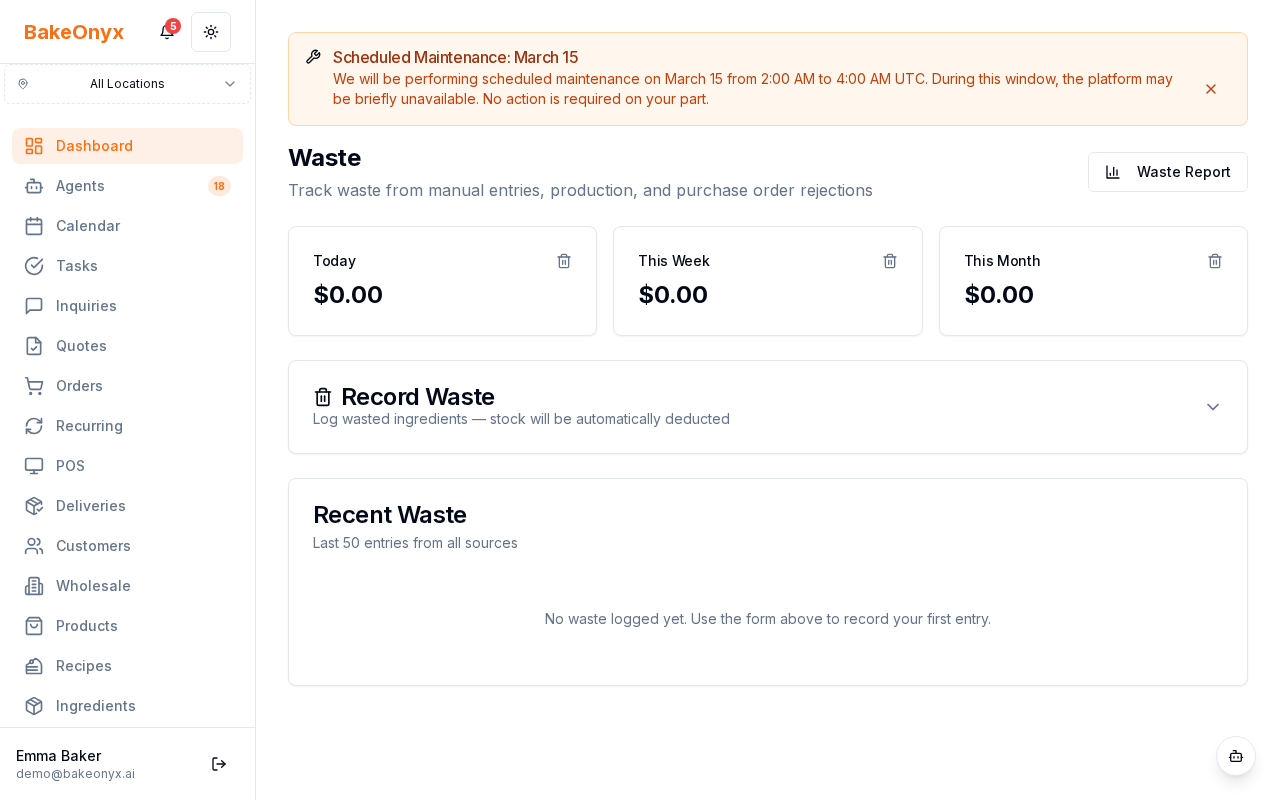
Waste reduces your profit margin. BakeOnyx tracks waste three ways:
- Manual Waste Logs — Record spoiled, expired, or over-portioned ingredients with a reason and quantity
- PO Receiving Rejections — Mark damaged goods when receiving a delivery
- Production Waste — Log waste quantity during production tasks
All waste appears in your Waste & Shrinkage report for analysis.
Step 7: Reorder When Stock Runs Low
When an ingredient's stock falls below its reorder point, BakeOnyx sends you a low-stock alert. You can:
- Manually create a new Purchase Order
- Use the AI reorder suggestion, which predicts when you'll run out and recommends order quantities
- Enable auto-reorder to create draft POs automatically based on forecasts
The Cost Flow
Understanding how costs flow through BakeOnyx helps you price orders correctly:
- Purchase Cost — You pay your supplier a unit price
- Ingredient Cost per Unit — Stored in BakeOnyx and updated with each purchase
- Recipe Cost — Sum of all ingredient costs in the recipe
- Order COGS — Recipe cost × quantity ordered
- P&L Profit — Order revenue minus COGS
When ingredient costs change, recipe costs and order profitability update automatically.
Next Steps
- Creating a Recipe — Learn how to build recipes and link ingredients
- Creating Purchase Orders — Master the full PO workflow
- Reports Overview — View waste, inventory, and cost reports