Creating Purchase Orders
Create purchase orders for your suppliers with line items, quantities, and costs.

Creating Purchase Orders
- How to create a new purchase order for your suppliers
- How to add line items with ingredients, quantities, and costs
- How purchase order numbers are automatically generated and tracked
Overview
Purchase orders (POs) are your formal requests to suppliers for ingredients and supplies. In BakeOnyx, you can create, manage, and track POs all in one place. Each PO automatically gets a unique number, and you can add as many line items as you need. Your supplier details—like payment terms and lead time—are pulled directly from your supplier profile, so everything stays consistent.
Note: Purchase orders are a Professional+ tier feature. If you don't see the Purchase Orders menu, check your plan or contact support.
Step-by-step: Creating a Purchase Order
Step 1: Navigate to Purchase Orders
- Log in to BakeOnyx and go to your dashboard.
- Click Purchase Orders in the left menu.
- Click the Create New PO button (top right).
Step 2: Select Your Supplier
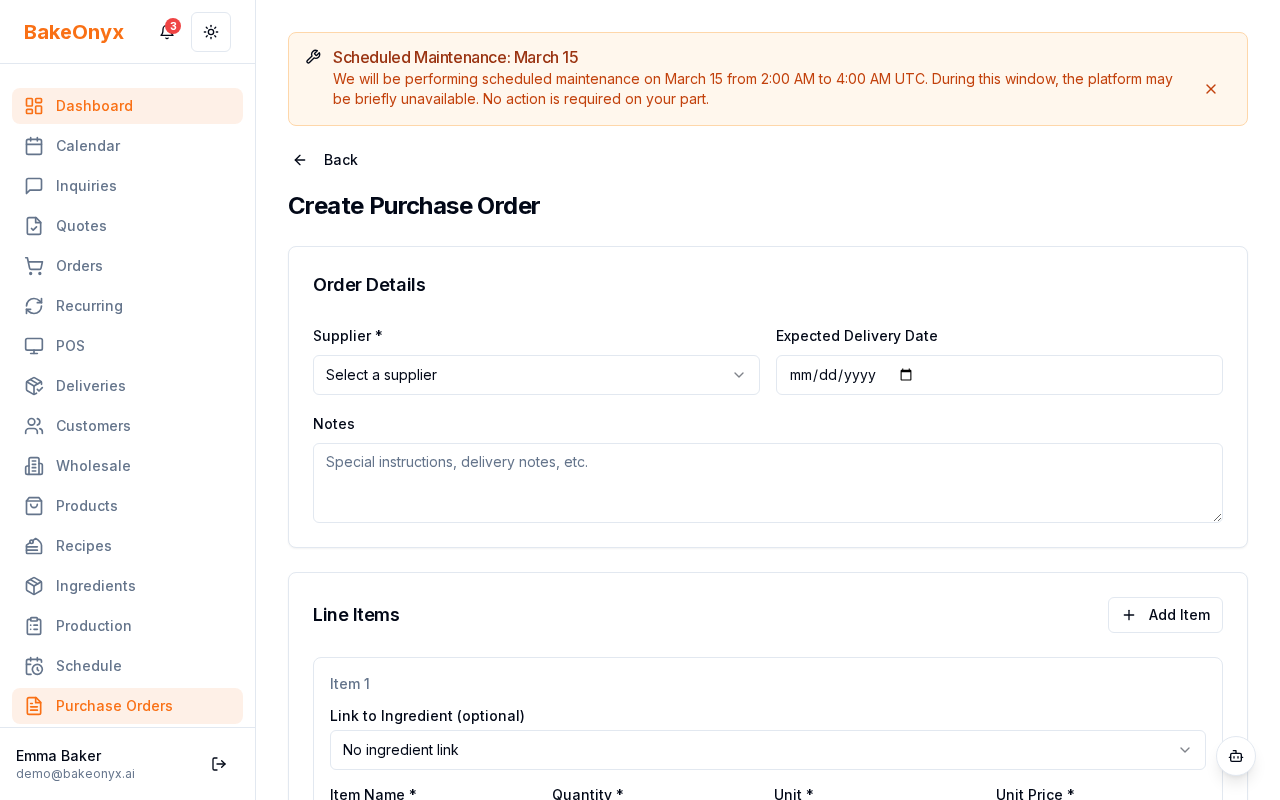
- On the purchase order form, find the Supplier field.
- Click the dropdown and select the supplier you're ordering from.
- BakeOnyx will automatically fill in:
- Supplier name and contact details
- Payment terms (e.g., Net 30)
- Lead time (how long delivery usually takes)
Step 3: Add Line Items
- Scroll down to the Line Items section.
- Click Add Item to add your first ingredient or supply.
- Fill in each field:
- Ingredient: Select from your ingredient list (or add a new one)
- Quantity: How many units you're ordering
- Unit: The measurement type (e.g., lbs, kg, cases, boxes)
- Unit Price: The cost per unit
- The Line Total will calculate automatically (quantity × unit price).
- Repeat to add more items. Click Add Item again for each one.
Tip: If you order the same ingredients regularly, look for recent POs to your supplier. You can often copy line items from a previous order to save time.
Step 4: Review Totals and Costs
- Scroll to the bottom of the form to see the cost summary:
- Subtotal: Sum of all line items
- Shipping: Add shipping costs if applicable
- Tax: Automatically calculated based on your settings
- Total: Your final PO amount
- If you need to add shipping or adjust tax, click the fields to edit them.
Step 5: Save Your Draft
- Click Save as Draft at the bottom of the form.
- Your PO will be saved with a unique number in the format
PO-YYMMDD-NNN(for example,PO-250115-001). - The PO status will show as Draft.
Warning: Draft POs can be edited freely. Once you send a PO to your supplier, you'll want to review it carefully. Make any changes now before sending.
Step 6: Send Your PO (Optional)
- When you're ready, click Send to Supplier.
- The PO status will change to Sent.
- Your supplier will receive the order (via email or your supplier portal, depending on your setup).
Editing and Managing Your POs
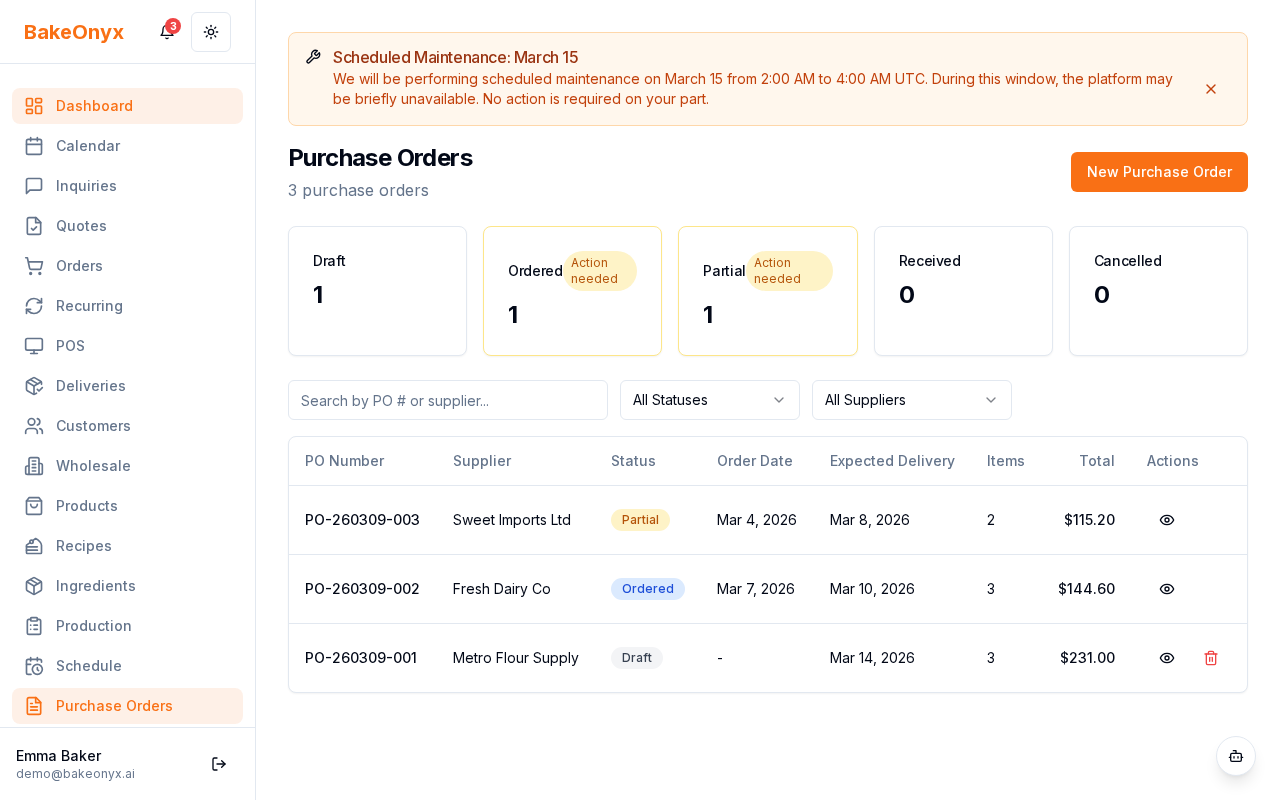
You can edit a PO as long as it's in Draft status. Once sent, you'll need to cancel it and create a new one if you want to make changes. All your POs are listed on the Purchase Orders page, where you can filter by supplier, date, or status.
Next Steps
- Receiving Purchase Orders — Learn how to mark items as received and update your inventory
- Adding and Managing Ingredients — Set up your ingredient list for use in purchase orders
- Creating a New Order — Create customer orders from your available inventory
Was this article helpful?