Tracking Waste and Spoilage
Record ingredient waste, spoilage, and production losses to monitor waste costs and improve efficiency.
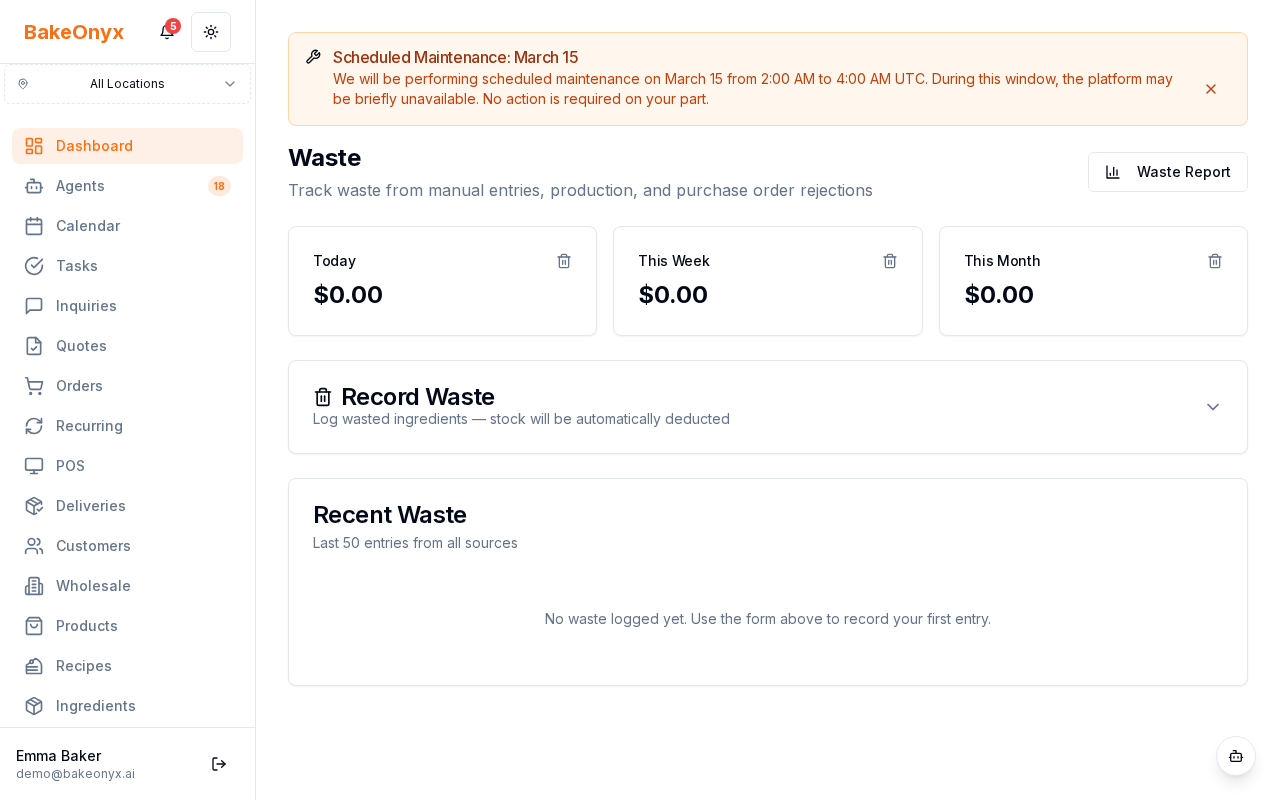
Log ingredient waste — from spoilage, damage, or overproduction — so you can see what it costs you and spot patterns to cut losses. Waste is captured from manual entries, purchase orders, and production. Here's how.

Why Track Waste?
Every ingredient that doesn't make it into a finished product costs your bakery money. By tracking waste—whether it's flour that expired, dough that didn't rise, or damaged goods from delivery—you can see exactly where losses happen and take steps to prevent them. BakeOnyx logs waste from three sources: manual waste entries, rejected items during purchase order receiving, and production losses.
Logging Manual Waste
The most common way to record waste is to manually log it when you discover spoiled or damaged ingredients.
- Go to Dashboard and select Waste Log from the menu.
- Click the + New Waste Entry button.
- Select the Ingredient that was wasted from the dropdown list.
- Enter the Quantity Wasted in the unit used for that ingredient (pounds, cups, units, etc.).
- Choose the Reason for the waste:
- Expired: Ingredient passed its use-by date
- Damaged: Packaging torn, product crushed, or otherwise unusable
- Overproduction: Made too much and couldn't sell it
- Quality Issue: Didn't meet your standards (wrong color, texture, taste)
- Contamination: Exposed to allergens or foreign objects
- Other: Any other reason—you'll add a custom note
- If you selected Other, type a brief description in the Notes field.
- Click Save Waste Entry.
Waste from Purchase Orders
When you receive a delivery, sometimes items arrive damaged or don't meet your standards. BakeOnyx automatically logs this as waste.
- When receiving a purchase order, if any items are damaged or rejected, note the quantity in the receiving process.
- BakeOnyx records the cost of rejected items and logs them as waste from the purchase order source.
- These entries appear in your Waste Log with the source labeled as Purchase Order.
Waste from Production
During production, some dough or batter doesn't make it into finished products. When you complete a production task, you can record how much was wasted.
- When finishing a production task, enter the Waste Quantity in the task completion form.
- BakeOnyx automatically logs this as production waste and deducts it from your inventory.
- These entries appear in your Waste Log with the source labeled as Production.
Viewing and Analyzing Waste
Your Waste Log shows all waste entries in one place, including the date, ingredient, quantity wasted, cost impact, reason, and source. Use this to:
- Spot which ingredients waste the most
- Identify the top reasons for waste (expiration, damage, overproduction)
- Track waste costs over time
- Find patterns—for example, if you're wasting a lot of a specific ingredient, you might need to adjust recipe quantities or ordering amounts
For detailed waste analysis, check out the Reports section, which breaks down waste by ingredient, reason, and time period.
Next Steps
- Reports Overview — Learn how to generate waste reports to identify cost-saving opportunities
- Creating Purchase Orders — Optimize your orders to reduce overstock and spoilage
- Creating a Recipe — Fine-tune recipe quantities to reduce production waste