Creating and Managing Promo Codes
Create discount codes with percentage or fixed-amount discounts, usage limits, and date ranges.
Create discount codes for your online store under Storefront → Promo Codes — percentage or fixed-amount, with usage limits, date ranges, and minimum-order rules. They apply automatically at checkout. Here's how to create and manage them.
Accessing Your Promo Codes
- Log in to your BakeOnyx dashboard
- Navigate to Storefront in the left menu
- Click Promo Codes
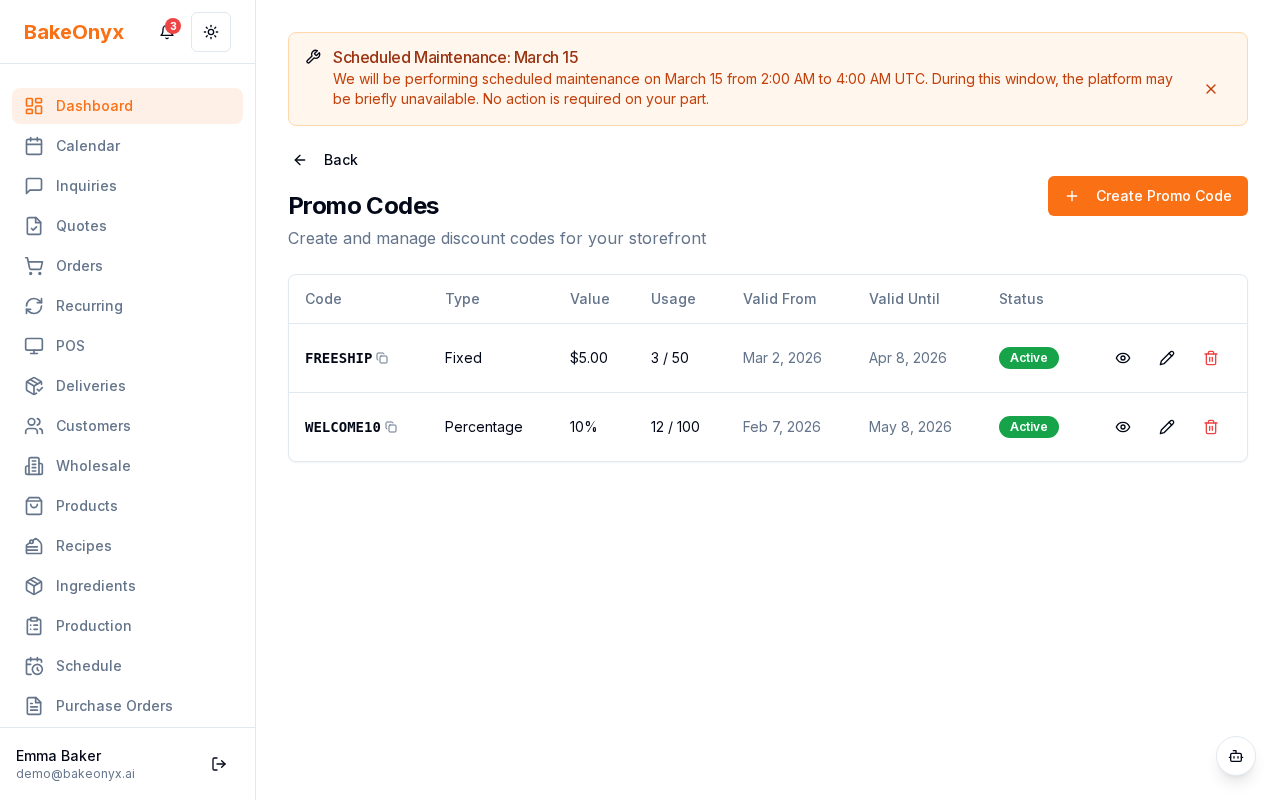
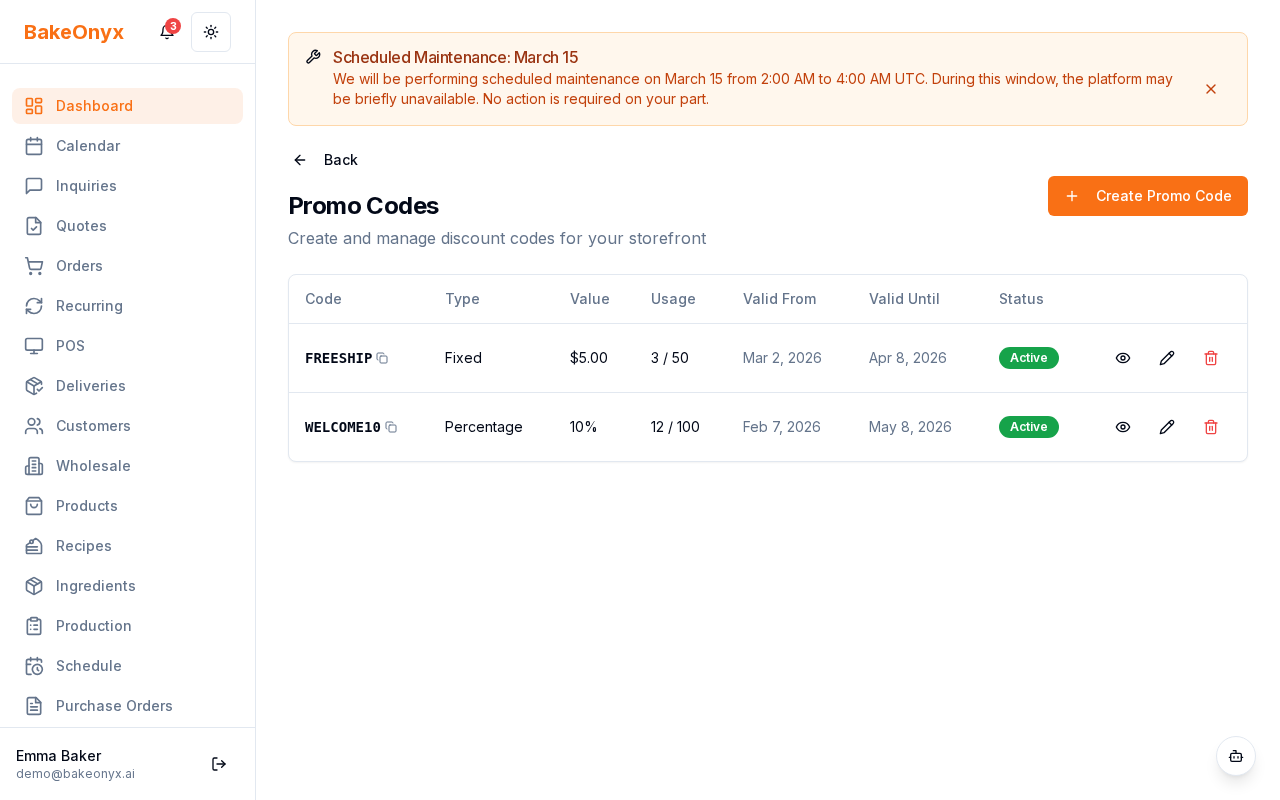
You'll see a list of all your existing promo codes with their status, discount amount, and usage statistics.
Creating a New Promo Code
- Click the Create Promo Code button
- Enter a Code — this is what customers will type at checkout (e.g.,
SUMMER20orLOYALTY10). Make it memorable and easy to type - Choose your Discount Type:
- Percentage — discount a percentage off the order (e.g., 15% off)
- Fixed Amount — discount a set dollar amount (e.g., $5 off)
- Enter the Discount Value — the percentage or dollar amount
- Set a Minimum Order Amount (optional) — customers must spend at least this much for the code to apply
- Set a Maximum Discount Cap (optional) — limits the total discount, useful for percentage discounts on large orders
Setting Usage Limits and Dates
- Enter a Usage Limit (optional) — the maximum number of times the code can be used across all customers
- Enter a Per-Customer Limit (optional) — how many times one customer can use the code
- Set a Start Date — when the code becomes active
- Set an End Date — when the code expires
Tip: Leave the usage limit blank if you want the code to work indefinitely. This is great for permanent loyalty codes or referral discounts.
Targeting Specific Products or Categories
You can limit a promo code to specific products or product categories, or leave it open for all items:
- Under Applies To, choose whether the code applies to:
- All Products — the discount works on any item in your store
- Specific Categories — select which product categories qualify (e.g., "Cupcakes" or "Custom Cakes")
- Specific Products — choose individual products that qualify for the discount
- If targeting categories or products, select them from the dropdown list
Note: If you select both categories and products, the code will apply to items in those categories OR the individual products you selected.
Activating Your Promo Code
- Toggle the Active switch to On to make the code live
- Click Save
Your promo code is now live and customers can use it at checkout. The discount will calculate automatically based on their order.
Managing Existing Promo Codes
From the promo codes list, you can:
- View usage — see how many times a code has been used
- Edit a code — click the code name to modify discount amounts, dates, or limits
- Deactivate a code — toggle the Active switch off to pause a code without deleting it
- Delete a code — permanently remove a code (this cannot be undone)
Warning: Deleting a promo code is permanent. If you want to stop using a code temporarily, deactivate it instead.
Best Practices for Promo Codes
- Use clear, branded code names customers will remember
- Set end dates for seasonal or limited-time promotions to create urgency
- Monitor usage counts to track promotion performance
- Test codes yourself at checkout before promoting them to customers
- Pair promo codes with email campaigns or social media announcements for maximum impact
Next Steps
- Store Themes and Analytics — track how your promotions impact sales
- Creating a New Order — manually apply promo codes to orders in your dashboard
- Managing Customers — segment customers for targeted promotions
Was this article helpful?