Managing Customers
Add and manage customer profiles with contact details, order history, and notes.
Keep every customer's contact details, full order history, and total spend in one place under Customers — so you serve faster, remember favourites, and spot your best clients. Here's how to add, find, and manage customers.
Accessing Your Customer List
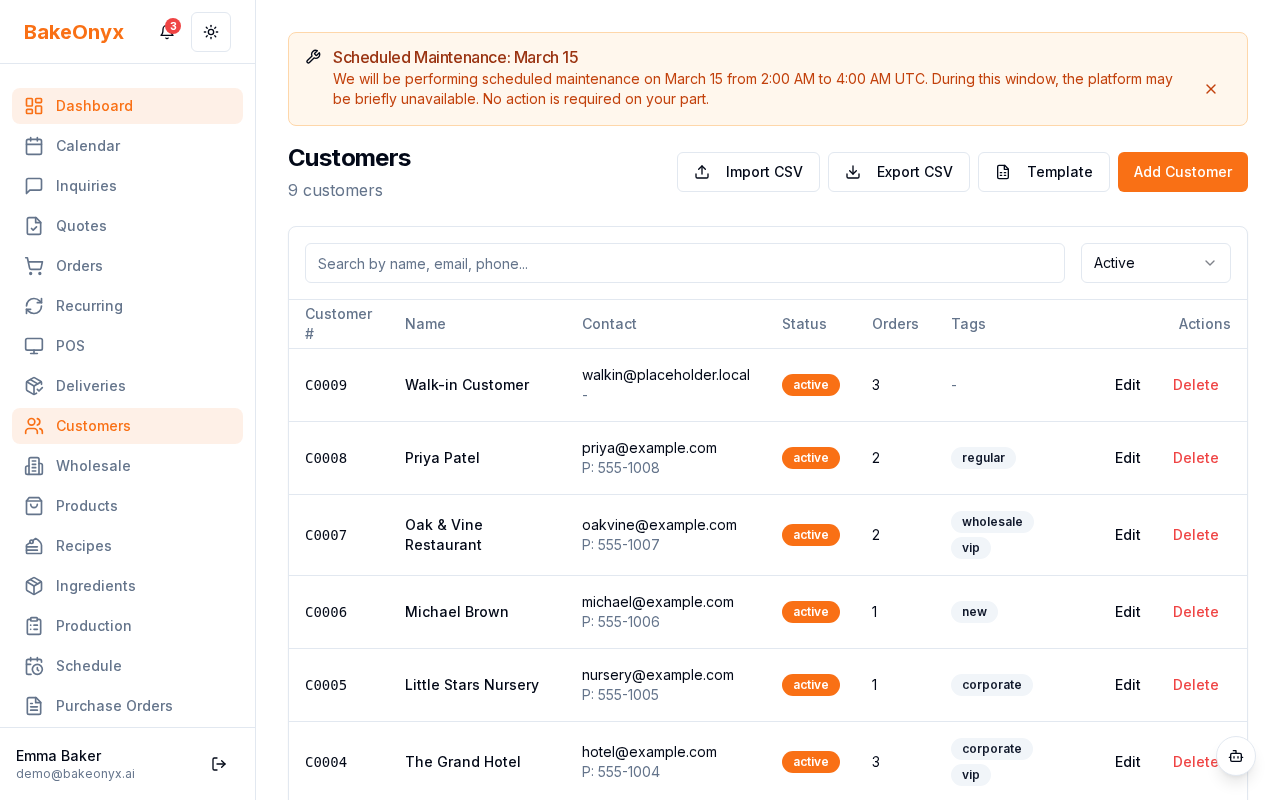
To get started with managing your customers, navigate to the Customers section in the main sidebar menu.
- Click on Customers in the left-hand navigation menu.
This will take you to your customer list, where you can see all your existing customers. From here, you can add new customers or search for existing ones.
Adding a New Customer
There are two main ways to add a new customer: from the customer list or directly when creating an order. We'll cover adding from the customer list here.
- From the Customers list, click the + Add Customer button, usually found at the top right of the list.
- A form will appear. Fill in the customer's First Name and Last Name.
- Enter their Email Address. This is important for sending order confirmations and marketing communications.
- Add their Phone Number.
- If they have a delivery address, enter it in the Address fields.
- In the Notes section, you can add any special information about the customer. This could include allergies, preferences (e.g., "loves chocolate croissants"), or even their birthday for special treats!
- Click Save Customer to add them to your list.
Viewing and Editing Customer Details
Each customer has a dedicated detail page where you can see all their information and history.
- From the Customers list, click on a customer's name.
This will open their Customer Detail page. Here you'll find:
- Contact Information: Their name, email, phone, and address.
- Order History: A list of all past orders placed by this customer, including dates, items, and total amounts.
- Total Spent: The total amount of money this customer has spent with your bakery.
- Average Order Value: The average amount they spend per order.
- Notes: Any notes you've added about the customer.
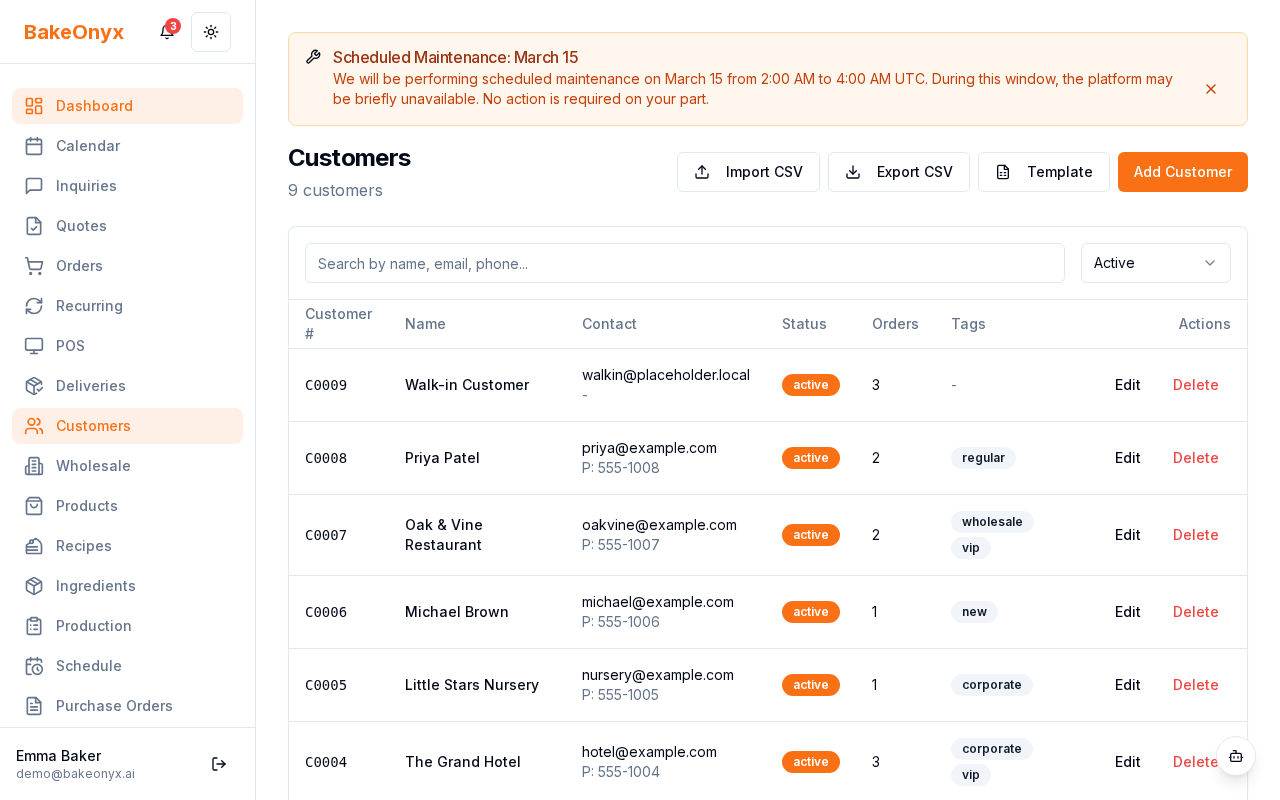
To edit any of their information, click the Edit button on the Customer Detail page. Make your changes and click Save Changes.
Searching for Customers
As your customer list grows, finding specific customers quickly is essential.
- Go to the Customers list.
- In the Search Customers bar at the top of the list, type any part of the customer's name, email address, or even phone number.
The list will automatically filter to show only the customers that match your search query. This makes finding the right customer to link to an order very fast.
Next Steps
Now that you know how to manage your customer profiles, you might want to explore these related features: