Store Themes and Analytics
Customize your store appearance with themes and track sales performance with store analytics.
Store Themes and Analytics
- How to customize your online store's appearance with pre-built themes
- How to track sales performance and customer behavior with store analytics
- How to use abandoned cart recovery to win back lost sales
Customize Your Store with Themes
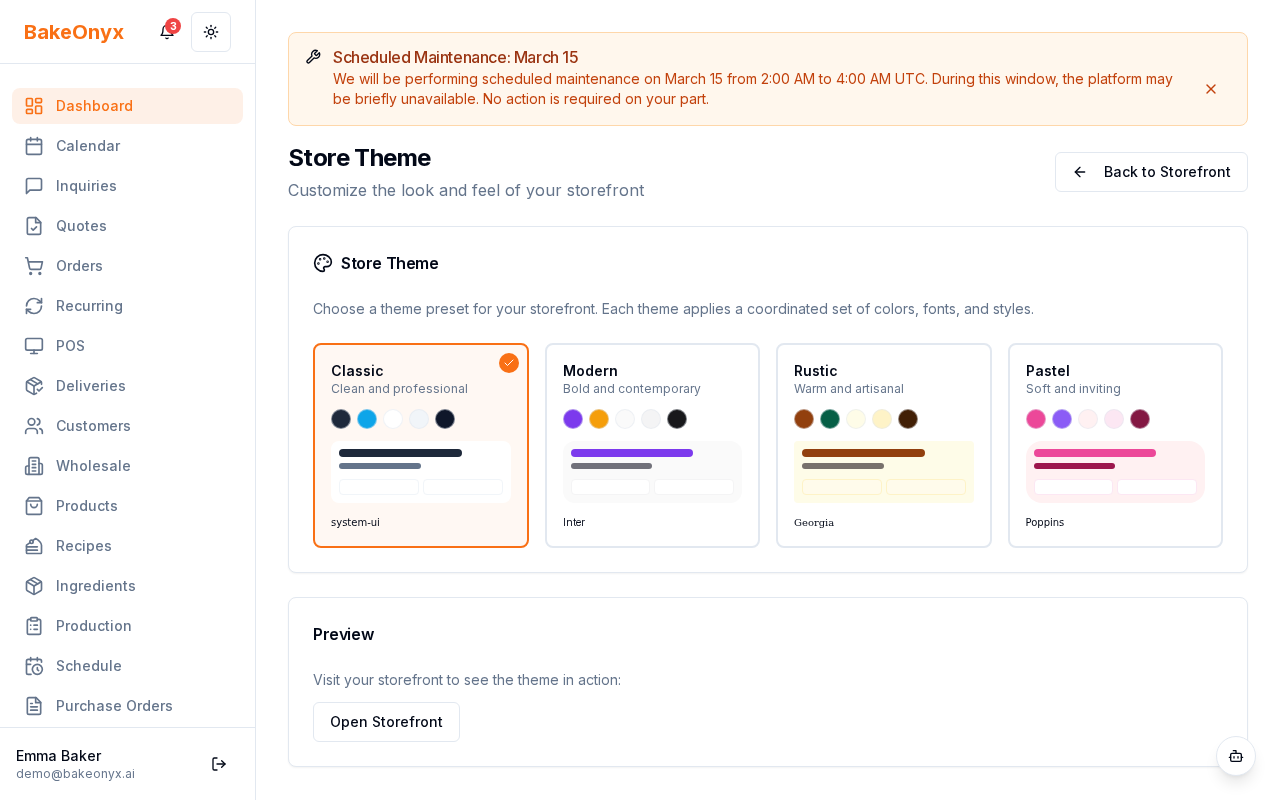
Your BakeOnyx online store comes with professionally designed themes that let you control how your bakery looks to customers—without any coding. Themes control your store's colors, fonts, and overall layout style.
Choosing and Applying a Theme
- Log in to your BakeOnyx dashboard and go to Storefront in the main navigation.
- Click the Theme tab.
- Browse the available pre-built themes. Each theme shows a preview of how your store will look.
- Click on the theme you want to use to see a larger preview.
- Click Apply Theme to activate it on your live store.
Track Your Store Performance with Analytics
Analytics show you exactly how your online store is performing. You'll see how many customers visit, how many buy, what products are popular, and where customers drop off in the checkout process.
Viewing Your Store Analytics
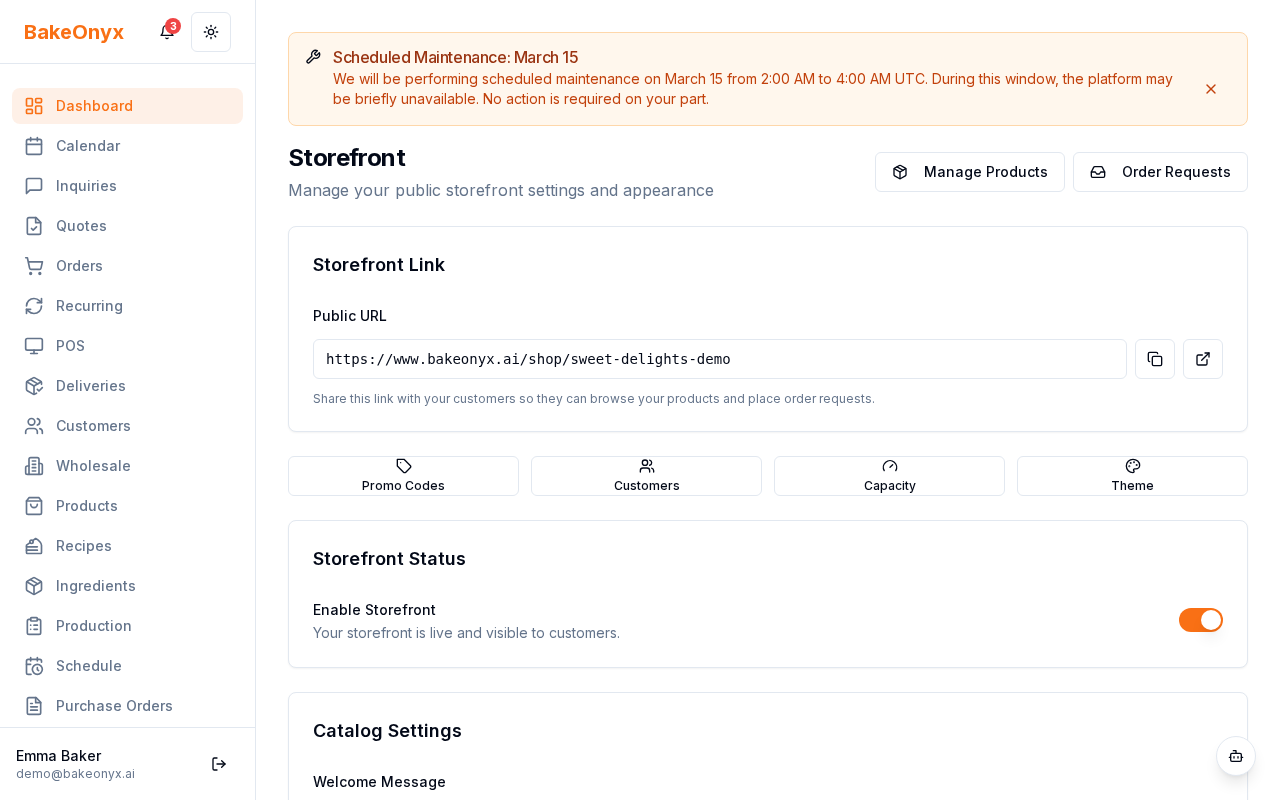
- Go to Storefront in your dashboard.
- The Analytics section displays automatically on the main Storefront page.
- Review the key metrics displayed:
- Store Views: Total number of times customers visited your store
- Conversion Rate: Percentage of visitors who made a purchase
- Revenue: Total sales from your online store
- Popular Products: Your best-selling items
- Cart Abandonment Rate: Percentage of customers who added items to their cart but didn't complete the purchase
Understanding Cart Abandonment
Cart abandonment happens when customers add items to their cart but leave without buying. BakeOnyx automatically sends friendly reminder emails to these customers, encouraging them to complete their order.
The abandoned cart recovery system runs automatically every hour, checking for carts that have been abandoned. If a customer left items in their cart, they'll receive a reminder email with a link to complete their purchase. Old, expired carts are cleaned up automatically each day.
Using Analytics to Improve Your Store
Use these insights to make smarter decisions about your online store:
- Low conversion rate? Simplify your checkout process or highlight your best products more prominently.
- High cart abandonment? Check if shipping costs or payment options are turning customers away. The abandoned cart recovery emails help recover some of these lost sales.
- Popular products trending? Stock up on these items and feature them on your store homepage.
- Low store views? Consider promoting your online store through email, social media, or local marketing.
Next Steps
- Online Store to Kitchen: Storefront Order Flow — Learn how orders from your online store flow into your kitchen
- Creating a New Order — Manually create orders for phone or in-person customers
- Managing Customers — Organize and track customer information