Online Store to Kitchen: Storefront Order Flow
How a customer order flows from your online storefront through checkout, payment, and into your kitchen.
Online Store to Kitchen: Storefront Order Flow
- Understand how customer orders move from your online storefront to your kitchen
- Learn where storefront orders appear in your dashboard and how to manage them
- See how storefront orders differ from orders you create manually
How a Storefront Order Works: From Browse to Bake
When a customer orders from your online bakery store, the order follows a clear path from their browser to your kitchen. Here's exactly what happens at each step.
Step 1: Customer Browses Your Store
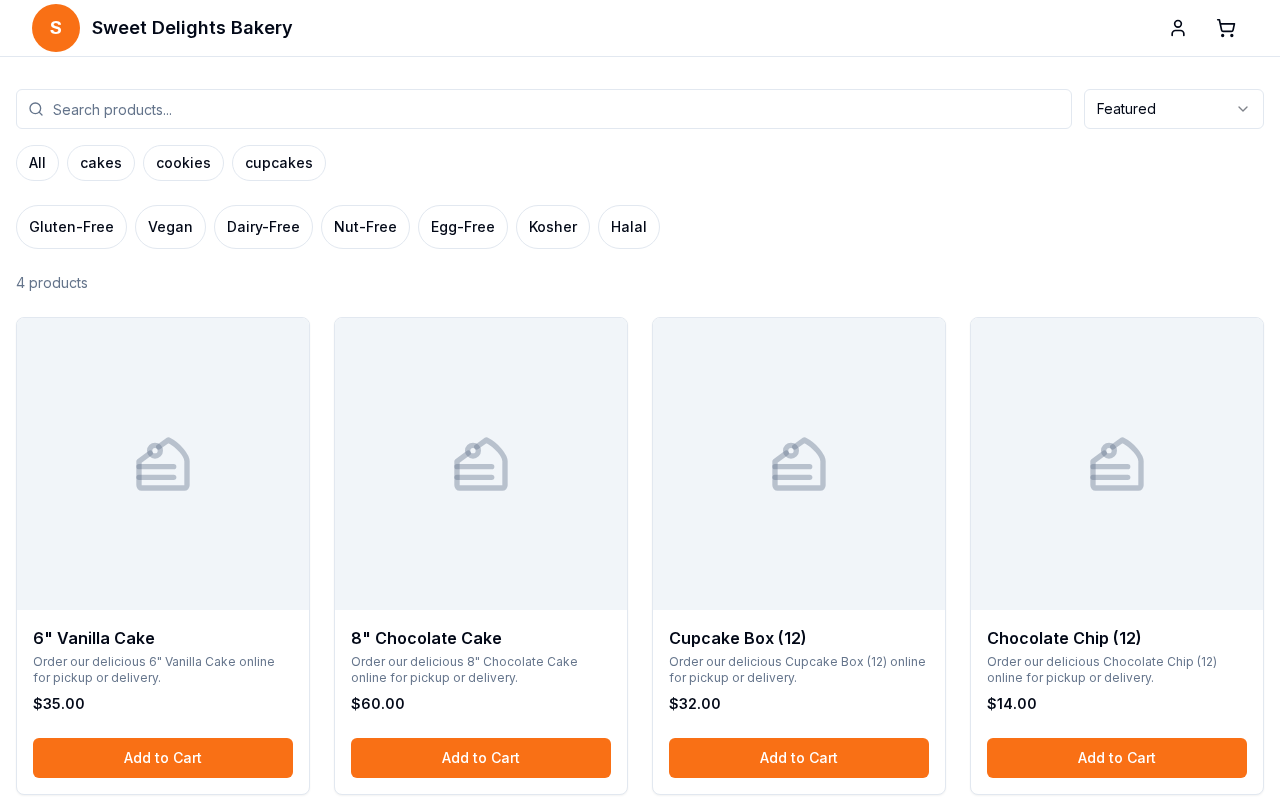
Your customer visits your online storefront at /shop/[yourBakeryName]. They see your products organized by category, each with images, prices, and descriptions. This is where they discover what you're offering.
Step 2: Customer Builds Their Cart
As customers add items to their cart, they can:
- Select product variants (size, flavor, or other options)
- Enter special instructions or custom requests
- Continue shopping and modify quantities
Their cart is saved automatically, so if they leave and come back later, their items are still there. If they create an account and log in, any guest cart they had merges with their account.
Step 3: Customer Proceeds to Checkout
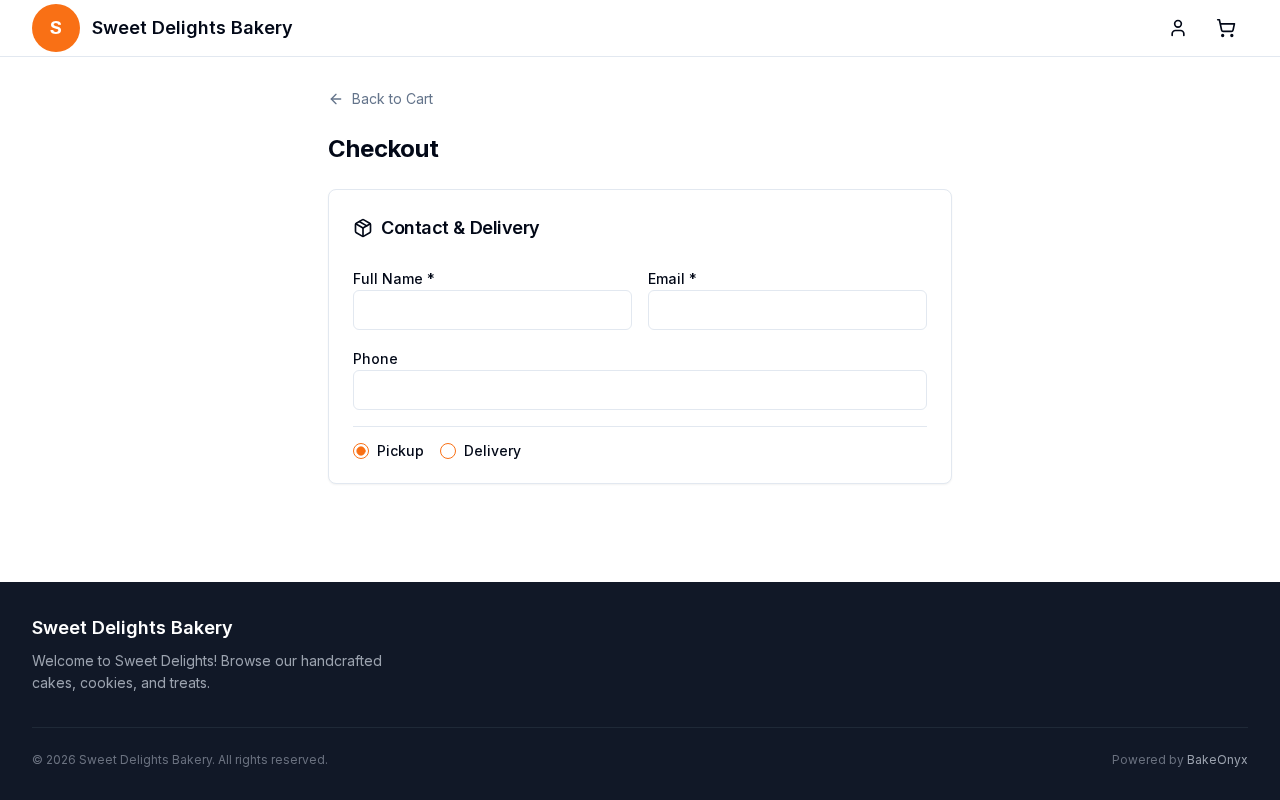
At checkout, the customer enters:
- Delivery or pickup details (address, contact info)
- Delivery zone and time slot (if you offer delivery)
- Payment information
Step 4: Payment is Processed
BakeOnyx processes payment through either Stripe Connect or Square (depending on your setup). Once payment succeeds, the order is created in your system with the source marked as Storefront. Your customer receives a confirmation email automatically.
Step 5: Order Appears in Your Dashboard
The completed order now shows up in your Orders list with a "Storefront" badge. From here, you manage it just like any other order:
- Assign it to a production team member
- Print the job sheet for your kitchen
- Prepare and bake the items
- Deduct inventory as you use ingredients
- Update the order status as it moves through production
Step 6: You Get an Email Alert
As soon as the order is placed, BakeOnyx emails your team a "New Online Order" alert with the customer, items, total, and pickup/delivery details, plus a button to review the order. Online orders never sit unseen in your Orders list.
You control this alert on the Notifications settings page — switch "New online order alerts" on or off, and choose which team roles receive it under Notification Recipients.
How Storefront Orders Differ from Dashboard Orders
It's helpful to understand the key differences:
- Who creates them: Customers create storefront orders themselves. You create dashboard orders manually for phone, in-person, or other sales.
- Payment timing: Storefront orders are paid at checkout. Dashboard orders are typically paid after you create them.
- Customer accounts: Storefront customers have their own login and order history. Staff members use your bakery's staff login.
- Notifications: Customers receive automatic emails when their order status changes. You control when staff get notified.
Managing Storefront Orders in Your Kitchen
Once an order lands in your dashboard, treat it like any other order. Assign it to a baker, print the job sheet, and follow your normal production workflow. The main difference is that the customer has already paid and will receive automatic status updates—so make sure you're updating the order status as it progresses.
Next Steps
- Creating a New Order — Learn how to manually create orders for phone or in-person sales
- Setting Up Delivery Zones — Configure delivery areas and time slots for your online store
- Managing Customers — View and manage customer accounts and order history