POS Checkout and Payments
Process payments at the counter with cash, card, or mixed payment methods.
POS Checkout and Payments
- Process customer payments using cash, card, or a combination of both
- Apply discounts and handle change calculations automatically
- Complete orders quickly with a streamlined checkout flow
Understanding the Checkout Process
The POS checkout panel is designed to get customers out the door fast. Once you've added items to the cart, you'll move to the payment step where you can accept cash, card, or split payments between multiple methods. Tax is calculated automatically based on your bakery's settings, and the system tracks which staff member processed each sale.
Processing a Payment
Step 1: Review Your Cart
Before moving to payment, check the cart panel on the left side of your screen. You'll see:
- Each item with its quantity and individual price
- A running total at the bottom
- Options to adjust quantities or remove items if needed
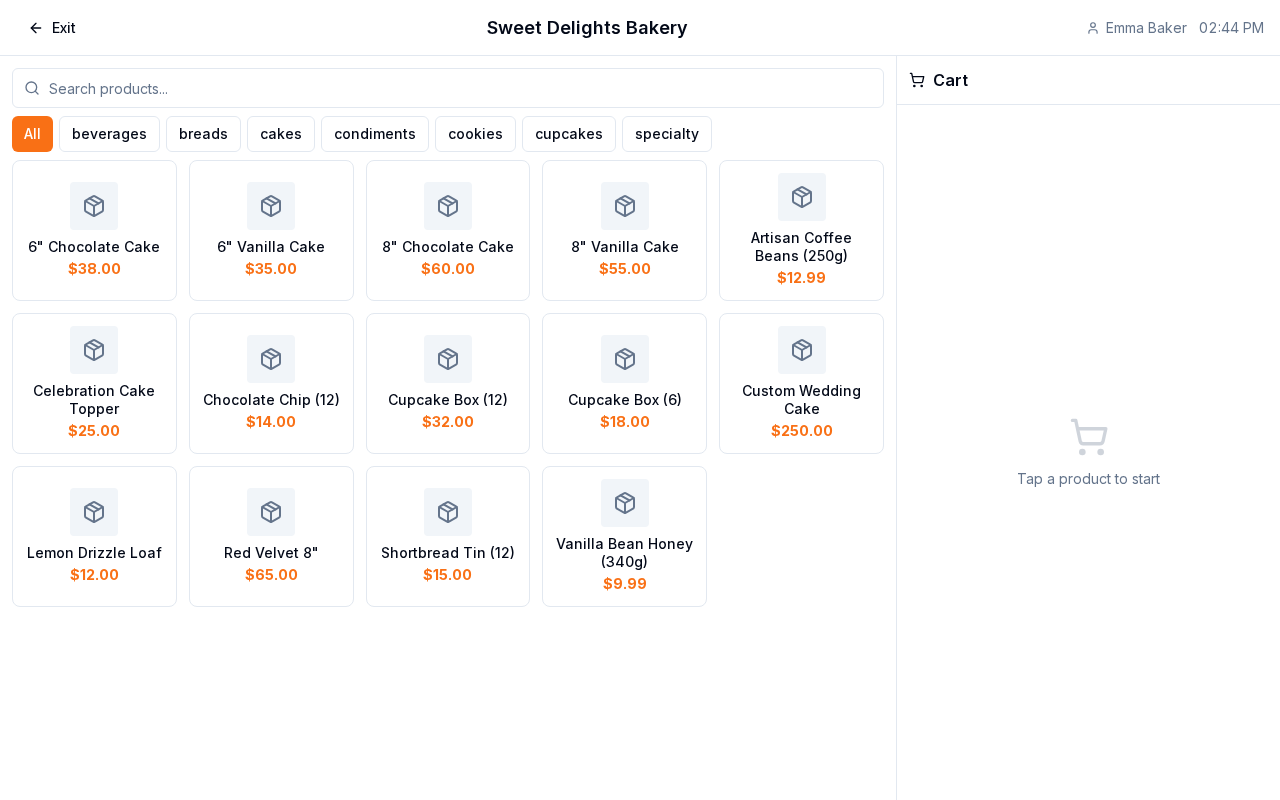
Make any final adjustments to quantities or items before proceeding to payment.
Step 2: Apply Discounts (Optional)
If the customer qualifies for a discount, you can apply it before payment:
- Look for the Discount field in the cart panel
- Choose whether to apply a percentage discount (e.g., 10%) or a fixed amount (e.g., $2.00)
- Enter the discount value
- The total will update automatically
Step 3: Select a Payment Method
Click the Payment button or tab to open the payment panel.
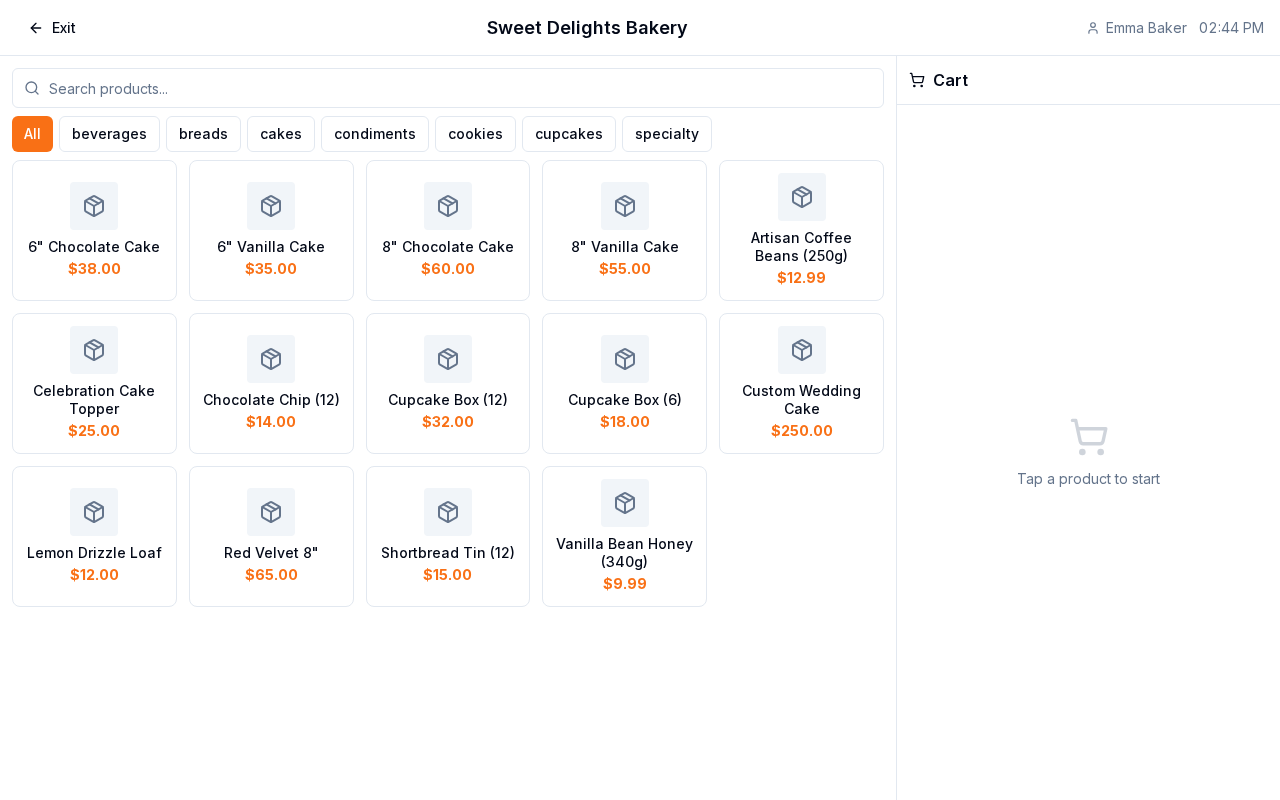
You'll see three payment options:
- Cash: Enter the amount the customer gives you, and the system calculates change automatically
- Card: Process credit or debit card payments directly through your payment processor
- Split Payment: Accept part cash and part card if the customer wants to pay with both methods
Step 4: Process Cash Payment
- Select Cash as the payment method
- Enter the amount the customer is paying in the Amount Tendered field
- The system automatically calculates change due
- Review the change amount and hand it to the customer
- Click Complete Payment to finish the transaction
Step 5: Process Card Payment
- Select Card as the payment method
- Have the customer insert, tap, or swipe their card on your card reader
- Wait for the payment processor to approve the transaction
- Once approved, the order is complete
Step 6: Handle Split Payments
- Select Split Payment
- Enter the amount to be paid by cash
- The remaining balance will automatically be charged to the customer's card
- Process the card payment as described above
- Give the customer their change from the cash portion
After Payment
Once payment is processed, BakeOnyx automatically:
- Creates the order record
- Records which staff member processed the sale (createdByUserId)
- Applies tax based on your bakery's settings
- Generates a receipt (if your setup includes a printer)
Next Steps
- POS Receipts and Staff Tracking — Learn how to print receipts and track sales by staff member
- Creating a New Order — Get started adding items to the cart before checkout
- Creating a Recipe — Set up new bakery items to sell in your POS