Point of Sale Overview
Learn how to use the POS screen for walk-in counter sales, browse products, and process quick orders.
Point of Sale Overview
The BakeOnyx Point of Sale (POS) screen is your command center for fast, efficient counter sales. Whether you're ringing up a customer's croissant and coffee or processing a bulk order for an event, the POS is designed to get you through transactions quickly with minimal clicks.
What you'll learn
- How to navigate the POS screen and find products quickly
- How to add items to a customer's order using the product grid
- How to search and filter products by category
Getting to the POS screen
To access the Point of Sale, navigate to the /pos URL in your browser, or tap the POS button from your BakeOnyx dashboard. The POS screen is optimized for tablet and iPad use, so it works best on larger touchscreens positioned at your counter or in the kitchen.
When you log in, the POS automatically displays your name in the header so customers and team members know who's handling the transaction.
Understanding the POS layout
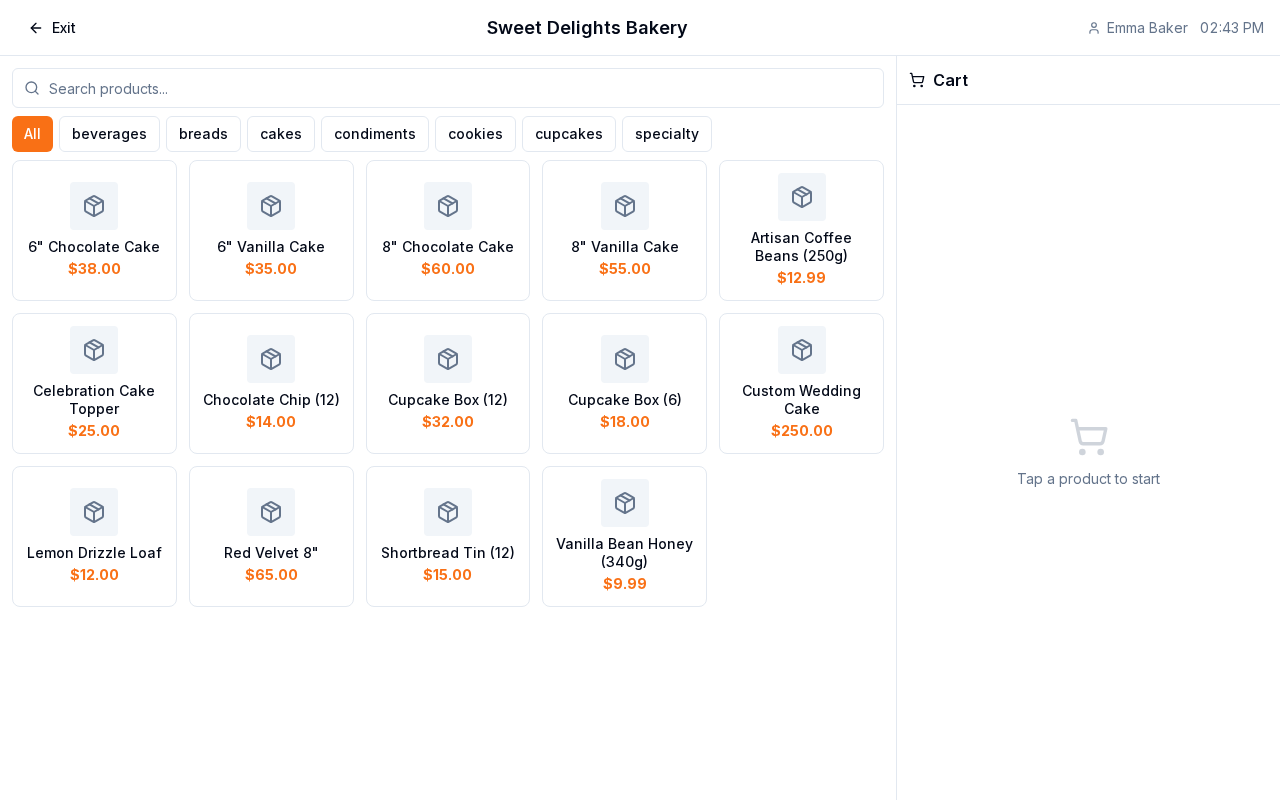
The POS screen is split into two main sections:
- Product Grid (left side): Displays all your bakery items with photos, names, and prices in a touch-friendly layout
- Cart Panel (right side): Shows the current order, item quantities, and the running total
At the top of the screen, you'll see your name as the current cashier, along with search and filter options to help you find products fast.
Finding and adding products
Browse by category
- Look at the category filter buttons near the top of the product grid
- Tap a category (such as Bread, Pastries, or Cakes) to show only items in that category
- Scroll through the grid to see all available products
Search for a specific product
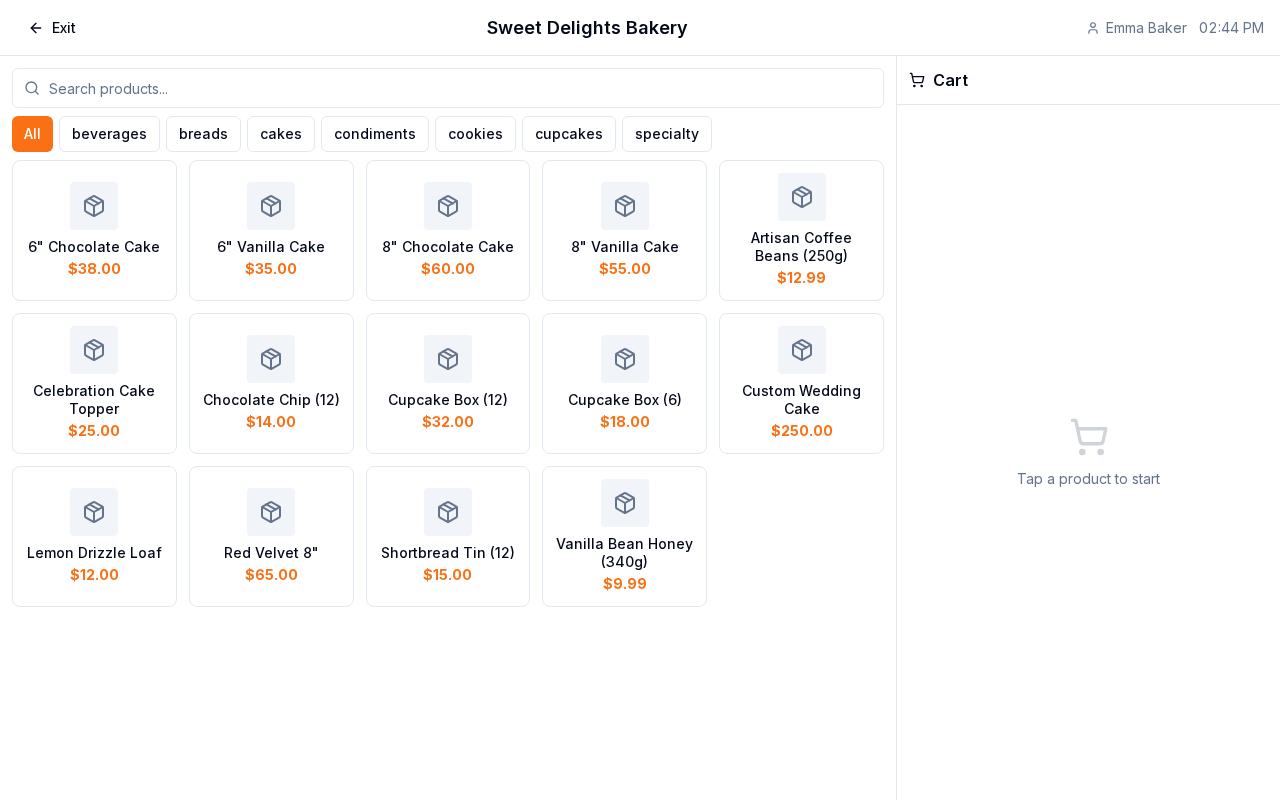
- Tap the Search field at the top of the POS screen
- Type the product name (for example, "sourdough" or "chocolate croissant")
- The product grid updates instantly to show matching items
- Tap the product you want to add
Add items to the cart
- Tap any product tile in the grid
- The item is added to the cart on the right side
- If the customer wants multiple of the same item, tap it again to increase the quantity, or use the quantity controls in the cart
- Repeat for each item in the order
Managing the current order
As you add items, the cart panel on the right tracks everything:
- Each product appears as a line item with quantity and price
- The subtotal and total update automatically
- You can adjust quantities directly in the cart by tapping the + or − buttons
- To remove an item, tap the Remove or trash icon next to it
Before you check out
Once you've added all items to the cart, you're ready to proceed to payment. The POS is designed to handle the entire transaction—from product selection to final payment—in one streamlined workflow.
Next steps
- POS Checkout and Payments — Learn how to complete the sale and process customer payments
- Creating a New Order — Understand how orders work in BakeOnyx
- Creating a Recipe — Add new bakery items to your POS product grid