Receiving Purchase Orders
Record received goods against purchase orders with partial receiving support.
Receiving Purchase Orders
- Record goods received against your purchase orders
- Receive items partially or all at once — flexibility for your workflow
- Automatically update ingredient stock when items arrive
What Happens When You Receive Items
When you record a receiving in BakeOnyx, two things happen automatically:

- Your ingredient stock quantities update immediately
- An inventory log entry is created to track the restock activity
You can receive all items from a purchase order at once, or split the receiving across multiple deliveries. BakeOnyx tracks your progress and updates the order status as you go.
How to Receive a Purchase Order
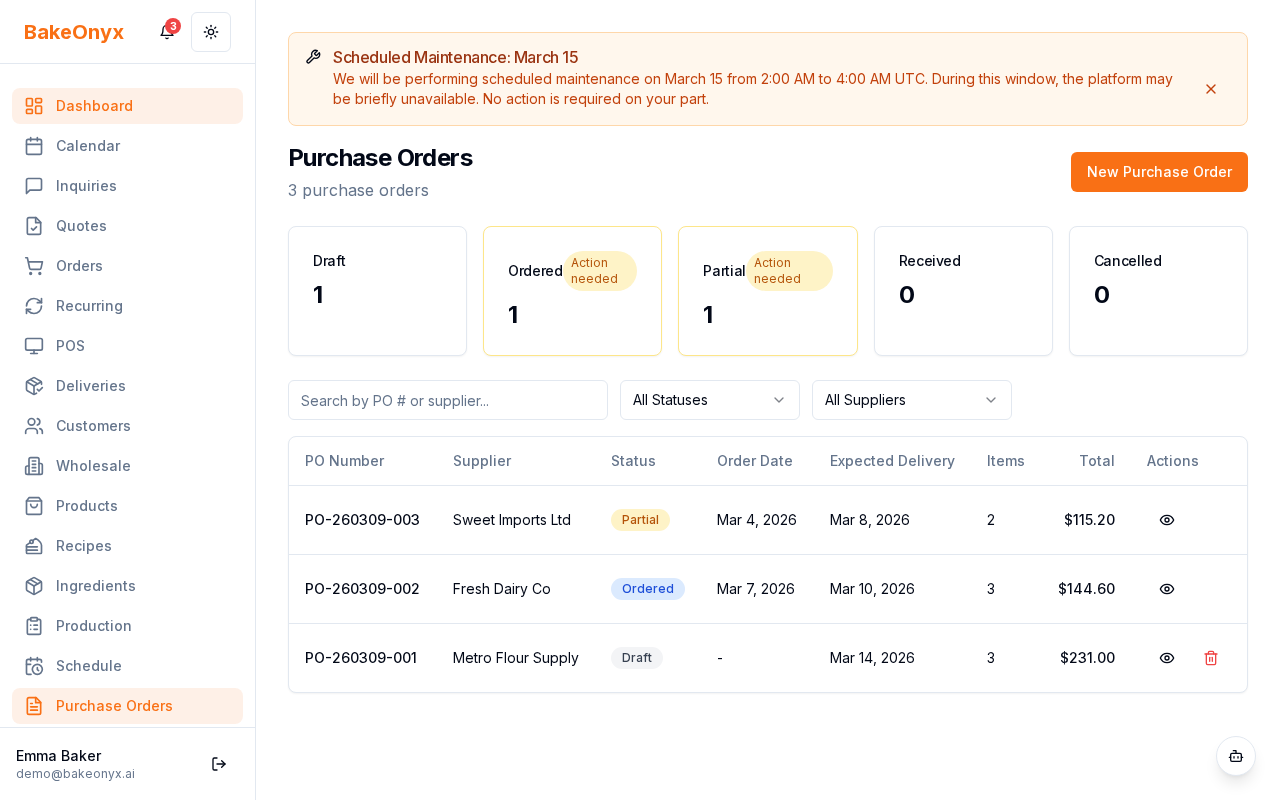
Step 1: Open the Purchase Order
- Go to Purchase Orders in the main menu
- Find the order you want to receive and click on it
- You'll see the order details and a list of all items
Step 2: Click the Receive Button
- Scroll to the bottom of the purchase order or look for the Receive Items button
- Click it to open the receiving form
Step 3: Enter Quantities Received
- You'll see a form with each line item from the purchase order
- For each item, enter the quantity you actually received in the Quantity Received field
- If you're not receiving an item yet, leave the field blank or enter
0
Tip: You don't have to receive everything at once. If your delivery is split across multiple days, just enter what arrived today. You can create another receiving record later for the rest.
Step 4: Add Notes (Optional)
- In the Notes field, add any details about the delivery
- Use this space to flag issues like damaged goods, missing items, or quality concerns
- Example:
2 bags flour arrived with small tear in packaging
Step 5: Submit the Receiving
- Review your entries to make sure quantities are correct
- Click Confirm Receipt or Save Receiving
- BakeOnyx will update your ingredient stock immediately
Understanding Purchase Order Status
As you receive items, your purchase order status changes to show progress:
- Pending: Order created but nothing received yet
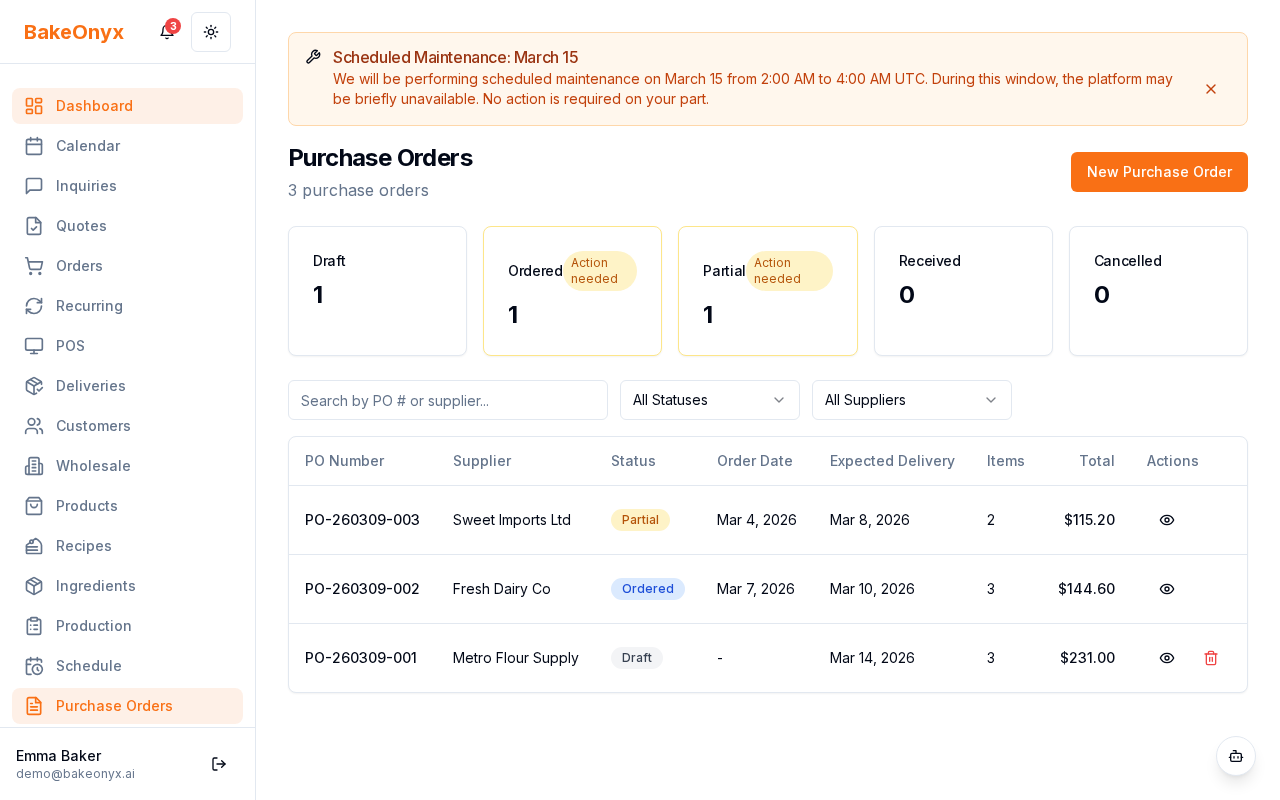
- Partial Received: You've received some items, but not everything
- Received: All items from the order have been received
Note: You can create multiple receiving records against the same purchase order. Each time you receive items, they're added to your ingredient stock and logged in your inventory history.
Handling Discrepancies
If the delivery doesn't match your order, here's what to do:
- Missing items: Enter only what you received. Leave the missing items for a future receiving record or contact your supplier
- Damaged goods: Note the issue in the Notes field and enter the quantity you can actually use
- Quantity mismatch: Enter the actual quantity received, not what the invoice says. Your notes will document the discrepancy
Warning: Only enter quantities you've physically received and verified. Entering incorrect quantities will throw off your ingredient stock counts and make it harder to track inventory later.
Next Steps
Was this article helpful?