Purchase Order Workflow and Status Tracking
Understand the PO lifecycle from draft to received, including cancellation and status tracking.
Purchase Order Workflow and Status Tracking
Learn how to manage purchase orders from creation through delivery, and understand what each status means for your bakery.

- Follow a purchase order through its complete lifecycle
- Understand each status and what happens at every stage
- Track partial deliveries and manage order completion
Note: Purchase order management is a Professional+ tier feature. Check your subscription level in Business Profile Settings to confirm access.
Understanding Purchase Order Statuses
Every purchase order in BakeOnyx moves through a predictable workflow. Understanding each status helps you know exactly where your orders stand and what to expect next.
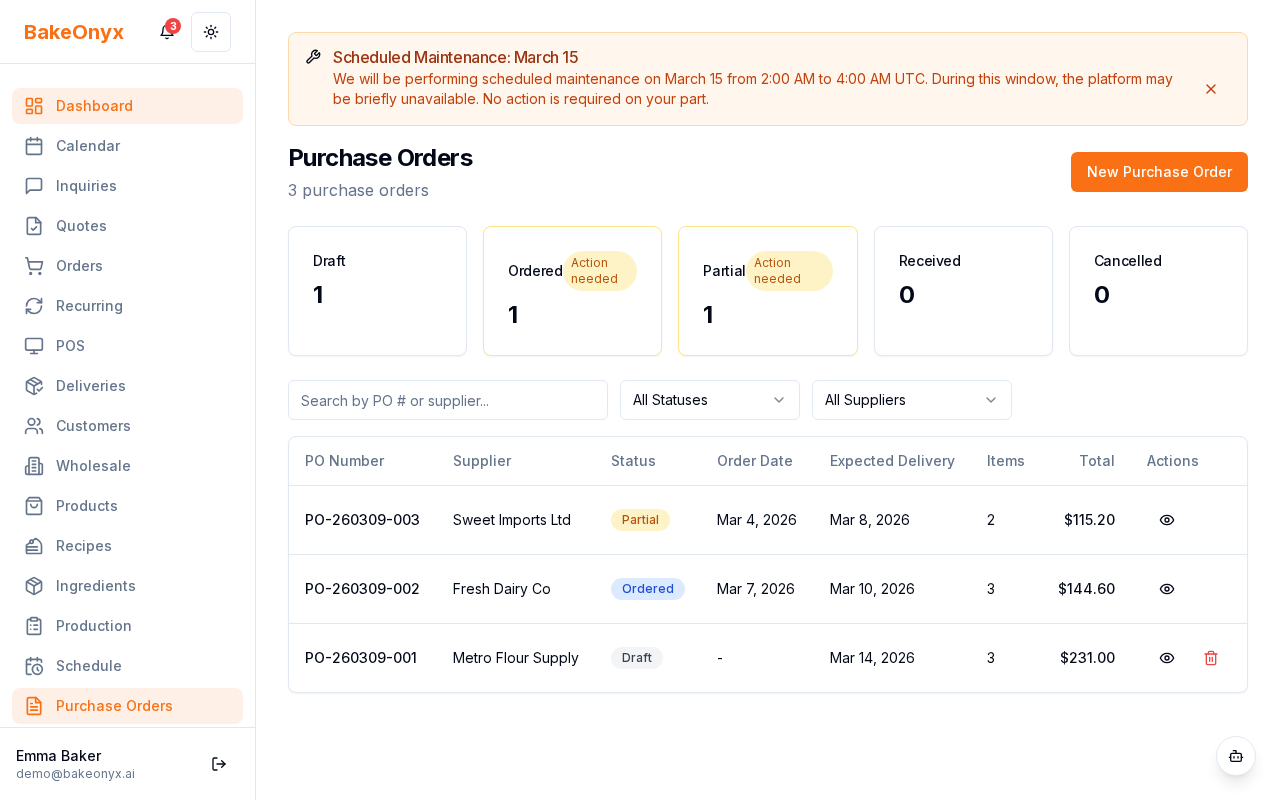
Here's what each status means:
- Draft: Your purchase order is being prepared and hasn't been sent to the supplier yet. You can freely edit quantities, items, and supplier details.
- Ordered: The PO has been sent to your supplier. Items are on order and expected to arrive soon. You can still view and reference the order, but cannot edit it.
- Partial Received: Some items from your order have arrived and been logged, but not all items are in yet. You're still waiting for the remaining items.
- Received: All items from the purchase order have been received and logged into your inventory. The order is complete.
- Cancelled: The purchase order was cancelled before all items were received. This might happen if you no longer need the items or if the supplier couldn't fulfill the order.
Viewing and Filtering Your Purchase Orders
The Purchase Orders list gives you a quick overview of all your orders at a glance.
- Go to Inventory in the main menu.
- Click Purchase Orders.
- You'll see a table showing all your orders with these details:
- PO status (displayed as a colored badge)
- Supplier name
- Total order amount
- Order date and expected delivery date
To find specific orders quickly, use the filter options:
- Click the Filter by Status dropdown to show only orders with a specific status (Draft, Ordered, Partial Received, Received, or Cancelled).
- Click the Filter by Supplier dropdown to view orders from a particular supplier.
- Combine both filters to narrow down your results further.
Moving a Purchase Order Through the Workflow
From Draft to Ordered
When you're ready to send an order to your supplier:
- Open the purchase order in Draft status.
- Review all items, quantities, and pricing one final time.
- Click Send Order or Mark as Ordered.
- The status changes to Ordered, and the order date is recorded.
Tip: Before sending an order, double-check that all item quantities match what you actually need. Once ordered, you can't edit the PO—you'll need to cancel it and create a new one if changes are required.
Receiving Items
As items arrive from your supplier:
- Open the purchase order with status Ordered.
- Click Receive Items or Log Receipt.
- For each item that arrived, enter the quantity received.
- If you received all items, the status automatically changes to Received.
- If you received only some items, the status changes to Partial Received.
- Items are automatically added to your inventory.
Warning: Make sure the quantities you log match what physically arrived. Incorrect quantities will throw off your inventory counts and affect your stock levels for production planning.
Handling Partial Deliveries
If your supplier sends items in multiple shipments:
- Log the first shipment as described above. The order moves to Partial Received.
- When the next shipment arrives, open the same purchase order again.
- Click Receive More Items and log the new quantities.
- Repeat until all items have been received. The status then changes to Received.
Cancelling a Purchase Order
If you need to cancel an order:
- Open any purchase order (Draft, Ordered, or Partial Received).
- Click Cancel Order.
- Confirm the cancellation. The status changes to Cancelled.
- Any items already received remain in your inventory.
Next Steps
- Creating a New Order — Set up your first purchase order
- Adding and Managing Ingredients — Manage your ingredient inventory
- Business Profile Settings — Verify your Professional+ subscription
Was this article helpful?