Customizing Your Navigation Menu
Show or hide sidebar menu items to keep your navigation clean and focused on what you use.
Customizing Your Navigation Menu
- Show or hide sidebar menu items to focus on the features you actually use
- Reorder navigation items to match your bakery's workflow
- Keep your dashboard clean and clutter-free
Why Customize Your Navigation?
BakeOnyx includes tools for every part of bakery management — from wholesale ordering to point-of-sale systems. But not every bakery uses every feature. If you don't do wholesale, why see that menu item every day? Customizing your navigation menu lets you hide features you don't use and arrange the ones you do in an order that makes sense for your bakery.
Access Navigation Settings
- From the main dashboard, click the Settings icon (gear icon) in the top right corner.
- Select Navigation from the settings menu.
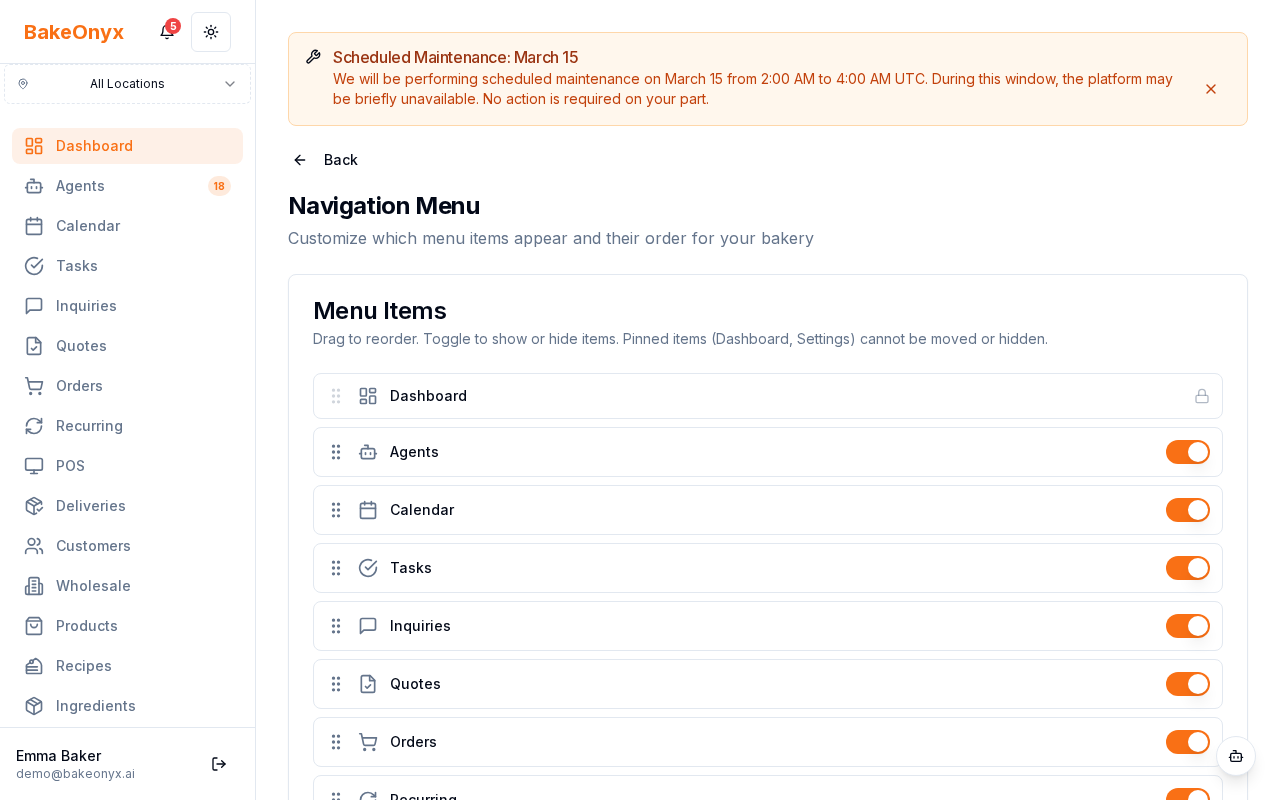
- You'll see the Navigation Settings page with all available menu items listed.
Show or Hide Menu Items
Each navigation item has a toggle switch next to it. The toggle shows whether that item is currently visible in your sidebar.
- Find the menu item you want to hide or show.
- Click the toggle switch next to it. The switch will turn gray (hidden) or blue (visible).
- Your sidebar updates instantly — no need to refresh or save.
Reorder Your Menu Items
The default menu order follows a logical bakery workflow: ordering → production → sales → reporting. But you can rearrange items to match how your bakery works.
- Hover over any menu item to reveal a drag handle (three horizontal lines) on the left side.
- Click and drag the item up or down to your preferred position.
- Release the mouse to drop it in place.
- Your new menu order saves automatically.
Special Cases
The Agents Menu Item
If you've enabled AI features in BakeOnyx, the Agents menu item shows a live badge count of active AI agents. This item cannot be fully hidden while AI features are enabled. However, you can still reorder it to place it where you prefer in your sidebar.
Best Practices
- Start simple: Hide features you're certain you don't use. You can always show them later.
- Match your workflow: Arrange items in the order your team uses them throughout the day. For example, if production happens before sales, put Production higher than POS.
- Team input: Ask your managers and staff which items they use most. Customize based on your actual workflow, not assumptions.
- Review periodically: As your bakery grows, you might use new features. Check your navigation settings quarterly to see if you should show previously hidden items.
Next Steps
- Welcome to BakeOnyx — Get an overview of all available features
- Managing Overhead Costs — Configure cost tracking for your bakery
- Understanding Subscription Plans — Learn which features are included in your plan