Managing Suppliers
Add and manage your ingredient suppliers with contact details, payment terms, and purchase order integration.
Store every ingredient supplier in one place — contact details, payment terms, lead times, and minimum orders — so purchase orders auto-fill and your shopping list knows who to buy from. Here's how to add and manage them.

What are Suppliers?
Suppliers are the vendors you order ingredients and materials from. In BakeOnyx, you can store all your supplier details in one place—contact information, payment terms, delivery times, and more. This speeds up creating purchase orders and tracking who you buy from.
Accessing Your Supplier List
- Log in to your BakeOnyx dashboard
- Go to Settings (gear icon in the top right)
- Select Suppliers from the menu
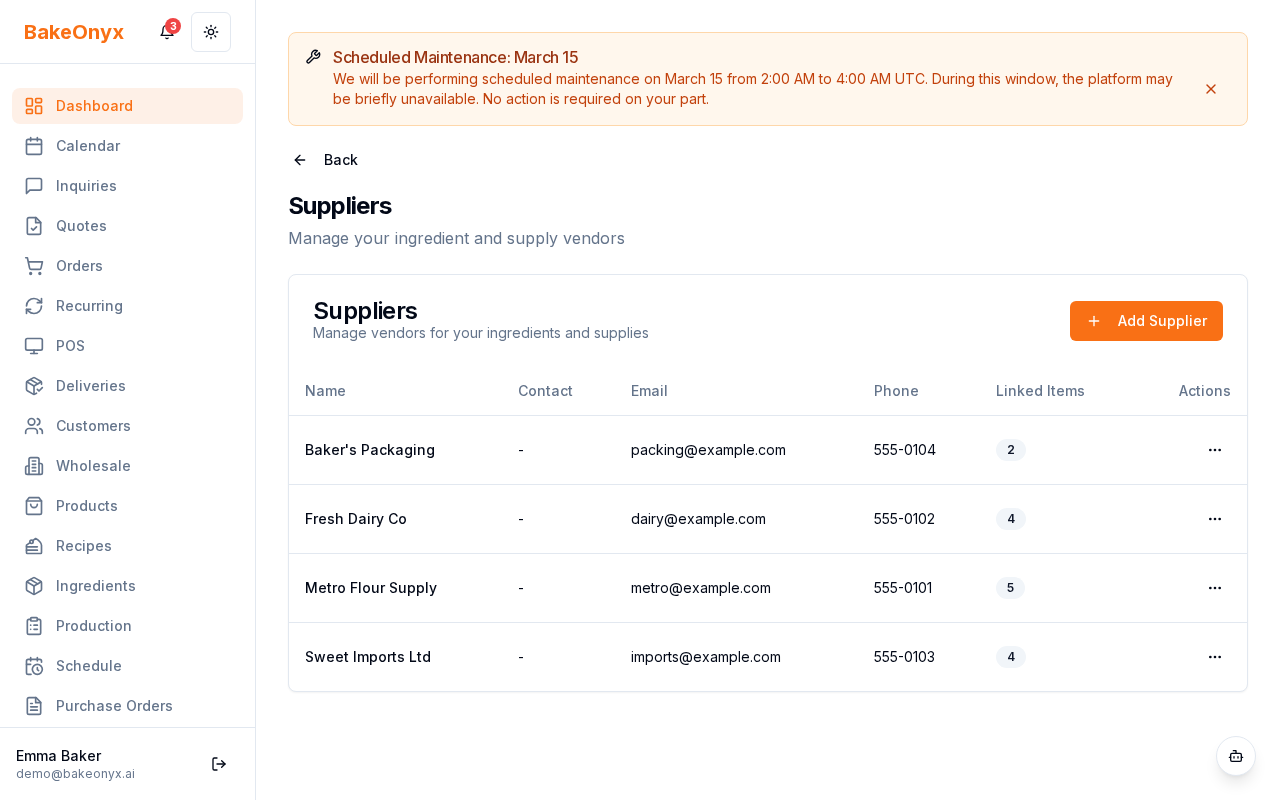
You'll see a list of all your current suppliers with their contact information, the number of ingredients linked to them, and whether they're active or inactive.
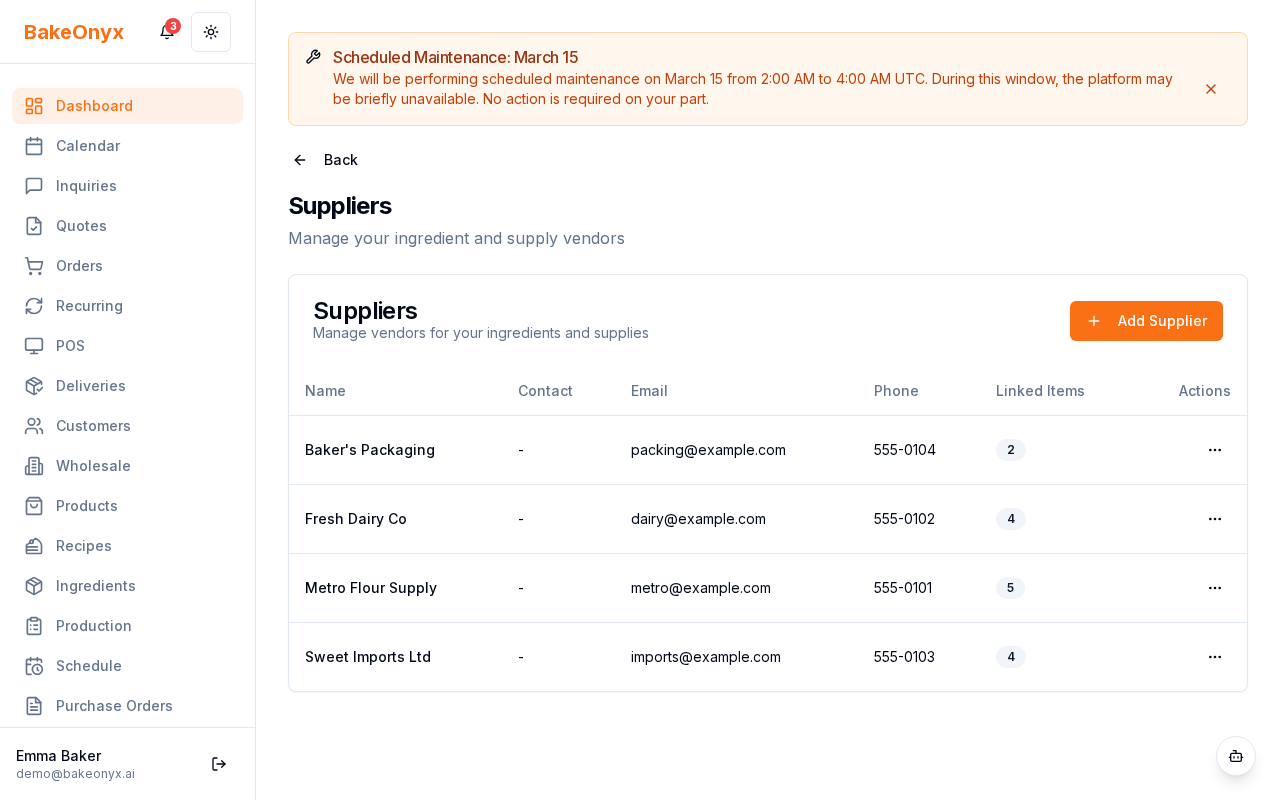
Adding a New Supplier
- Click the + Add Supplier button
- Fill in the supplier's basic information:
- Supplier Name: The name of the company (e.g., "Golden Grain Flour Co.")
- Contact Person: The name of your main contact at the supplier
- Email: Their email address for orders and inquiries
- Phone: Their phone number
- Website: Their website URL (optional)
- Enter the supplier's address:
- Street address, city, state/province, postal code, and country
- Add account and payment details:
- Account Number: Your account number with this supplier (if you have one)
- Payment Terms: Choose from COD (Cash on Delivery), Net 7, Net 15, Net 30, or other terms you've agreed to
- Lead Time: How many days it typically takes to receive an order (e.g., 3 days)
- Minimum Order Amount: The smallest order value they'll accept (if applicable)
- Add any additional notes in the Notes field (e.g., "Best prices on bulk flour orders" or "Call before 2 PM for same-week delivery")
- Set the supplier's status to Active so you can use them for orders
- Click Save Supplier
Editing an Existing Supplier
- Go to Settings > Suppliers
- Click on the supplier's name or the Edit button
- Update any information you need to change
- Click Save Supplier
Deactivating a Supplier
If you no longer work with a supplier but want to keep their information for reference, you can deactivate them instead of deleting:
- Open the supplier's profile
- Set their status to Inactive
- Click Save Supplier
Inactive suppliers won't appear in dropdown lists when you're creating new purchase orders, but their information remains in your system.
Linking Suppliers to Ingredients
Once you've added a supplier, you can link them to specific ingredients. When you're setting up or editing an ingredient in BakeOnyx, you'll have the option to select which suppliers you buy it from. This helps you track costs and generate purchase orders quickly.
Using Suppliers in Purchase Orders
When you create a new purchase order, BakeOnyx pulls in your supplier's payment terms and lead time automatically. This ensures your orders are placed correctly and you know when to expect delivery. Learn more in our purchase orders guide.
Next steps
- Welcome to BakeOnyx — Get started with the basics
- Configuring Tax Rates — Set up tax information for your bakery
- Understanding Subscription Plans — Learn about your BakeOnyx account options