Wholesale Pricing and Volume Breaks
Configure customer-specific pricing, volume discounts, and tiered pricing for wholesale accounts.
Wholesale Pricing and Volume Breaks
- Set up customer-specific prices for wholesale accounts
- Create volume discount tiers (e.g., bulk pricing at different quantities)
- Understand how BakeOnyx chooses which price to apply to each order
Overview: How Wholesale Pricing Works
BakeOnyx uses a smart pricing system that automatically applies the best price for each customer and order. When a wholesale customer places an order, the system checks prices in this order:
- Customer-specific price — An exact price you've set just for this customer and product
- Volume break — A discounted price based on how many units they're ordering
- Customer discount percent — A percentage discount off your standard price
- Standard product price — Your default price if none of the above apply
This means you can offer competitive pricing to your wholesale partners without manually adjusting prices for every order.
Access Wholesale Pricing Settings
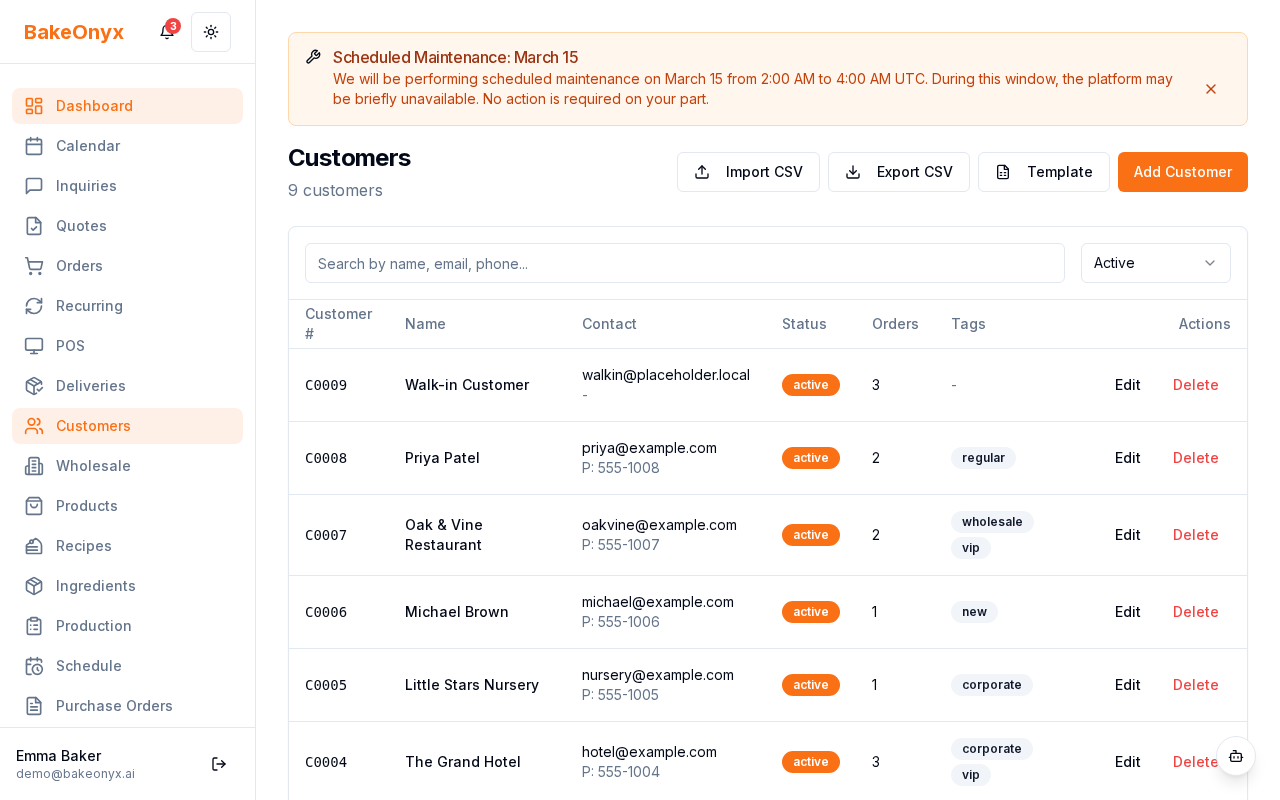
- From your BakeOnyx dashboard, go to Customers
- Find and click on the wholesale customer you want to set pricing for
- Click the Pricing tab
Set Up Customer-Specific Prices
A customer-specific price overrides all other pricing for a particular product. Use this when you want to lock in a special price for one customer.
- In the Pricing tab, scroll to Customer-Specific Prices
- Click Add Price
- Select the Product from the dropdown
- Enter the Price per Unit (this is what they pay, regardless of quantity)
- Click Save
Create Volume Break Tiers
Volume breaks let you offer tiered pricing based on order quantity. For example: "Buy 10+ croissants at $5 each, or 50+ at $4.50 each." This encourages larger orders.
- In the Pricing tab, scroll to Volume Breaks
- Click Add Volume Break
- Select the Product
- Enter the Minimum Quantity (the order must be this size or larger to qualify)
- Enter the Price per Unit at that volume level
- Click Save
You can add multiple tiers for the same product. For example:
- 10–49 units: $5.00 each
- 50–99 units: $4.50 each
- 100+ units: $4.00 each
When a customer orders, BakeOnyx automatically applies the lowest price tier that matches their order quantity.
Apply a Global Discount Percentage
If you want to give a wholesale customer a percentage discount off your standard prices (and they don't have customer-specific prices or volume breaks set), you can apply a global discount.
- In the Pricing tab, find Customer Discount Percent
- Enter a percentage (e.g., 15 for 15% off)
- Click Save
This discount applies to all products unless overridden by a customer-specific price or volume break.
Best Practices for Wholesale Pricing
- Start simple: Begin with volume breaks, then add customer-specific prices only when needed
- Review regularly: Check your wholesale pricing quarterly to ensure it still matches your costs and margins
- Communicate clearly: Share pricing tiers with your customers so they understand how to get the best rates
- Test before saving: Create a test order to verify the right price is being applied
Next Steps
- Wholesale Customer Portal — Let your wholesale customers place orders and see their pricing online
- Managing Customers — Add new wholesale customers and update their information
- Creating a New Order — Manually create orders for wholesale customers