Tracking Expenses
Record business expenses with categories, VAT tracking, and supplier links.
Record every business expense in BakeOnyx — with category, VAT/tax, supplier, and payment status — so your accounting and financial reports stay accurate and organised. Here's how.

Why Track Expenses in BakeOnyx
Keeping accurate expense records is essential for understanding your bakery's profitability and managing cash flow. In BakeOnyx you log every purchase—from flour to rent—with automatic VAT calculations and status tracking so you always know what's been paid and what's still outstanding.
Recording a New Expense
- Go to Dashboard and select Expenses from the left menu.
- Click the + New Expense button in the top right corner.
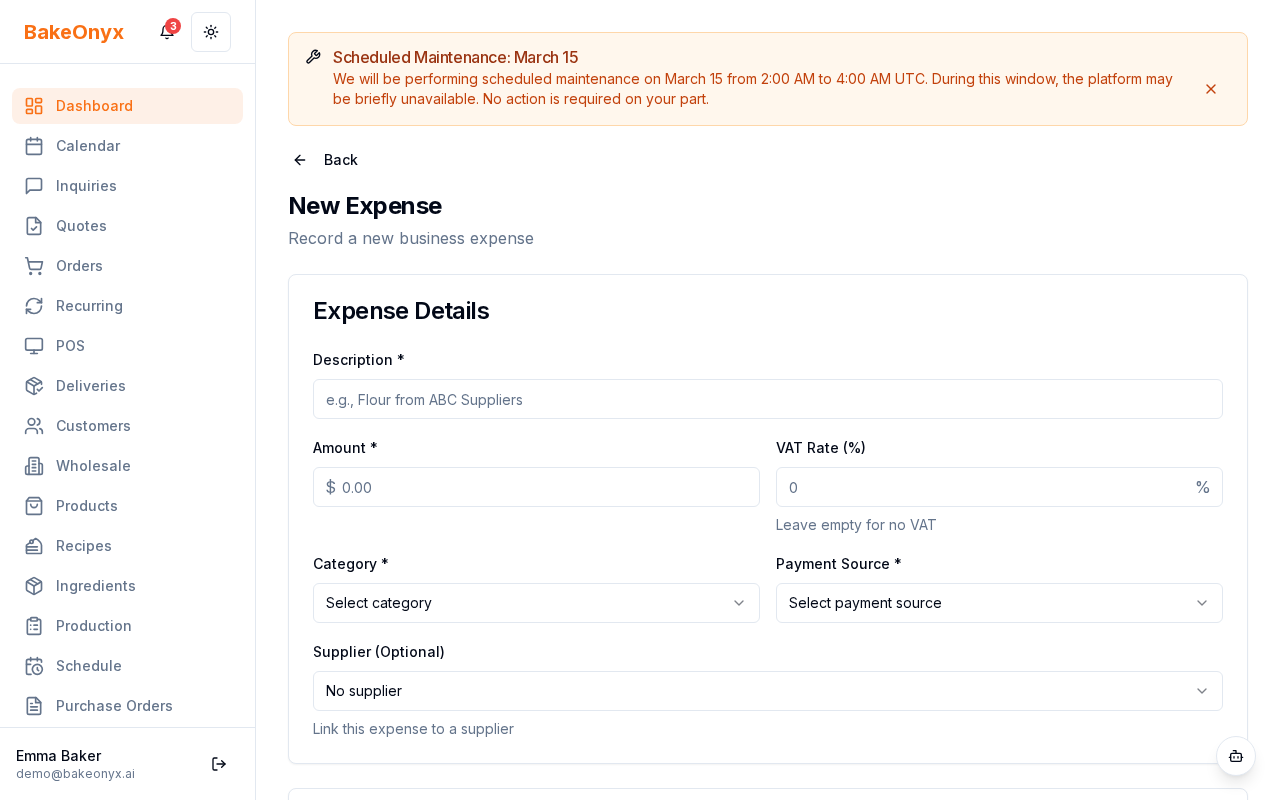
- Fill in the expense details:
- Description: What did you buy? (e.g., "50kg all-purpose flour" or "Monthly rent")
- Amount: Enter the total cost before VAT
- VAT Rate: Select the applicable rate (e.g., 20%). BakeOnyx will automatically calculate the VAT amount for you.
- Category: Choose from 14 categories: Ingredients, Packaging, Equipment, Utilities, Rent, Insurance, Staff, Delivery, Marketing, Professional Services, Licenses, Subscriptions, Supplies, or Other
- Payment Source: Select how you paid: Cash, Business Card, Personal Card, Bank Transfer, Petty Cash, or Direct Debit
- Set the dates:
- Expense Date: When did you make the purchase?
- Due Date: When is payment due? (for unpaid expenses)
- Paid Date: Leave blank if not yet paid; fill in when you complete payment
- (Optional) Link a supplier by searching for their name, or add notes about the purchase.
- Click Save Expense.
Managing Your Expense List
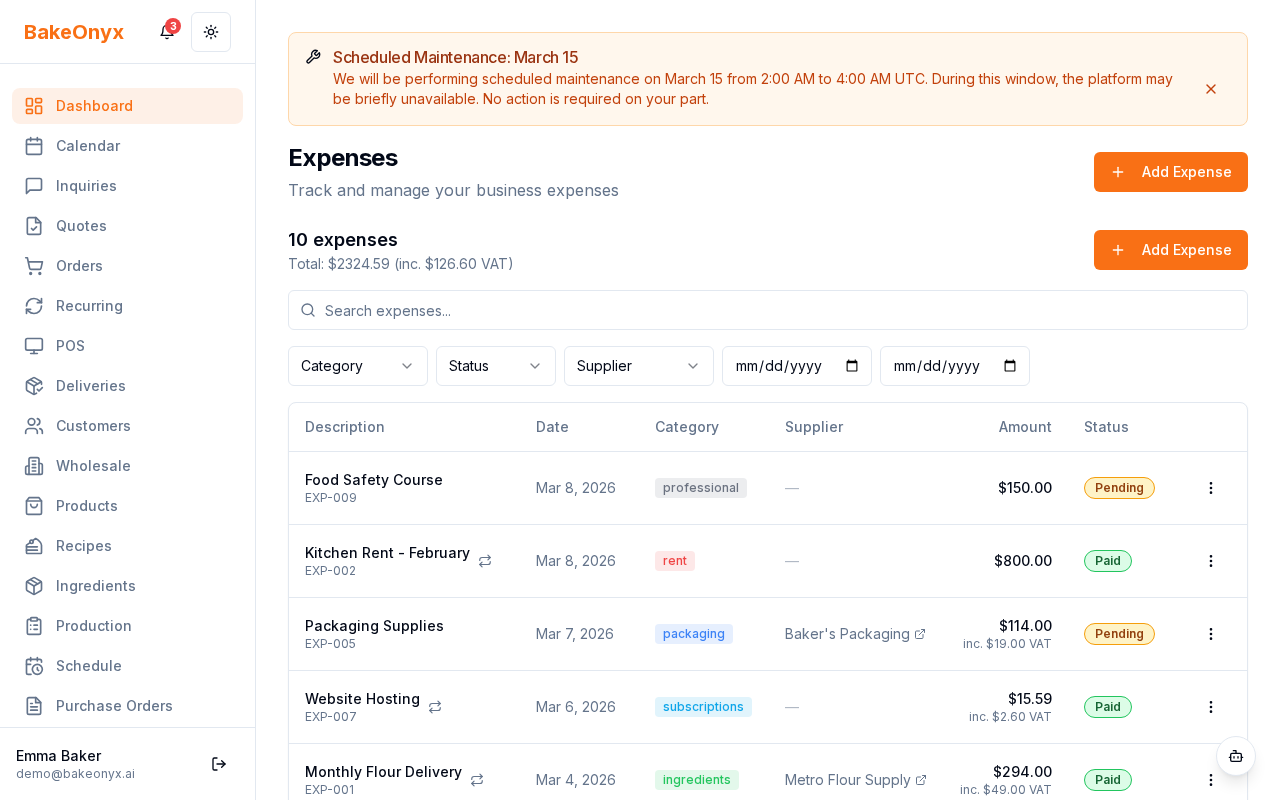
Once you've recorded expenses, they appear in your expense list with automatic status tracking:
- Paid: The paid date has been filled in
- Pending: The due date is in the future
- Overdue: The due date has passed and the expense hasn't been marked as paid
From the expense list, you can:
- Click any expense to view or edit its details
- Mark an expense as paid by updating the Paid Date field
- Filter by category, payment source, or status to find specific expenses
- Search by description to locate a particular purchase
Linking Suppliers to Expenses
If you've already set up suppliers in BakeOnyx, you can link them to expenses. This helps you track spending by vendor and makes it easier to review all purchases from a particular supplier. When creating or editing an expense, search for the supplier name in the Supplier field and select from the list.
Next Steps
- Set up recurring expenses for regular costs like rent, utilities, and subscriptions
- Generate expense reports to analyze spending by category and track profitability
- Configure your business profile to set default VAT rates for your bakery