Understanding Your Dashboard
Learn about the dashboard widgets, sidebar navigation, and how to find everything in BakeOnyx.

Understanding Your Dashboard
- Navigate the main dashboard and find the widgets that show your week at a glance
- Use the sidebar to access all BakeOnyx features in a logical order
- Locate key tools like Orders, Recipes, Production, and Reports quickly
Your Dashboard at a Glance
When you log into BakeOnyx, the dashboard is your command center. It's designed to show you the most important information about your bakery right away—what's coming up this week, what needs to be made, and what's due.
The main dashboard displays several helpful widgets:
- This Week's Orders — Shows all customer orders and inquiries due this week so you can plan your production schedule
- Scheduled Payments — Lists upcoming payment milestones so you know when money is coming in
- Stat Cards — Quick snapshots of key numbers like total orders, revenue, or inventory status

Finding Features in the Sidebar
The left sidebar is your navigation hub. It's organized to match the natural flow of running a bakery—from taking orders, to making products, to selling them, to analyzing results.
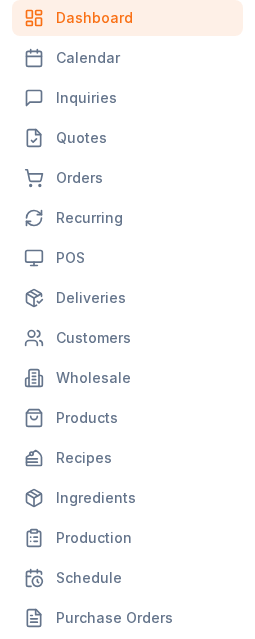
How the Sidebar is Organized
The sidebar groups features into logical sections that follow your bakery workflow:
- Orders & Sales: Dashboard, Orders, Recurring Orders, POS, Customers, Wholesale, and Storefront
- Production & Planning: Recipes, Products, Ingredients, Production, Schedule, and Forecast
- Supply Chain: Purchase Orders, Suppliers, and Deliveries
- Business Management: Calendar, Expenses, Reports, and Settings
- Content & Support: Content, News, and Agents
Quick Navigation Tips
- Click any menu item in the sidebar to go directly to that section
- On mobile devices, tap the hamburger menu icon (three horizontal lines) at the top left to open the sidebar
- Use the search or quick-access features in your browser to jump to common tasks faster
Key Sections You'll Use Most
Orders — Create and manage customer orders, track status, and see delivery dates.
Recipes — Store your formulas and ingredient lists so you can standardize production and scale batches.
Production — Plan what gets made each day based on orders and your schedule.
Schedule — Assign tasks to staff and set production timelines.
Reports — Analyze sales, costs, and performance to make better business decisions.
Settings — Configure your bakery details, team members, payment methods, and system preferences.
Getting Help with Bake Buddy AI
Need quick answers? The Bake Buddy AI chat panel is available from the sidebar. Click on Agents to access live chat support and AI-powered suggestions for your bakery.
Next Steps
- Creating a New Order — Learn how to enter your first customer order
- Creating a Recipe — Set up your first recipe in BakeOnyx
- Importing and Exporting Data — Bring your existing data into the system
New on Your Dashboard (Spec 039 Growth Quick Wins)
Three cards appear on your dashboard as they become relevant. All three are tier-aware and hidden when empty:
- Top Customers card — up to 5 of your best customers by lifetime spend. Appears once any customer crosses your top-customer thresholds. Learn more.
- At-Risk Customers card (Growth+) — amber-accented card with customers predicted to churn; one-click win-back per row. Learn more.
- Margin alerts banner (Growth+) — amber banner if any of your products are currently below your target margin. Learn more.
Bake Buddy's morning briefing also shows a new amber "customers at risk" badge when applicable.