Resale Products and Stock Tracking
Manage third-party resale products with stock tracking, margin reports, and reorder alerts.
Resale Products and Stock Tracking
- How to add and manage third-party resale products in BakeOnyx
- Track stock levels and set up reorder alerts for low inventory
- Monitor profit margins and generate margin reports for resale items
What Are Resale Products?
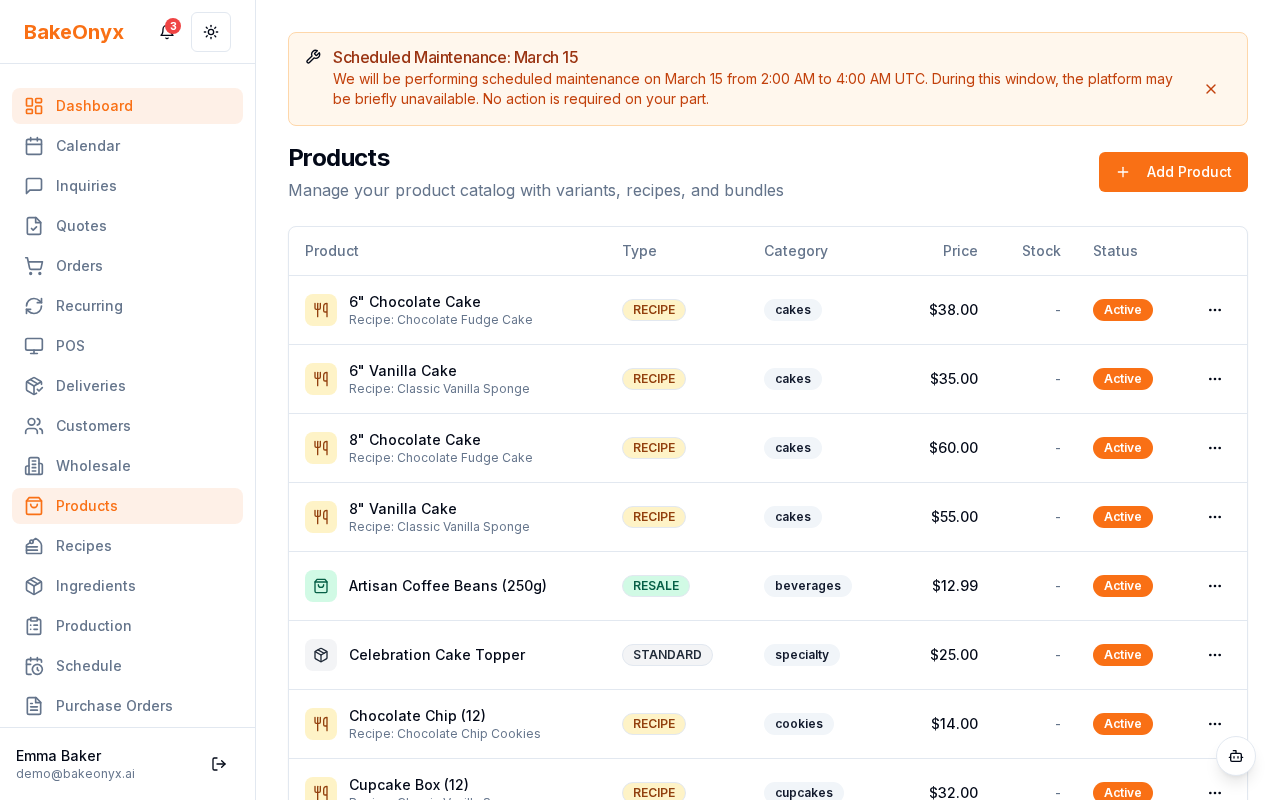
Resale products are items you purchase from suppliers and sell to customers without modification—like specialty flours, decorative supplies, or packaged goods. Unlike recipe-based products where costs are calculated from ingredients, resale products have a direct purchase price that you set when you add them to BakeOnyx.
BakeOnyx tracks every stock adjustment for resale products, so you always know what's in inventory and when to reorder. You can also see your profit margin at a glance and generate reports to understand which resale items are most profitable.
Adding a Resale Product
- From the main menu, navigate to Inventory > Products.
- Click the + Add Product button in the top right.
- Enter the product name (e.g., "Belgian Dark Chocolate Chips").
- Under Product Type, select Resale.
- Enter the Cost Price—this is what you pay your supplier for the item.
- Enter the Sell Price—this is what you charge customers.
- Set the Reorder Threshold—BakeOnyx will alert you when stock falls below this number. For example, if you set this to 5, you'll get a notification when you have only 5 units left.
- Click Save.
Your resale product is now created with an initial stock level of zero. You'll add stock through stock adjustments (see below).
Managing Stock Levels
Every time you receive a delivery from a supplier or use stock for another reason, you'll record a stock adjustment. BakeOnyx keeps a complete history of all adjustments—up to 100 recent entries—so you can trace exactly when and why inventory changed.
- Go to Inventory > Products.
- Find your resale product and click on it to open the product details.
- Scroll to the Stock Adjustments section.
- Click + Add Adjustment.
- Enter the Quantity Change (use a positive number to add stock, negative to remove).
- Select a Reason from the dropdown—options include "Supplier Delivery," "Damage," "Waste," "Inventory Count," or "Other."
- Click Save.
The adjustment is recorded immediately with a timestamp. Your current stock level updates in real time.
Understanding Margins and Profit Reports
BakeOnyx automatically calculates your profit margin for each resale product based on the cost price and sell price you entered. The margin percentage shows how much profit you make on each sale.
For example, if a product costs you $10 and you sell it for $15, your margin is 33%.
To view your margin report:
- Go to Inventory > Products.
- Click on a resale product.
- Scroll to the Margin Report section to see:
- Current stock level
- Cost price and sell price
- Profit margin percentage
- Total potential profit if all current stock sells at the listed price
Reorder Alerts
When stock for a resale product falls below the reorder threshold you set, BakeOnyx sends you an alert. This helps you avoid running out of popular items.
You'll see the alert on the Inventory Dashboard and in your notifications. From there, you can create a purchase order to reorder from your supplier.
Next Steps
- Using the Shopping List—Create shopping lists for resale products you need to order.
- Creating Purchase Orders—Turn reorder alerts into formal purchase orders for your suppliers.
- Creating a Recipe—Learn how recipe-based products differ from resale items.