Stock Tracking and Alerts
Monitor stock levels, see low-stock alerts, and track ingredient usage over time.
Stock Tracking and Alerts
- Monitor current stock levels for all your ingredients
- Receive automatic low-stock alerts when inventory runs low
- Track how ingredients are used across production, waste, and manual adjustments
Understanding Your Stock Levels
BakeOnyx tracks every ingredient in your bakery in real time. Each ingredient has a current stock quantity — the amount you have on hand right now — and a reorder point — the minimum level you want to maintain before ordering more.
When your stock falls below the reorder point, the ingredient is flagged as low stock. This helps you catch shortages before they become a problem.
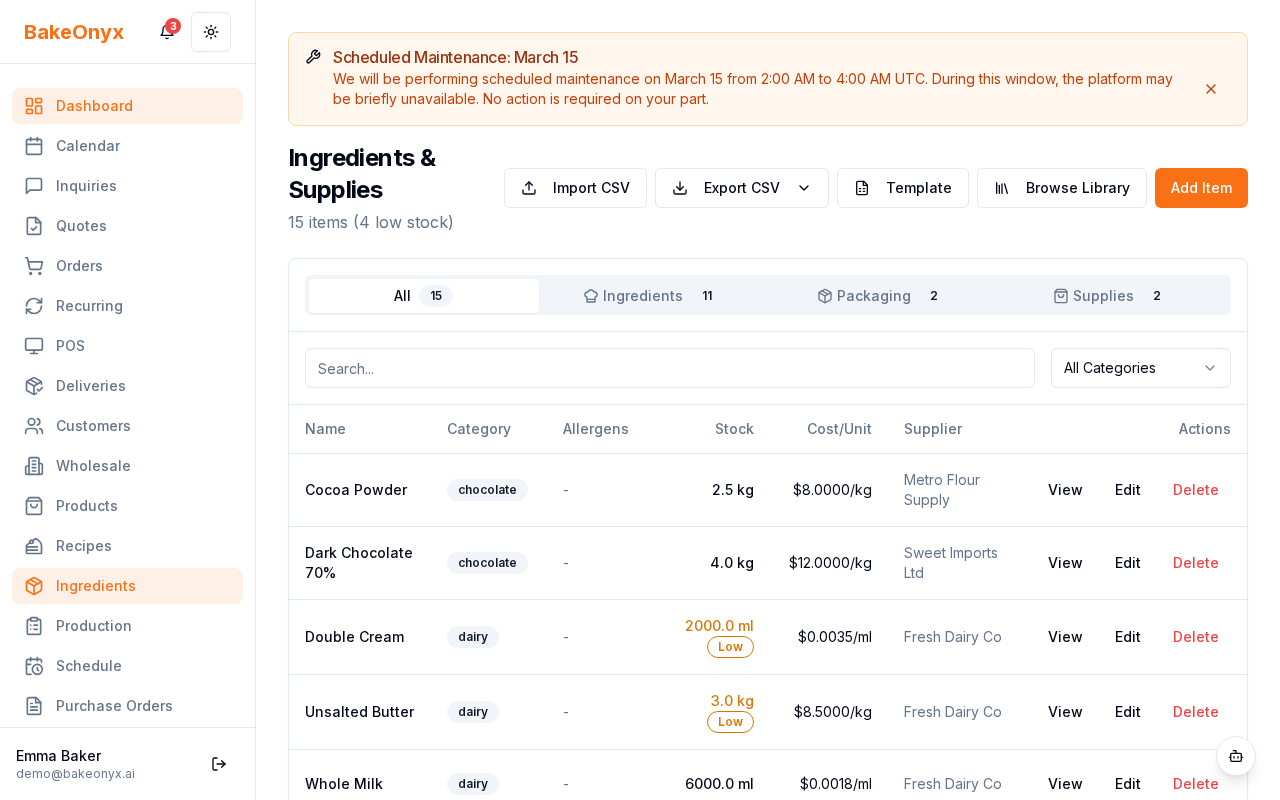
Viewing Your Inventory Dashboard
- From the main menu, click Inventory.
- You'll see a list of all your ingredients with their current stock quantities.
- Look for any ingredients highlighted in red or marked as Low Stock — these need attention soon.
- Click on any ingredient to see more details, including its reorder point and recent activity.
How Stock Changes Are Tracked
BakeOnyx automatically records every change to your inventory. You'll see entries in your inventory log that show:
- Added — You manually added stock (for example, when you receive an order and enter it by hand)
- Used — You manually deducted stock (when you use ingredients outside of production)
- Adjusted — You corrected stock after a physical count
- Wasted — Ingredients were spoiled or damaged
- Production — Stock was automatically deducted when you completed a production task (based on your recipe)
- Restock — Stock was automatically added when you received a purchase order
This detailed log helps you understand where ingredients go and spot patterns in waste or usage.
Receiving Low-Stock Alerts
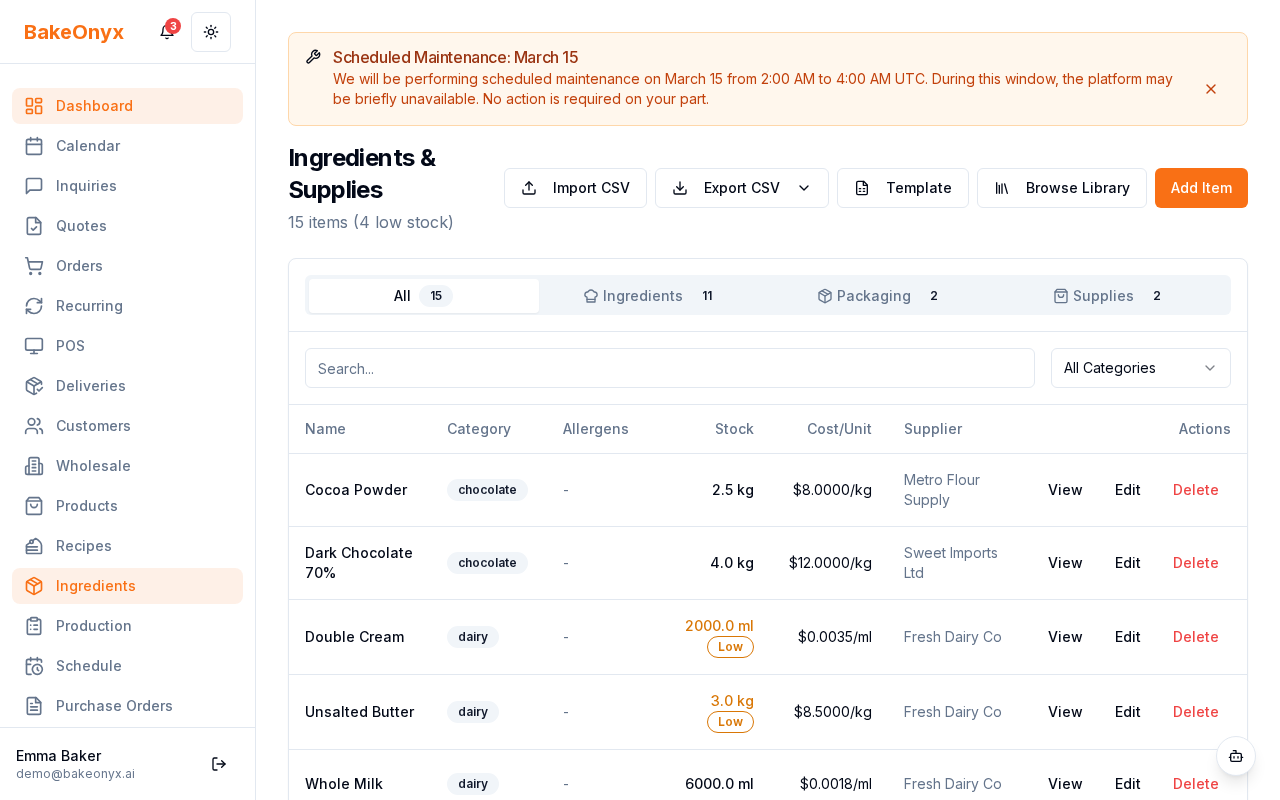
BakeOnyx sends you alerts when ingredients drop below their reorder point. You can receive these notifications in several ways:
- Check the Alerts section in your dashboard — new low-stock items appear here.
- Enable notifications in your account settings to get email or in-app alerts.
- Use Bake Buddy AI to ask about low-stock items. Just ask "What's running low?" and it will give you a quick summary.
Tracking Ingredient Usage Over Time
To see how much of an ingredient you've used over a specific period:
- Go to Inventory and click on the ingredient you want to review.
- Scroll down to the Activity Log or Usage History section.
- Filter by date range to see usage during a specific week, month, or season.
- Look at the breakdown of how stock changed — production deductions, waste, manual adjustments, and restocks.
This information is helpful for planning purchases, spotting waste problems, and forecasting ingredient needs during busy seasons.
Next Steps
- Learn about purchase units and conversions — understand how BakeOnyx handles different units (pounds, ounces, cups, etc.)
- Create a recipe — set up recipes so production tasks automatically track ingredient usage
- Create a purchase order — order ingredients when low-stock alerts appear