Purchase Units and Conversions
Set up purchase units (bags, boxes, cases) and unit conversions for accurate cost tracking.
Purchase Units and Conversions
- Set up purchase units (bags, boxes, cases) to match how you buy ingredients
- Create unit conversions so BakeOnyx accurately tracks ingredient costs
- Enable volume-to-weight conversions using ingredient density data
Why Purchase Units Matter
When you buy flour, you probably order it in 25kg bags—not individual grams. BakeOnyx needs to know this so it can calculate the true cost of each ingredient in your recipes. Purchase units bridge the gap between how you buy ingredients and how you use them in recipes.
For example, if you buy eggs by the case (360 eggs) but your recipes call for individual eggs, BakeOnyx uses your purchase unit setup to convert between the two and show you the real cost per egg.
Setting Up a Purchase Unit
- From the main menu, go to Inventory → Purchase Units
- Click the + Add Purchase Unit button
- Select the ingredient you're setting up (e.g., "All-Purpose Flour")
- Enter the purchase unit name in the Unit Name field (e.g., "25kg Bag")
- Enter the quantity in the Quantity field—this is how many base units come in one purchase unit (e.g., 25 for a 25kg bag)
- Select the base unit from the Base Unit dropdown (e.g., "kg")
- Enter the cost in the Cost per Purchase Unit field (e.g., $15.50 for one 25kg bag)
Understanding Base Units and Conversions
Every ingredient in BakeOnyx has a base unit—the standard unit you use in recipes. For flour, this might be kilograms (kg). For eggs, it's usually individual units (ea). For milk, it might be liters (L).
When you create a purchase unit, you tell BakeOnyx how many base units are in that purchase unit. The system uses this conversion factor to calculate ingredient costs accurately.
Volume-to-Weight Conversions
Some ingredients are easier to buy by weight but measure by volume in recipes (or vice versa). BakeOnyx handles this using ingredient density data.
When you set up an ingredient, you can enter its density (how heavy it is per unit volume). For example, all-purpose flour has a density of approximately 0.59 kg/L. With this information, BakeOnyx can automatically convert between 500ml of flour and its weight in kilograms.
To add density to an ingredient:
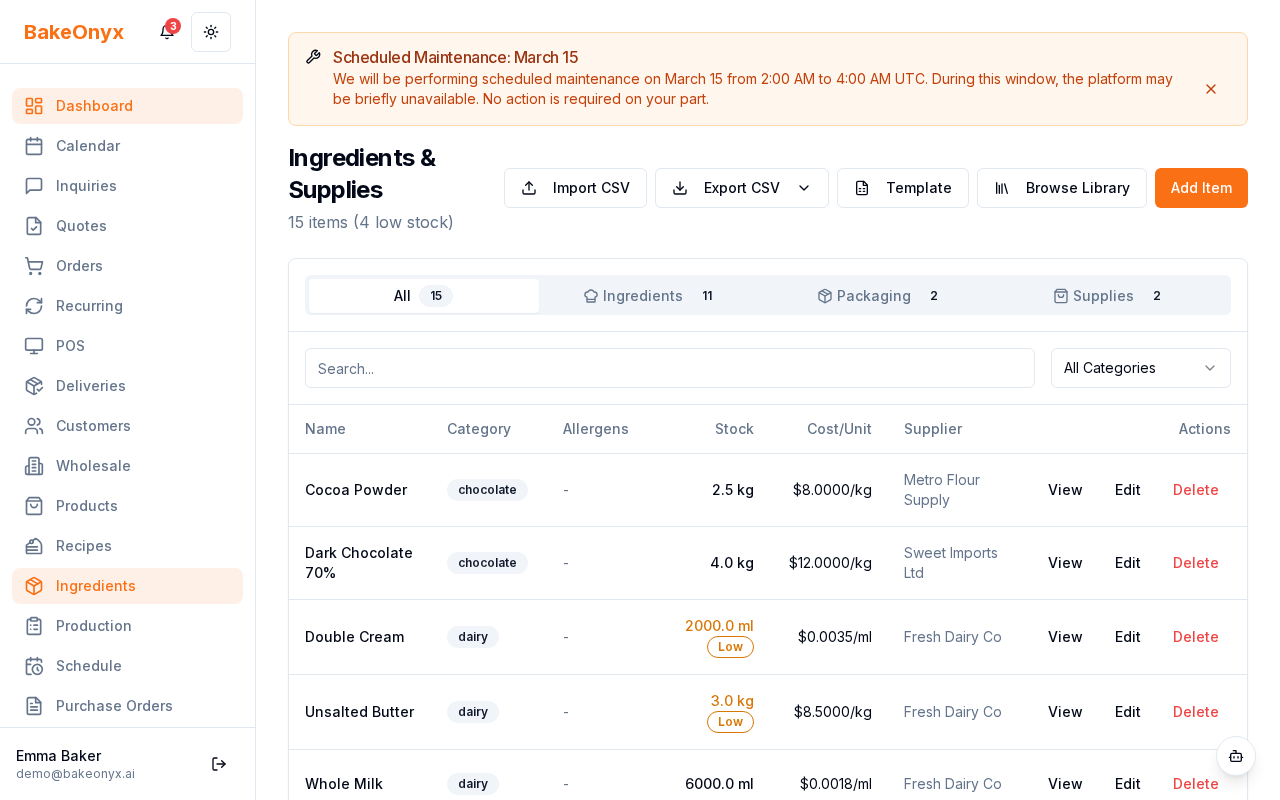
- Go to Inventory → Ingredients
- Find and click the ingredient you want to edit
- In the ingredient details, locate the Density field
- Enter the density value and select the unit (e.g., "0.59 kg/L")
- Save your changes
Next Steps
Now that you've set up purchase units, you're ready to:
- Create purchase orders using your purchase units
- Build recipes that reference accurate ingredient costs
- Track resale products and stock using your ingredient data