Invoices and Payments
Generate invoices, record payments, and track what customers owe.
Invoices and Payments
- Generate professional invoices from your orders
- Record customer payments and track payment status
- Set up payment milestones for deposits and final payments
Generating an Invoice
Once you've created an order in BakeOnyx, you can generate a professional invoice to send to your customer. The invoice includes your bakery details, customer information, order items, totals, event type, and delivery details.
📧 Invoice Emails Now Include a "Pay Now" Button
When you send an invoice and you have online payments configured (Stripe or Square), your customer automatically receives a "Pay Now" button in the email. They click it, land on a secure payment page, and pay instantly. No need to use "Share Order" separately — it is all in one step.
- The Pay Now button only appears when you have Stripe or Square connected AND the order has a balance due
- If online payments are not configured, invoices are sent without a payment button — customers pay via your normal methods
- The "Share Order" button still exists if you want to send a payment link via WhatsApp, text, or separately from the invoice

Automatic Invoice Creation
BakeOnyx can automatically create and send invoices so you don't have to do it manually for every order. There are two auto-invoice options, and you can enable both at the same time:
- Auto-invoice on save — Creates an invoice with a payment link the moment you save a new order. This is ideal if you collect payment before confirming the order (for example, requiring a deposit before securing a date).
- Auto-invoice on confirm — Creates and sends an invoice when you change the order status to Confirmed. This works well if you confirm first and collect payment later.
When both are enabled, BakeOnyx automatically prevents duplicate invoices — if an invoice was already created on save, it won't create a second one on confirm.
Generating an Invoice Manually
If you prefer to create invoices yourself (or auto-invoice is not enabled), you can generate one from any order:
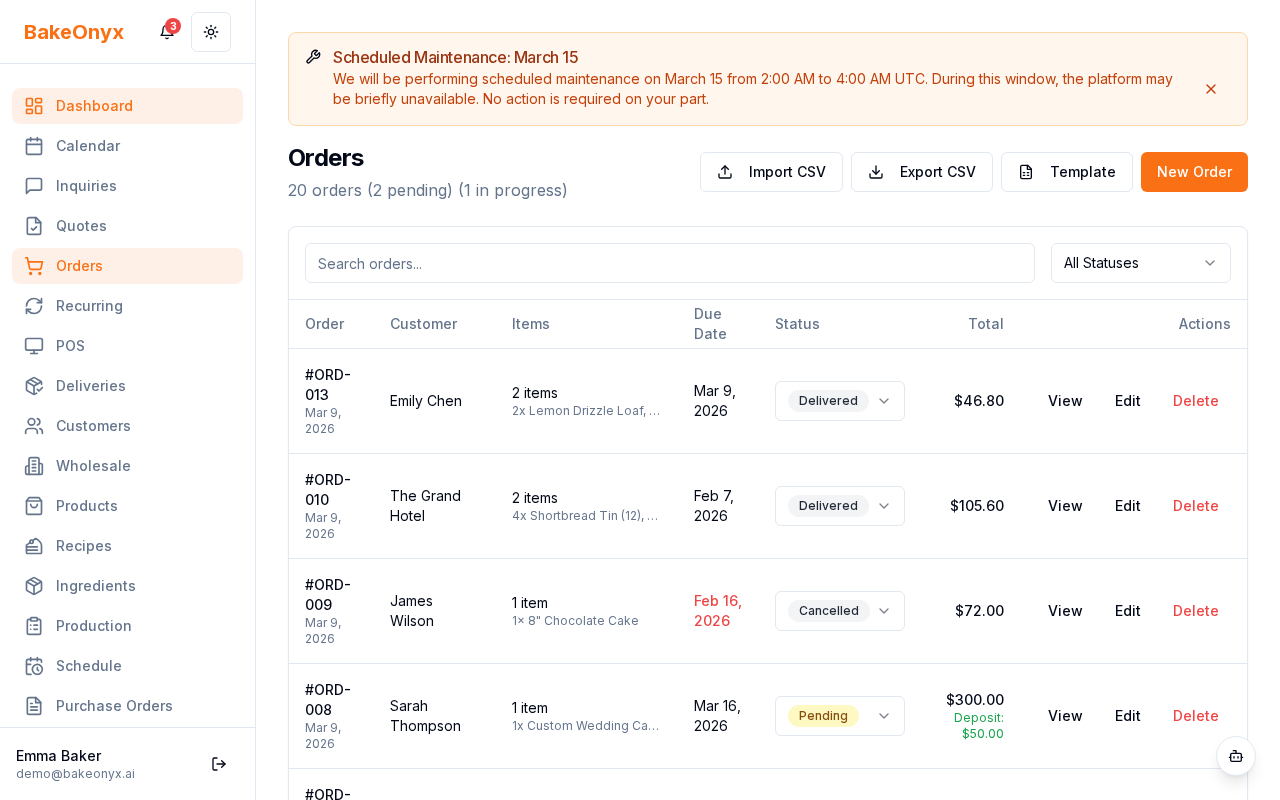
- Navigate to Orders from the main menu
- Find and click on the order you want to invoice
- Scroll to the Invoice section
- Click Generate Invoice
- Review the invoice preview, which includes:
- Your bakery name and contact details
- Customer name and address
- All ordered items with quantities and prices
- Order subtotal, taxes, and total amount due
- Event type and delivery information
- Your terms and conditions (if configured)
- Click Download as PDF to save the invoice to your computer
- Click Send to Customer to email the invoice directly (if email is configured)
Recording a Payment
As your customers pay, record each payment in BakeOnyx to keep track of what's been paid and what's still owed.
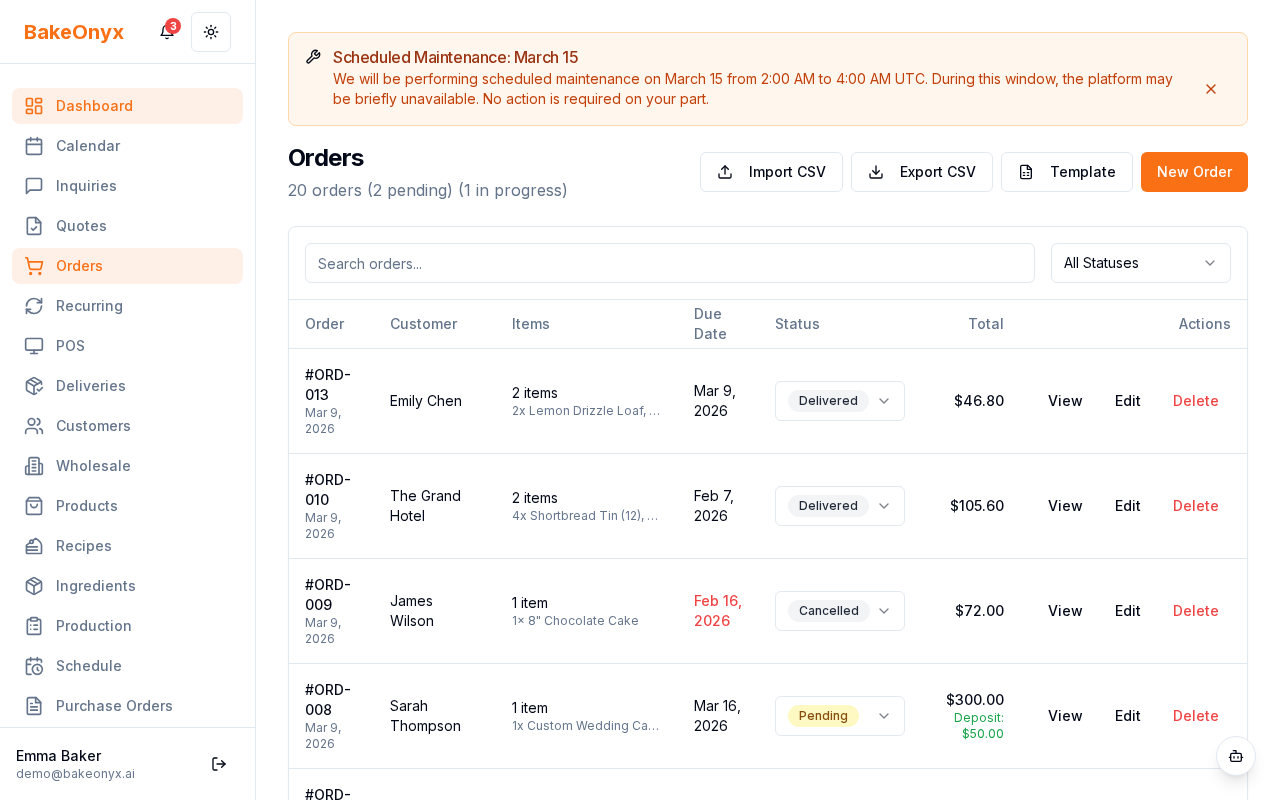
- Open the order from your Orders list
- Scroll to the Payments section
- Click Record Payment
- Enter the following details:
- Amount: The dollar amount received
- Payment Method: Choose from cash, check, credit card, bank transfer, or other
- Payment Date: The date the payment was received
- Notes (optional): Add any details, such as "Check #1234" or "Partial deposit"
- Click Save Payment
Understanding Payment Status
BakeOnyx automatically tracks the payment status of each order based on the payments you've recorded:
- Unpaid: No payments have been recorded yet
- Partial: Some payment has been received, but the full amount is not yet paid
- Paid: The full order total has been received
You can see the payment status at a glance on your order details page, making it easy to follow up with customers who still owe money.
Setting Up Payment Milestones
For larger orders, you may want to collect a deposit upfront and the balance closer to the event date. BakeOnyx allows you to schedule payment milestones:
- Open the order and scroll to Payment Milestones
- Click Add Milestone
- Enter:
- Milestone Name: For example, "Deposit" or "Final Payment"
- Amount Due: The amount for this milestone
- Due Date: When this payment should be received
- Click Save Milestone
- Repeat for additional milestones (e.g., 50% deposit, 50% final payment)
Next Steps
- Order Settings and Preferences — Configure your default invoice terms and conditions
- Managing Customers — Keep customer contact information up to date for invoice delivery
- Creating a Recipe — Build your product catalog for faster order creation