Order Settings and Preferences
Configure order-related settings including number format, default terms, and tax rates.

Order Settings and Preferences
What you'll learn
- How to set up your order number format and prefix
- How to configure default payment and invoice terms for all orders
- How to set delivery fees and minimum order amounts
Overview
Order settings in BakeOnyx let you establish consistent defaults for all orders your bakery creates. Instead of entering the same information every time you take an order, you can set it once and apply it automatically. This saves time and ensures your customers see the same terms and conditions on every invoice.
Accessing Order Settings
- From your BakeOnyx dashboard, click the Settings icon in the left sidebar.
- Select Orders from the settings menu.
- You'll see the Order Settings page with all configurable options.
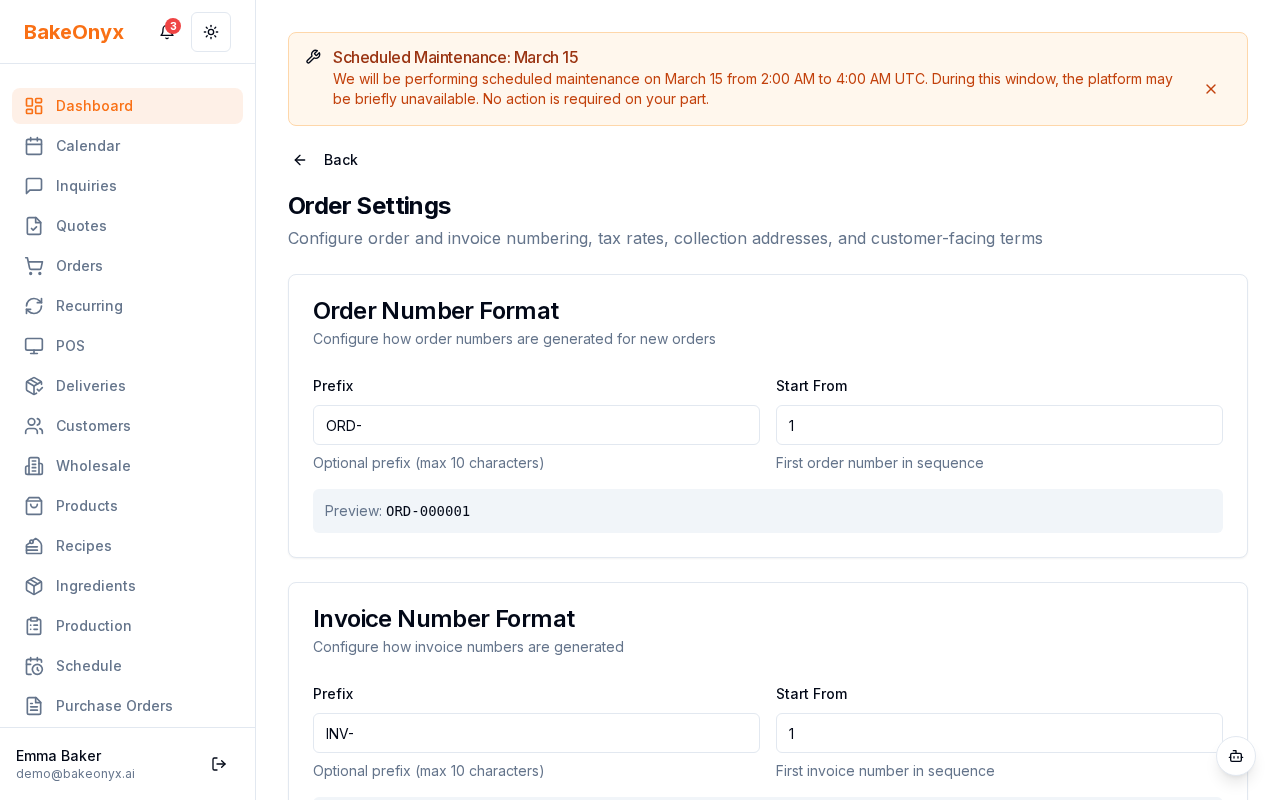
Configuring Order Numbers
Your order numbers are the first thing customers see on invoices. You can customize them to match your bakery's branding or accounting system.
- Under Order Number Format, enter your desired prefix in the Prefix field (for example, "BK" for BakeOnyx or "ORD" for Order).
- The system will automatically add a sequential number after your prefix (for example, BK-001, BK-002, BK-003).
- Click Save to apply your changes.
Setting Default Payment Terms
Payment terms tell your customers when payment is due. You can set a default that applies to all new orders, and adjust it per order if needed.
- Scroll to the Default Payment Terms section.
- Choose from common options like "Due on Receipt," "Net 7 Days," "Net 14 Days," or "Net 30 Days."
- If you need a custom term (like "Due before pickup"), select Custom and enter your own text.
- Click Save.
Adding Invoice Terms and Conditions
Use this section to add any legal text, special instructions, or policies you want printed on every invoice.
- Find the Invoice Terms and Conditions text box.
- Enter any text you'd like to appear on invoices, such as:
- Cancellation policies ("Orders cancelled within 48 hours are subject to a 50% fee")
- Allergen information ("All products may contain traces of nuts")
- Delivery instructions ("Please ensure someone is home to receive the order")
- Click Save.
Setting Delivery Fees and Minimum Orders
If you offer delivery, you can set a standard delivery fee and establish a minimum order amount to qualify for free delivery or to encourage larger orders.
- Under Default Delivery Fee, enter the amount you charge for delivery (for example, $5.00).
- In the Minimum Order Amount field, enter the smallest order total you're willing to accept (for example, $25.00).
- Click Save.
Auto-Invoice Settings
Automate your invoicing workflow so you do not have to manually create and send invoices for every order.
Auto-Invoice on Save
When enabled, an invoice is automatically created the moment you save a new order. This is perfect if your workflow requires payment before you confirm the order. Your customer receives an invoice with a payment link right away.
- Auto-create invoice on save — Generates the invoice as soon as the order is saved
- Auto-send invoice on save — Emails the invoice to the customer immediately (requires email to be configured)
Auto-Invoice on Confirm
When enabled, an invoice is automatically created when you change the order status to Confirmed.
- Auto-create invoice on confirm — Generates the invoice when the order is confirmed
- Auto-send invoice on confirm — Emails the invoice to the customer on confirmation
Tax Rate Configuration
Tax rates are managed separately from order settings. To set up or update your tax rates, visit the Tax Rates section in Settings. This allows you to configure different rates for different products or regions if needed.
Next Steps
- Setting Up Recurring Orders — Learn how to automate orders for regular customers
- Managing Customers — Set up customer profiles with their own payment terms
- Creating a Recipe — Add products to your catalog for faster order creation
Tax Mode Setting
BakeOnyx offers two tax calculation modes:
- Per Item (recommended) — Each order item can have its own tax rate. A small dropdown appears on each item row. Essential for bakers with mixed-rate products.
- Per Order — One tax rate applies to the entire order. Simpler, but doesn't support item-level exemptions.
You can also toggle Tax on Delivery to control whether delivery/shipping fees are included in the taxable amount.
Prices Include VAT / Sales Tax
By default, BakeOnyx treats your product prices as excluding tax — tax is added on top at checkout (standard in the US and Canada). If your bakery operates in a market where prices already include VAT (common in the EU, UK, Australia, and New Zealand), toggle this setting ON.
The on-screen label matches your country — "Prices include GST" in Australia and New Zealand, "VAT" in the UK and EU, and "sales tax" in the US. New bakeries are set to the right default automatically from their country (Australia, New Zealand, the UK, and the EU start with tax-inclusive pricing ON; the US and Canada start OFF), and you can change the toggle at any time. Australian example (10% GST): enter a price of $11.00 and the customer still pays exactly $11.00 — shown as $10.00 net + $1.00 GST, where the GST portion equals the inclusive price ÷ 11.
When Prices include VAT / sales tax is enabled:
- The prices you enter on products are treated as the customer-facing, tax-inclusive price
- On orders, quotes, and invoices, the system extracts the VAT from each price instead of adding it on top
- Your customer pays the price you entered; your reports show the VAT portion separately for filing
- PDF invoices show "Tax (X%) (included)" so customers understand VAT is already in the line total
Setup — two steps:
- In Tax Rates, create your VAT rate (e.g., 21% VAT) and either mark it as default there, or select it under Order Settings → Default Tax Rate.
- Toggle Prices include VAT / sales tax ON in Order Settings.
The setting applies everywhere tax is calculated: dashboard orders, quotes, storefront checkout, POS, recurring orders, and accounting integrations (Xero and QuickBooks automatically receive the tax-inclusive flag so they don't double-count VAT).