Online Payments (Stripe & Square)
Accept online payments from customers via Stripe or Square payment links.
Online Payments (Stripe & Square)
- Set up Stripe or Square to accept online payments from your customers
- Share secure payment links with customers for orders placed through BakeOnyx
- Track payment status and manage multiple payment providers at once
Why Accept Online Payments?
Online payments make it easier for your customers to pay for orders without visiting your bakery or handling cash. BakeOnyx integrates with Stripe and Square, two trusted payment processors, so you can collect payments securely and get the funds deposited into your bank account.
Setting Up Your Payment Provider
Step 1: Go to Payment Settings
- Log in to your BakeOnyx dashboard
- Click Settings in the left navigation menu
- Select Payment Providers
Step 2: Choose Your Payment Provider
You'll see options for both Stripe and Square. You can set up one or both providers — customers will see whichever payment methods you've activated.
Step 3: Connect Stripe (Optional)
- Click Connect Stripe
- You'll be taken to Stripe's website to authorize BakeOnyx
- Sign in with your Stripe account (or create one if you don't have one)
- Review the permissions BakeOnyx is requesting and click Authorize
- You'll be returned to BakeOnyx with your Stripe account connected
Step 4: Connect Square (Optional)
- Click Connect Square
- You'll be taken to Square's website to authorize BakeOnyx
- Sign in with your Square account (or create one if you don't have one)
- Review the permissions and click Authorize
- You'll be returned to BakeOnyx with your Square account connected
How Customers Pay
Once you've set up a payment provider, your customers can pay for orders directly through BakeOnyx:
- When you create an order or send a customer a payment link, they receive a unique link to their order
- They click the link and see their order details, including the total amount due
- They click the Pay Now button and select their payment method (Stripe or Square, depending on what you've enabled)
- They complete payment securely through the payment provider
- You receive a notification that payment has been received, and the order status updates automatically
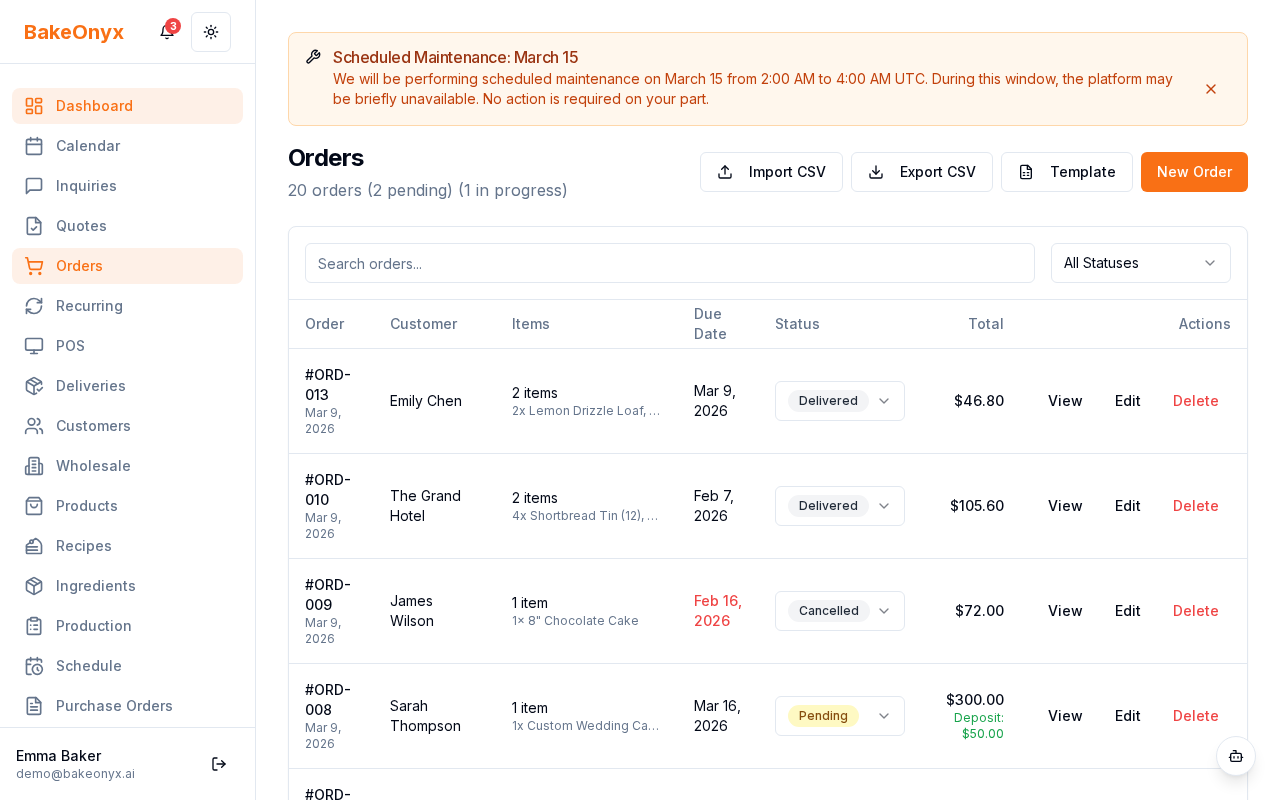
Managing Payment Status
BakeOnyx automatically tracks the status of each payment:
- Pending: Payment link has been sent to the customer, but payment hasn't been received yet
- Completed: Payment has been successfully processed and deposited into your account
- Failed: Payment was attempted but didn't go through (customer can try again)
- Refunded: You've issued a refund for this payment
You can view payment status in your order details. All payment information is encrypted and securely stored in BakeOnyx.
Troubleshooting
If a customer reports a payment issue, check the payment status in their order details. If the payment shows as "Failed," the customer can click the payment link again and retry. If the issue persists, contact Stripe or Square support with the payment details.
Next Steps
- Printing Allergen Labels — Make sure your orders include proper allergen information
- Managing Customers — Learn how to organize and track your customer information
- Creating a Recipe — Build out your product catalog for orders