Printing Allergen Labels
Generate and print allergen labels for order items based on recipe ingredients.
What you'll learn
- How to generate allergen labels for individual orders
- What information appears on allergen labels and where it comes from
- How to print multiple labels for batch orders
Generating allergen labels from an order
Allergen labels are automatically generated based on the ingredients in your recipes. When you create an order, BakeOnyx pulls the allergen information from each product's linked recipe and creates a label that shows the product name, full ingredients list, and any allergen warnings.
To print an allergen label for an order:
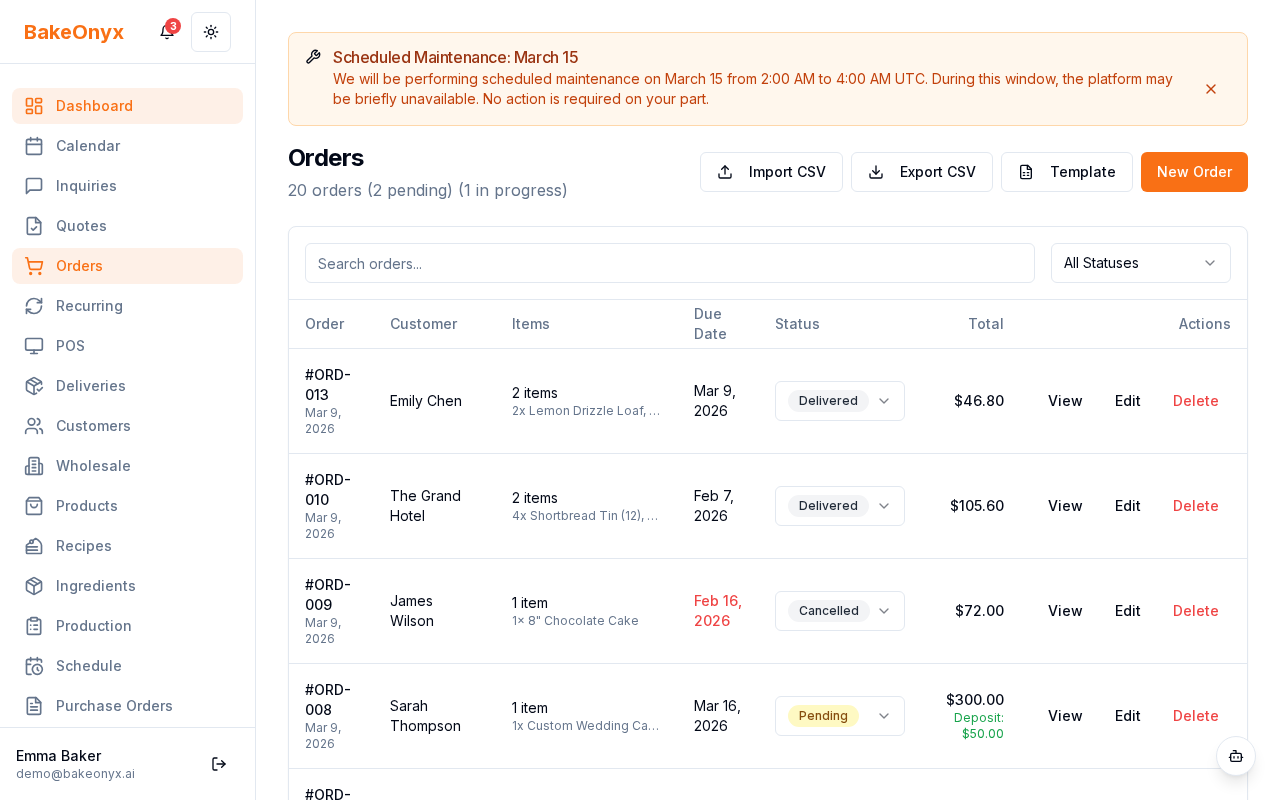
- Go to Orders in the main menu
- Find and click on the order you want to print a label for
- On the order detail page, look for the Print Allergen Label button (usually near the top of the page)
- Click the button to generate the label PDF
- Your browser will open or download the PDF file
- Click the print icon in the PDF viewer, or use
Ctrl+P(Windows) orCmd+P(Mac) - Select your printer and print settings, then click Print
What's included on an allergen label
Each allergen label includes:
- Product name — the name of the item ordered
- Full ingredients list — all ingredients from the linked recipe, in order
- Allergen warnings — highlighted allergens based on ingredient flags (e.g., gluten, nuts, dairy, eggs, soy)
The label automatically pulls allergen information from your recipe ingredients. This means you need to make sure each ingredient in your system has the correct allergen flags set. If an ingredient is missing allergen information, the label won't show complete warnings.
Printing labels for multiple items in one order
If an order contains multiple products, you'll need to print a separate label for each item:
- Open the order detail page
- For each product in the order, click Print Allergen Label
- Print each PDF as described above
If you regularly print labels for large batch orders, consider using BakeOnyx's bulk printing feature to streamline the process.
Making sure your allergen data is accurate
For allergen labels to work properly, you need to:
- Link recipes to each product in your orders
- Add all ingredients to each recipe
- Mark allergen flags on each ingredient (gluten, nuts, dairy, eggs, soy, etc.)
If you're creating new recipes or updating existing ones, take time to set allergen flags correctly. This ensures your labels are compliant with UK and EU food labeling requirements and keep your customers safe.
Next steps
- Bulk Print Orders and Invoices — print multiple labels and invoices at once
- Creating a Recipe — set up recipes with ingredients and allergen flags
- Managing Customers — organize customer orders and preferences