Quick Add: Adding Items by Product Type
Use Quick Add to create order items on the fly by selecting a product type like Cake, Cookie, or Cupcake.

Quick Add: Adding Items by Product Type
- How to use Quick Add to create order items without selecting from your recipe library
- How to set quantity, pricing, and cost details for each product type
- How to fill in type-specific details like size, shape, and filling for cakes, cookies, and more
What is Quick Add?
Quick Add lets you add items to an order on the fly by choosing a product type—like Cake, Cookie, Cupcake, or Donut—without needing a saved recipe. This is useful when you're taking a custom order and want to build it directly in the order form, or when you need to add a one-off item quickly.
BakeOnyx supports 13 product types through Quick Add: Cake, Cookie, Cupcake, Cake Pop, Donut, Flower, Macaron, Meringue, Mini Cake, Oreo Pop, Rice Treat, Wafer, and Other.
How to Add an Item Using Quick Add
- Open or create an order in BakeOnyx.
- In the order form, locate the Add Item button or the Quick Add section.
- Click Quick Add (or the option to add an item without a recipe).
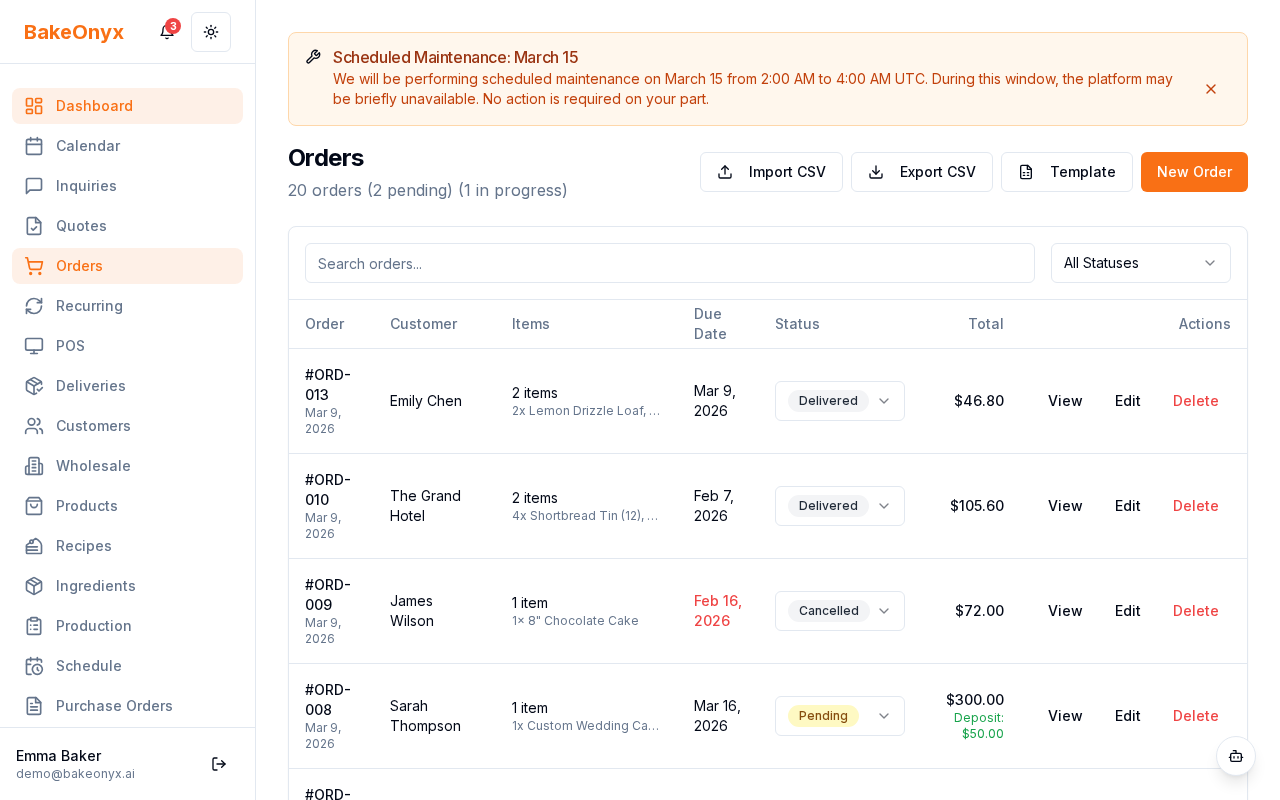
- A dialog box will appear. Select your product type from the dropdown menu—for example, Cake, Cookie, or Cupcake.
Filling in Type-Specific Details
Once you select a product type, BakeOnyx will show fields specific to that type. For example:
- Cake: Size, shape, filling, and covering options
- Cookie: Size, shape, and flavor fields
- Cupcake: Quantity per box, flavor, and frosting type
- Donut: Type, glaze, and topping options
- Other types: Custom fields relevant to that product
Fill in these fields based on what the customer ordered. The available options depend on what your bakery has set up in BakeOnyx.
Setting Quantity and Pricing
- Enter the Quantity—how many of this item the customer is ordering.
- Enter the Unit Price—the price per item that you'll charge the customer.
- The total price will calculate automatically (quantity × unit price).
Adding Cost Details (Optional)
To track your production costs, you can optionally add labour hours and overhead:
- In the pricing section, locate the Labour Hours field and enter how long it takes to make this item.
- Enter your Overhead cost if applicable (this might be a percentage or a fixed amount, depending on your bakery's setup).
- BakeOnyx will calculate the total cost breakdown: Unit Cost + Labour + Overhead = Total Cost.
Saving Your Quick Add Item
- Once you've filled in all required fields, click Add Item or Save.
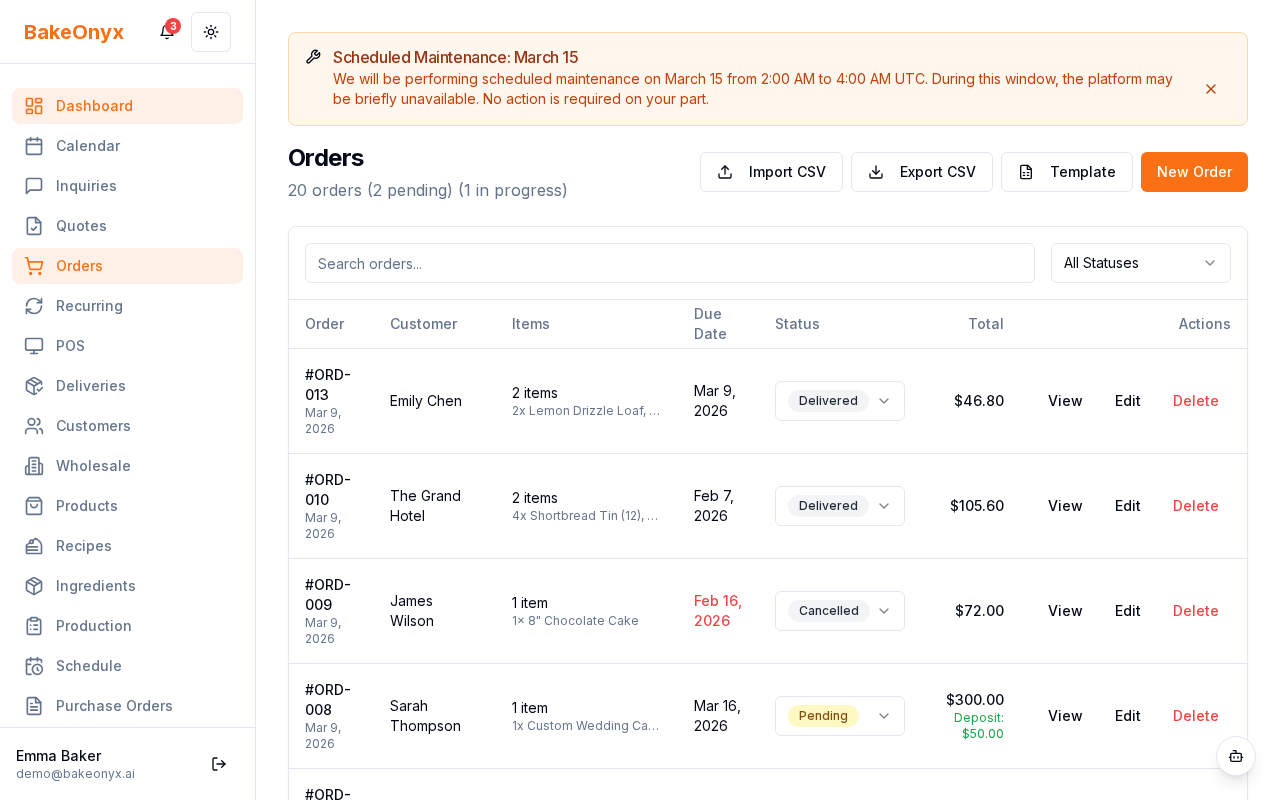
- The item will appear in your order's item list.
- You can add more items using Quick Add, or switch to adding items from your recipe library.
Next Steps
- Creating Orders from Recipes—Learn how to add items to orders using your saved recipes
- Creating a Recipe—Save a Quick Add item as a recipe for faster ordering in the future
- Managing Customers—Set up customer profiles to store order history and preferences