Creating Orders from Recipes
Create order items from your recipe catalog with auto-calculated pricing based on servings.

Creating Orders from Recipes
- Create order items directly from your recipe catalog with automatic pricing calculations
- Scale recipes up or down based on customer servings and see real-time cost breakdowns
- Add supplies, packaging, and labour costs to generate a suggested selling price
What You'll Learn
When you create an order from a recipe in BakeOnyx, the system automatically calculates ingredient costs, labour hours, overhead, and supplies based on the quantity your customer needs. This saves time and ensures consistent, profitable pricing across all your orders.
Creating an Order from a Recipe
Step 1: Open the Recipe Order Dialog
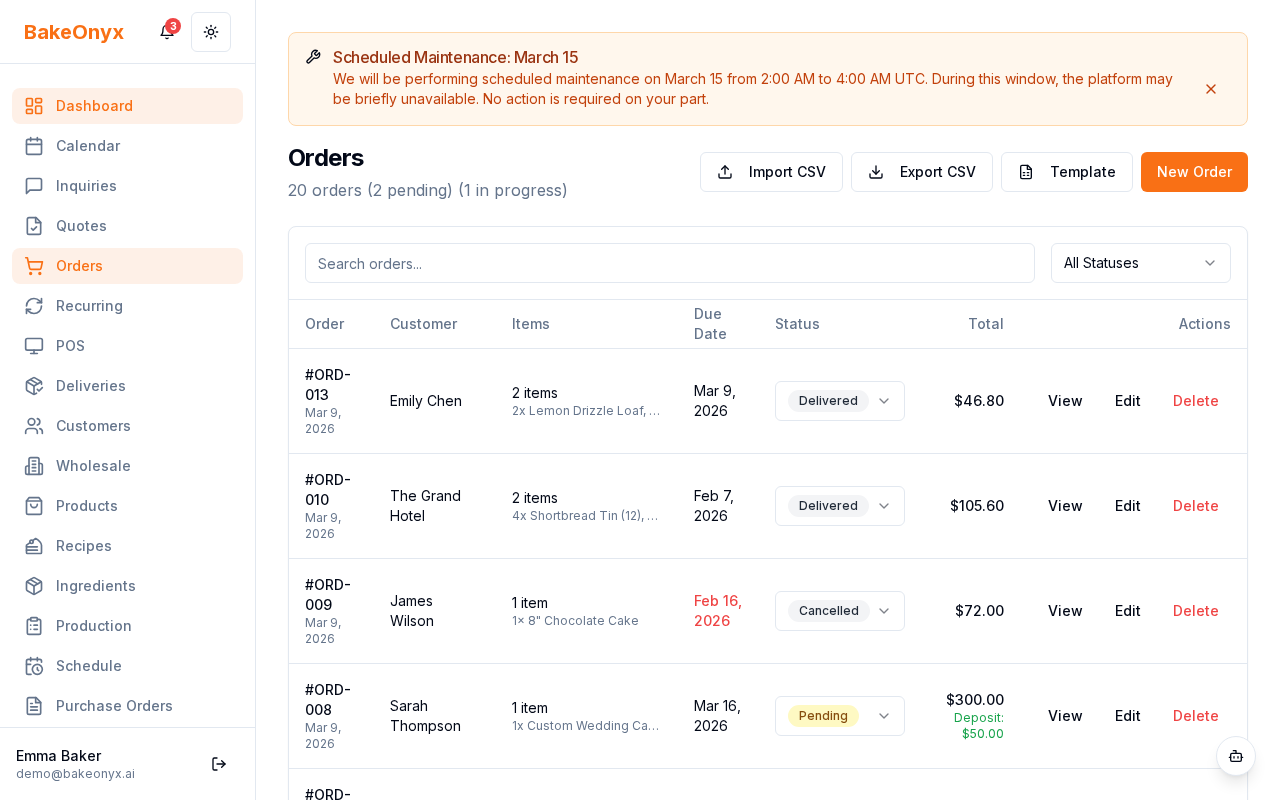
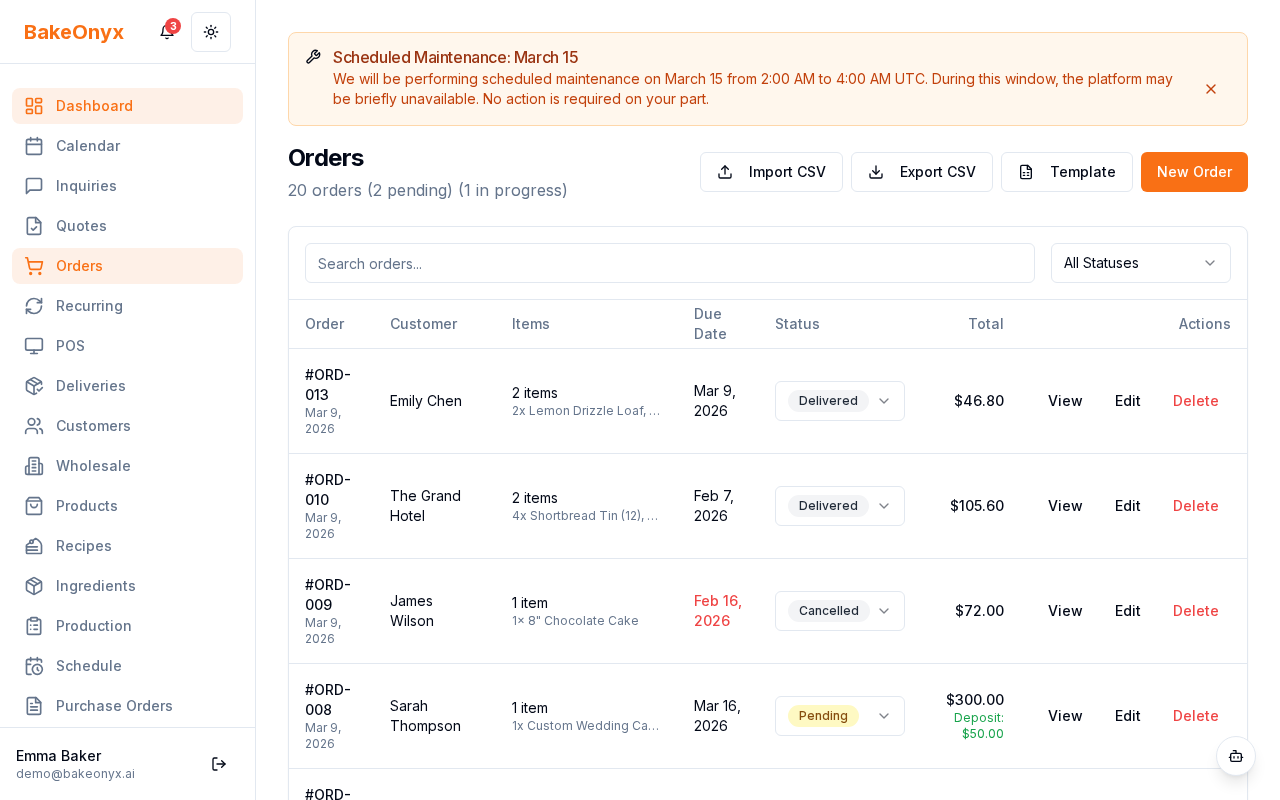
- Navigate to Orders from the main menu
- Click + New Order (or open an existing order)
- In the order line items section, click Add Item from Recipe
The Recipe Order dialog will open, showing your recipe catalog and pricing calculator.
Step 2: Select Your Recipe
- Use the Category filter dropdown to narrow down your recipe list (optional)
- Click on the recipe you want to use for this order
Step 3: Enter Customer Servings
- In the Customer Servings field, enter the number of servings your customer needs
- BakeOnyx automatically calculates the scaling factor based on your recipe's original yield
For example, if your recipe yields 12 cupcakes and the customer wants 24, the system scales all ingredient quantities and labour time by 2x.
Step 4: Review the Cost Breakdown
The dialog displays a detailed cost breakdown showing:
- Ingredient Costs: Total cost of all scaled ingredients from your inventory
- Labour Hours: Automatically defaults from your recipe's prep time, scaled to match servings
- Overhead: Pulled from your bakery settings as a percentage or fixed amount
- Supplies & Packaging: Optional add-on costs for boxes, bags, labels, or other materials
Step 5: Add Supplies or Packaging (Optional)
- Click + Add Supplies to include packaging or other materials
- Select items from your inventory (boxes, bags, decorations, etc.)
- Enter the quantity needed for this order
- Costs are added automatically to the total
Step 6: Review the Suggested Sell Price
BakeOnyx calculates a suggested selling price based on:
- Total production cost (ingredients + labour + overhead + supplies)
- Your bakery's configurable markup percentage (set in bakery settings)
You can accept this price or manually adjust it before confirming the order.
Step 7: Confirm and Add to Order
- Review all details one final time
- Click Add to Order to add this item to your customer's order
- The line item appears in your order with the agreed selling price
Best Practices
- Keep recipes updated: Ensure ingredient quantities and prep times in your recipes match your actual process for accurate costing
- Review markup settings: Check your bakery's markup percentage regularly to ensure healthy profit margins
- Test with small orders: If you're new to BakeOnyx, create a test order from a recipe to verify the pricing feels right
Next Steps
- Managing and Tracking Orders — Learn how to update order status, send invoices, and track delivery
- Creating a Recipe — Set up recipes with accurate ingredient quantities and prep times
- Managing Customers — Add customer details and order history to your account