Managing Recurring Orders
View generated occurrences, pause or modify templates, and handle exceptions.

Managing Recurring Orders
- View all generated occurrences of a recurring order template
- Pause or resume a recurring order template temporarily
- Modify items, frequency, or other details for future occurrences
What Are Recurring Orders?
Recurring orders let you set up templates for customers who order the same items on a regular schedule—like weekly sourdough deliveries or monthly catering orders. Once you create a template, BakeOnyx automatically generates individual orders on the schedule you set. You can view, pause, and modify these templates anytime.
Accessing Your Recurring Order Templates
- From the main dashboard, click Orders in the left sidebar.
- Select Recurring Orders from the submenu.
- You'll see a list of all active and paused templates. Click on any template to open its detail page.
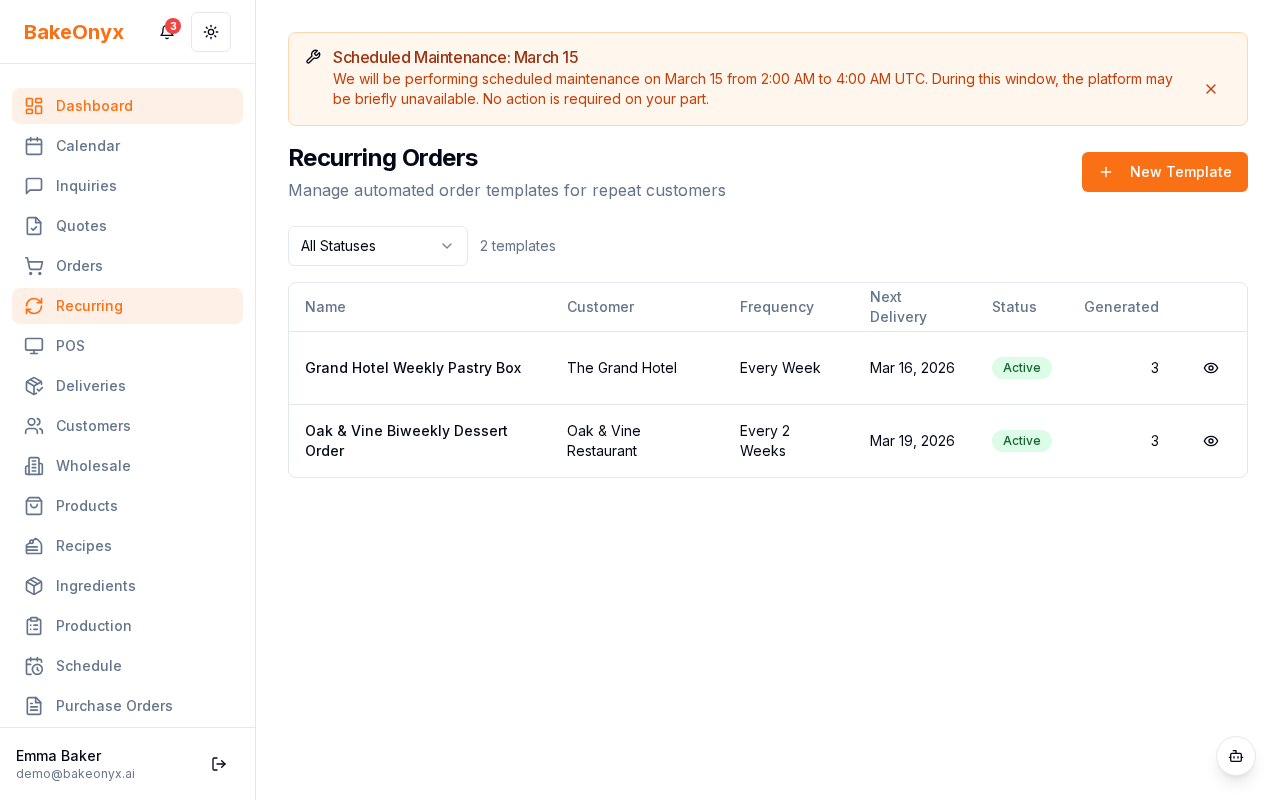
Understanding the Recurring Order Detail Page
When you open a recurring order template, you'll see:
- Template Info: Customer name, delivery address, and creation date
- Frequency: How often orders are generated (weekly, bi-weekly, monthly, etc.)
- Items: The products and quantities included in each order
- Total Generated: A counter showing how many orders have been created from this template
- Occurrences List: All past and upcoming generated orders with their status and delivery dates
Viewing Generated Occurrences
Each occurrence in the list shows:
- Delivery Date: When the order is scheduled for delivery
- Status: Generated, Confirmed, Skipped, or Cancelled
- Order Link: Click to view or edit the individual order if it's been created
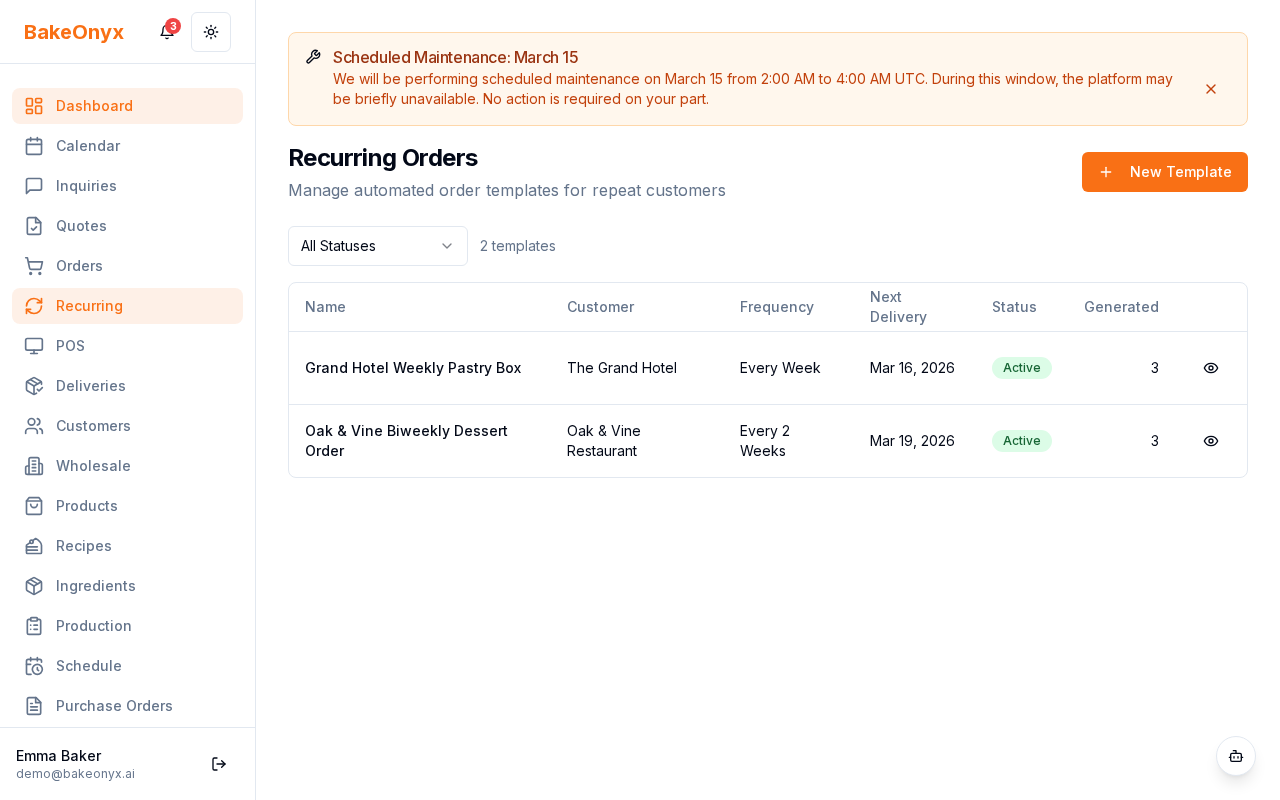
You can click any occurrence to view the generated order details, update its status, or make one-time changes without affecting the template.
Pausing a Recurring Order Template
If you need to temporarily stop generating orders from a template (for example, during a seasonal break), you can pause it:
- Open the recurring order template you want to pause.
- Click the Pause Template button at the top of the page.
- Confirm your action in the popup dialog.
When paused, no new occurrences will be generated. Any orders already created will remain in your system. To resume, click Resume Template and new orders will start generating again on the next scheduled date.
Modifying a Recurring Order Template
You can update the items, frequency, or other details on a template anytime:
- Open the recurring order template.
- Click the Edit Template button.
- Make your changes:
- Add or remove items
- Adjust quantities
- Change delivery frequency
- Update delivery address or special instructions
- Click Save Changes.
Handling Exceptions
Sometimes you need to skip a single occurrence or cancel a specific generated order without pausing the entire template:
- Skip an Occurrence: Click the occurrence in the list and change its status to Skipped. The template will continue generating orders on schedule.
- Cancel an Order: Click the occurrence, then click the order link to open the generated order. Change its status to Cancelled.
Both actions leave the template intact and active for future orders.
Next Steps
- Managing Customers — Learn how to update customer information and preferences
- Online Payments (Stripe & Square) — Set up automatic payments for recurring orders
- Creating a Recipe — Add new items to your recurring order templates