Setting Up Recurring Orders
Create recurring order templates for customers who order on a regular schedule.
Setting Up Recurring Orders
Recurring orders save time and help you build reliable revenue with customers who order the same items on a regular schedule. Instead of manually creating an order every week or month, set up a template once and let BakeOnyx handle the rest.

- Create order templates for regular customers with automatic scheduling
- Set frequency (daily, weekly, biweekly, or monthly) and customize delivery dates
- Pause, resume, or cancel recurring orders anytime without losing the template
Before You Start
Make sure you have:
- A BakeOnyx Professional+ plan (recurring orders are not available on Starter)
- At least one customer already set up in your system
- The items (products) you want to include in the recurring order already created
How to Create a Recurring Order Template
- From your BakeOnyx dashboard, click Orders in the main menu, then select Recurring Orders.
- Click the + New Recurring Order button in the top right.
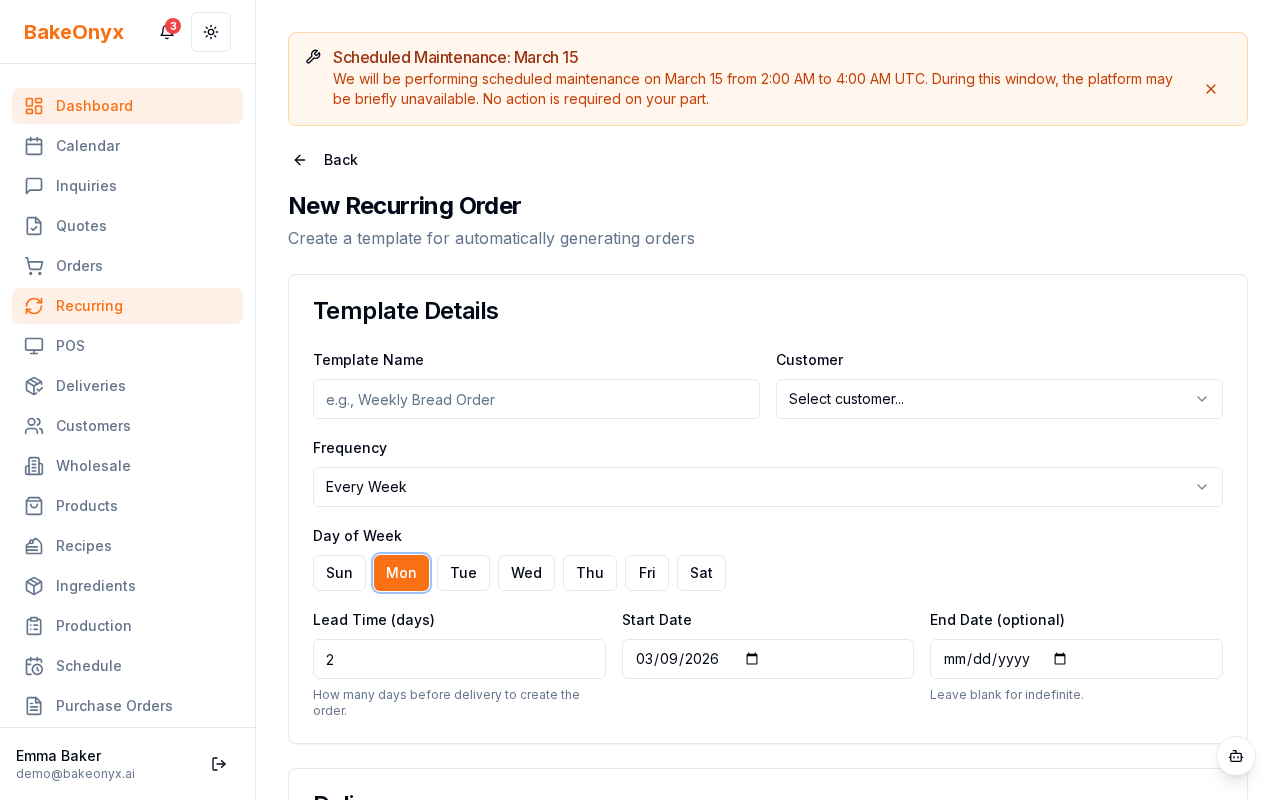
- Fill in the template details:
- Customer: Search for and select the customer who will receive this recurring order.
- Order Name/Description: Give this template a clear name, like "Weekly Sourdough - Monday" or "Monthly Corporate Cake Order." This helps you identify it quickly in your list.
- Set the frequency:
- Choose a frequency type: Daily, Weekly, Biweekly, or Monthly.
- If you select Weekly, pick the day of the week (e.g., Monday, Wednesday).
- If you select Monthly, pick the day of the month (e.g., the 15th).
- Daily and Biweekly orders don't require additional configuration.
- Set start and end dates:
- Start Date: The date when the first order in this series should be generated.
- End Date (optional): If this order should stop after a certain date, enter it here. Leave blank if the order should continue indefinitely.
- Enter the Lead Time in Days: This tells BakeOnyx how many days before delivery you need to prepare the order. For example, if a customer receives their order every Monday and you need 3 days to prepare, enter 3. BakeOnyx will automatically create the order on Friday.
- Select the Delivery Method: Choose how this customer will receive their order (e.g., Pickup, Local Delivery, Shipping).
- Add items to the order:
- Click + Add Item to include products in this recurring order.
- Search for the product, select it, and enter the quantity.
- Add as many items as needed for a complete order.
- Review all details and click Save Recurring Order.
Managing Your Recurring Orders
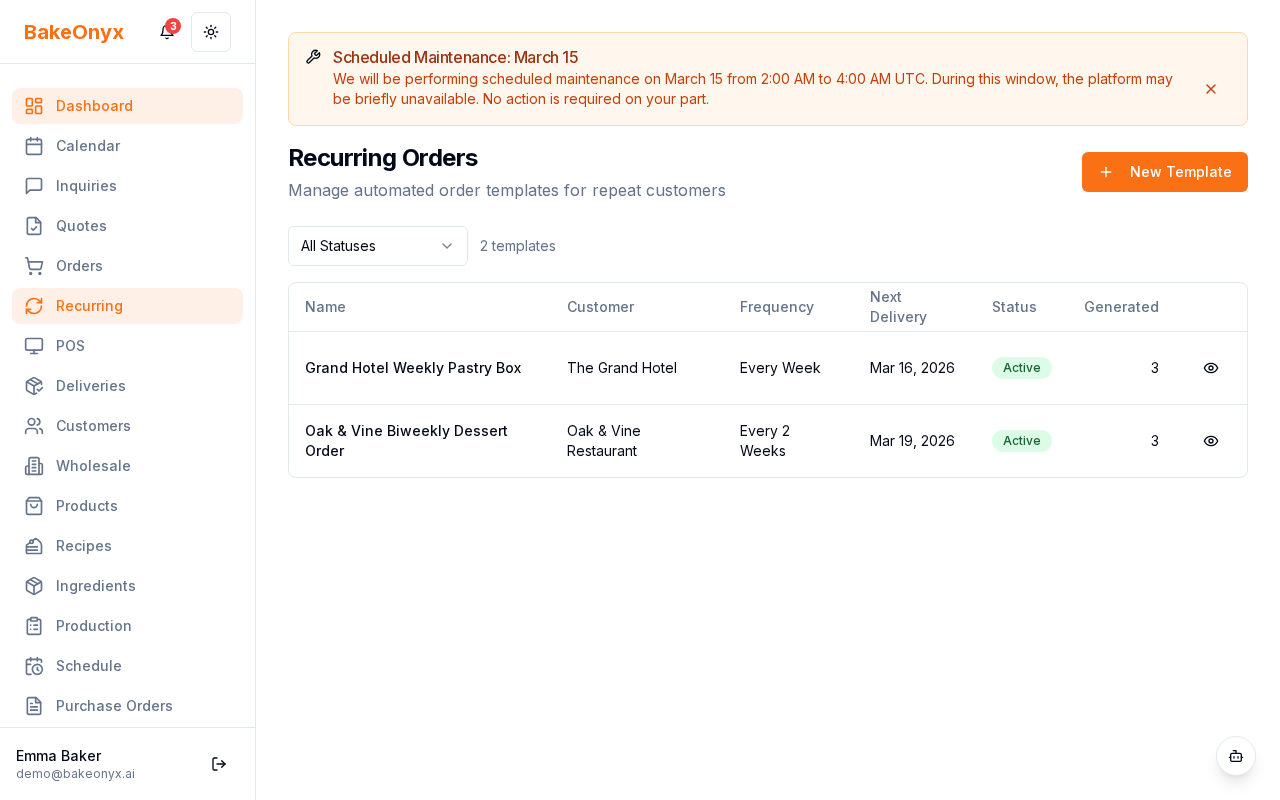
Once your template is created, you'll see it listed on the Recurring Orders page with a status badge (Active, Paused, Completed, or Cancelled).
Next Steps
- Managing Recurring Orders — Learn how to pause, resume, edit, or cancel recurring order templates.
- Managing Customers — Add new customers or update existing customer information.
- Creating a Recipe — Set up products to include in your recurring orders.
Tax on Recurring Orders
When a recurring template generates a new order, BakeOnyx respects your bakery's tax settings. If Prices include VAT / sales tax is enabled under Settings → Orders, generated recurring orders will automatically extract VAT using your default tax rate — no extra configuration needed per template.