Configuring Production Equipment and Staff
Set up your ovens, mixers, and production staff for optimized scheduling.
Configuring Production Equipment and Staff
- Add and configure your ovens, mixers, and decorating stations with their specific capabilities
- Set up your production team with skill levels and specialties so BakeOnyx can assign the right person to the right task
- Enable the AI scheduler to create realistic production plans based on your actual equipment and staff
BakeOnyx's scheduler works best when it knows exactly what equipment you have, how it operates, and who's on your team. This guide walks you through setting up your production environment so the system can create smart, efficient schedules.
Access Production Settings
- Log in to BakeOnyx and go to your Dashboard
- Click Settings in the left sidebar
- Select Production from the settings menu
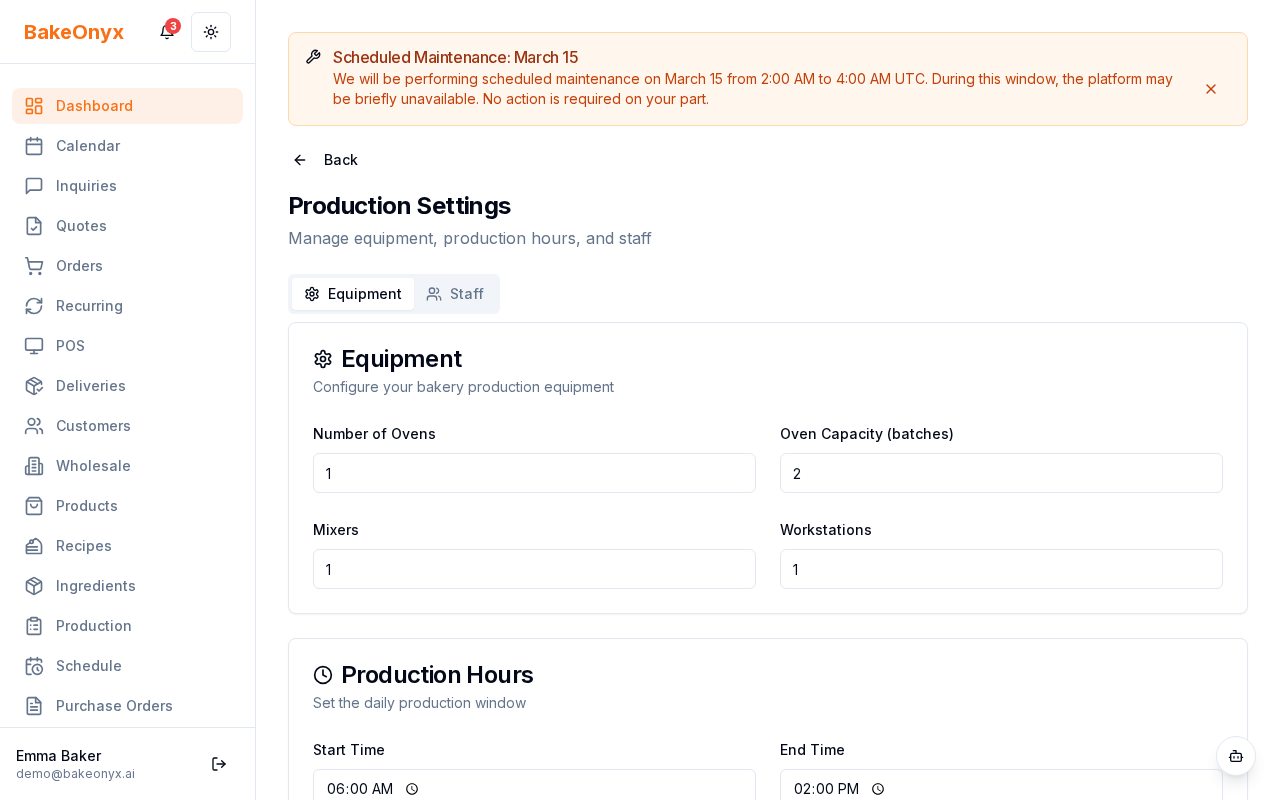
Setting Up Your Equipment
Start by adding the ovens, mixers, and other production equipment you use daily.
- In the Equipment section, click Add Equipment
- Choose the equipment type from the dropdown (Oven, Mixer, Decorating Station, Proofer, etc.)
- Enter a descriptive name (for example, "Deck Oven #1" or "20-Quart Mixer")
- For ovens, specify:
- Temperature Range — the minimum and maximum temperatures it can reach
- Capacity — how many loaves, sheet pans, or items it can hold at once
- For mixers and other equipment, enter the Capacity (batch size or volume)
- If the equipment is only available during certain hours, set Shift Times (start and end times)
- Click Save Equipment
Adding Your Production Staff
Next, add each team member and define their skills. This helps BakeOnyx assign tasks to the right person.
- In the Staff section, click Add Staff Member
- Enter the person's Name
- Select their Skill Level:
- Apprentice — learning; can handle simple tasks under supervision
- Baker — experienced; can work independently on most items
- Senior — highly skilled; can handle complex recipes and troubleshoot
- Head — lead baker; can oversee production and manage quality
- Check the Specialties that match their expertise (Bread, Pastry, Cakes, Decorating, etc.)
- Set their Shift Times — when they typically work (for example, 5:00 AM to 2:00 PM)
- Make sure the Active toggle is on if they're currently working
- Click Save Staff Member
How the Scheduler Uses This Information
Once you've configured your equipment and staff, BakeOnyx's AI scheduler uses these details to create production plans that actually work:
- Equipment capacity — Groups similar tasks (like bread baking) by oven temperature so it doesn't exceed capacity
- Staff skills — Assigns complex items (decorated cakes, laminated pastry) to bakers with the right specialty and skill level
- Shift times — Schedules tasks only when the right equipment and staff are available
- Specialties — Prioritizes assigning pastry work to your pastry specialist, bread work to your bread baker, etc.
Updating Equipment and Staff
As your bakery changes, keep your setup current:
- If you buy a new oven, add it to your equipment list
- If a staff member goes on leave, toggle their Active status to off
- If someone learns a new specialty, update their profile
- If shift times change seasonally, update them in your staff records
Regular updates ensure your schedules stay accurate and achievable.
Next Steps
- From Forecast to Production — Learn how to turn your sales forecast into a production schedule
- Creating a Recipe — Set up recipes with equipment and skill requirements so the scheduler knows what each item needs
- Using the Calendar — View and adjust your production schedule once it's generated