Using the Calendar
View orders, production tasks, deliveries, and shifts on a monthly calendar with color-coded events.
The calendar is your command center — orders, production tasks, deliveries, and staff shifts in one colour-coded month view — and you can create orders or schedule production right from it. Here's how to use it.

What the Calendar Shows
The BakeOnyx calendar is your command center for managing everything that happens in your bakery. It displays a full month view with color-coded events so you can see at a glance what's coming up.
Each event type has its own color:
- Coral — Birthday orders
- Pink — Wedding orders
- Purple — Anniversary orders
- Cyan — Baby shower orders
- Green — Graduation orders
- Slate — Corporate orders
- Orange — Holiday orders
- Gray — Other events
The calendar also shows production tasks with task counts, delivery dates, staff shifts, and important deadlines like quote expiration dates.
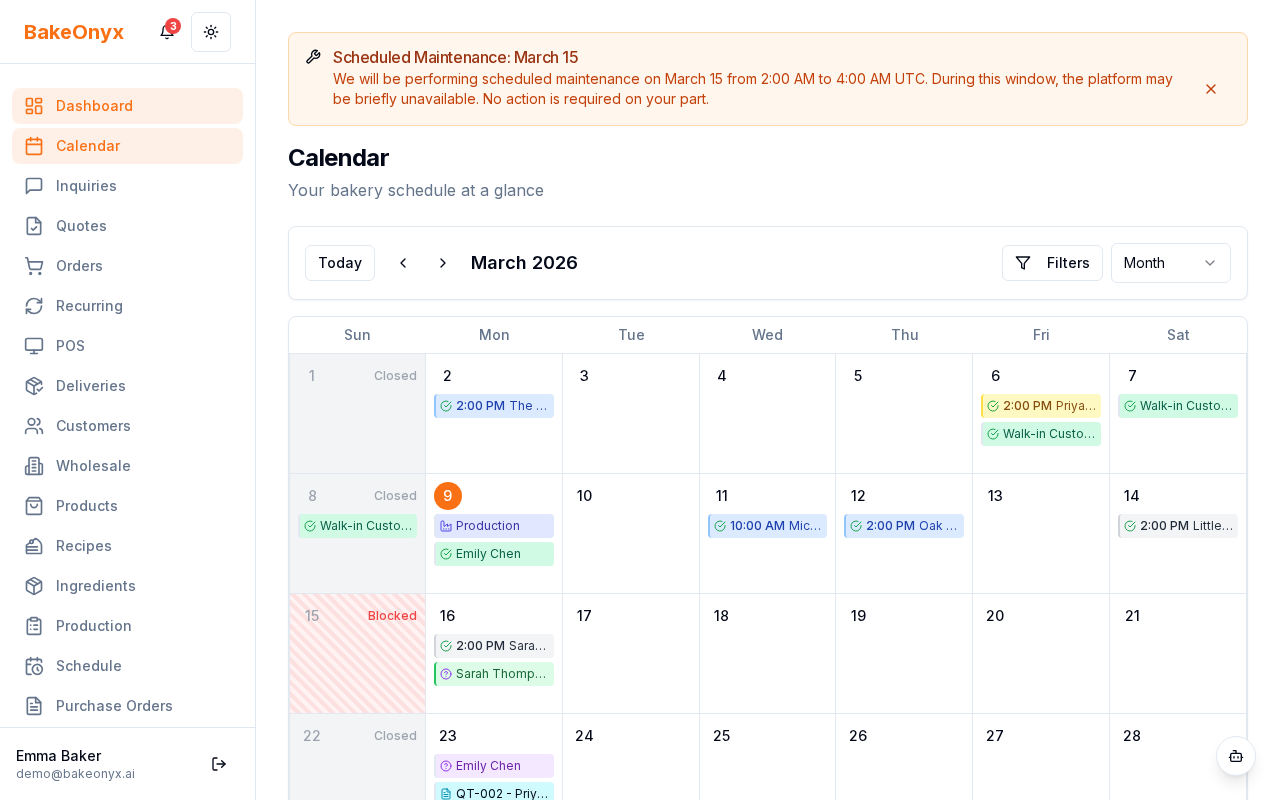
Viewing Event Details
To see what's happening on any day, click on an event on the calendar. A popup will appear showing you a summary of that event with key details.
- Click on any event on the calendar
- Review the popup summary that appears
- Click View Details to open the full order, task, or shift information
- Click outside the popup to close it
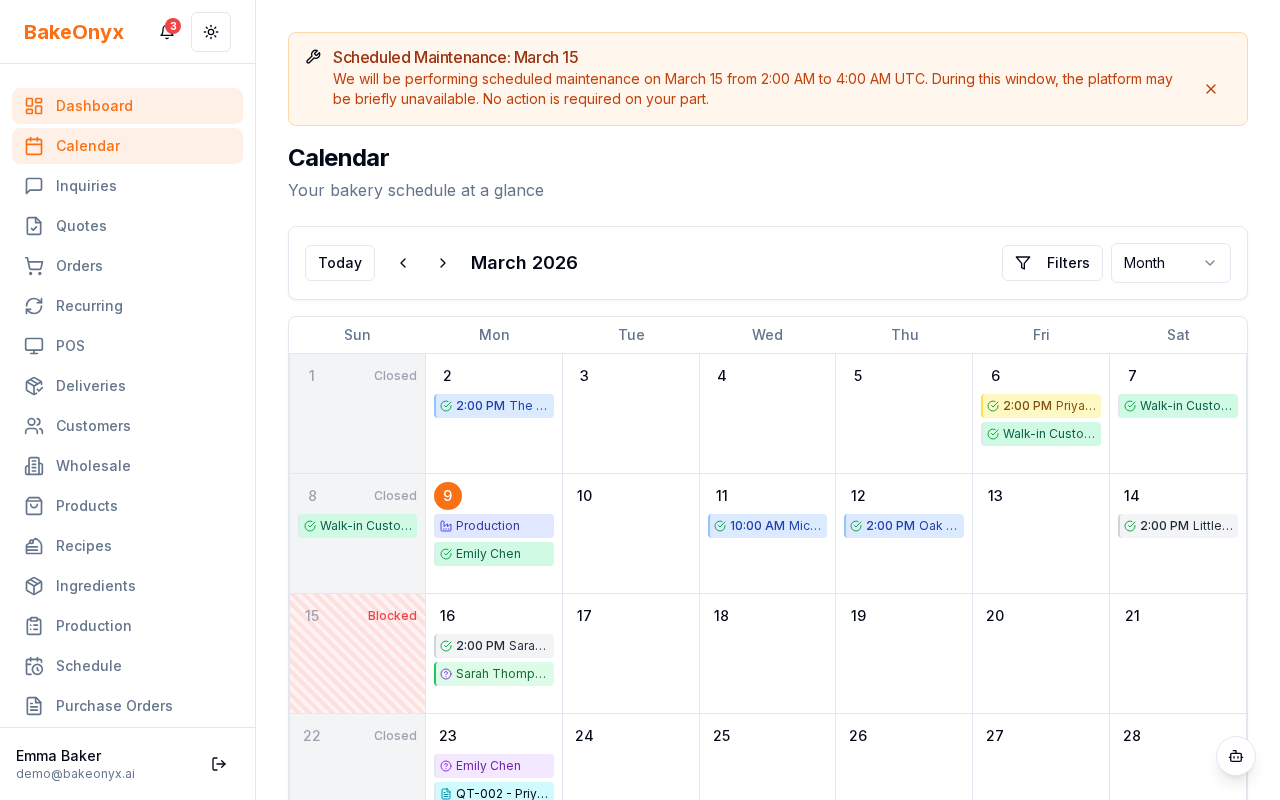
Understanding the Today Banner
At the top of your calendar, you'll see a "Today" banner that highlights the current date. This banner gives you a quick summary of what's due today, including orders to fulfill, production tasks to complete, and deliveries scheduled.
Use this to quickly prioritize your day's work without scrolling through the entire month.
Using Quick Action Buttons
The calendar includes quick action buttons that let you create new orders, schedule production tasks, or block dates without leaving the calendar view.
- Look for the quick action buttons near the top of the calendar
- Click New Order to create a new customer order
- Click Schedule Production to add a production task to a specific date
- Click Block Date to mark a date when your bakery is closed or unavailable
Viewing Production Tasks on the Calendar
Production tasks now appear directly on the calendar with task counts and status indicators. This shows at a glance how much work you have scheduled for each day.
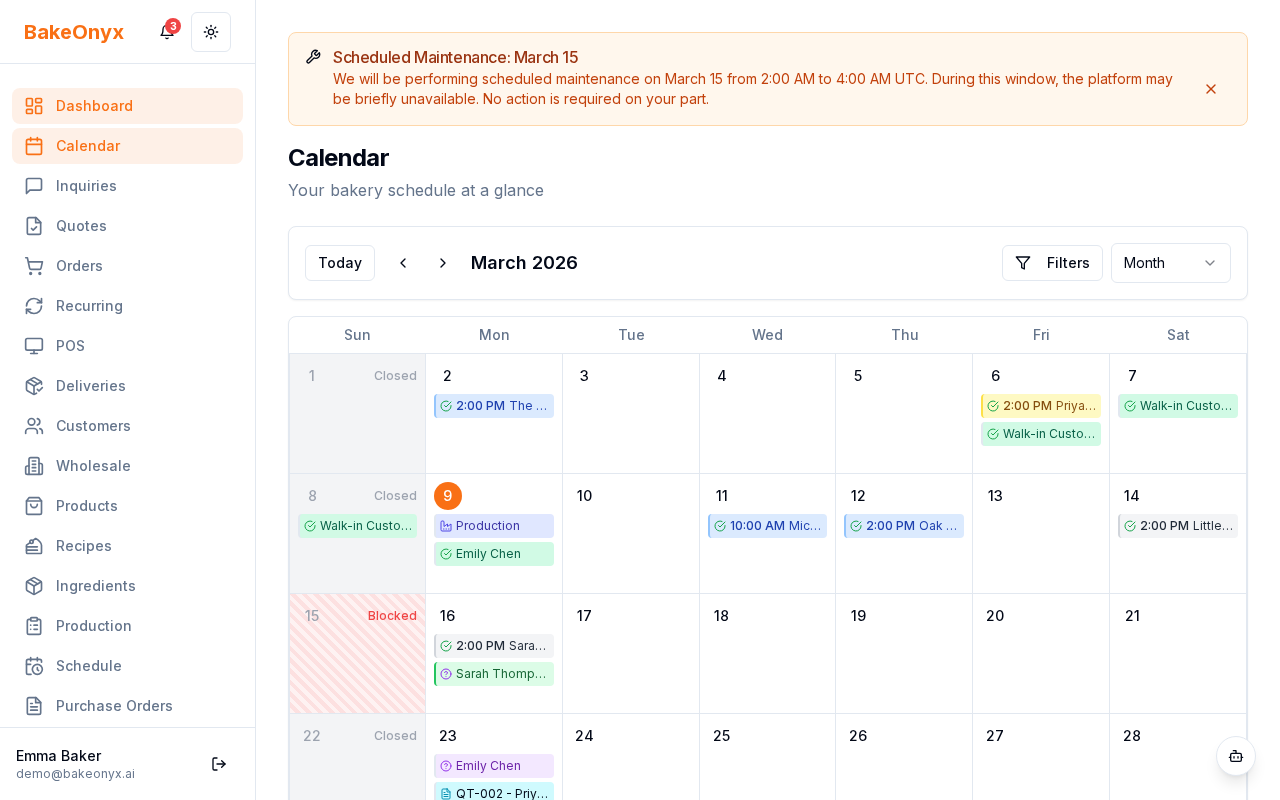
When you click on a production event, you'll see:
- The number of tasks scheduled for that day
- The status of each task (pending, in progress, completed)
- A link to view the full production schedule
Syncing with Google Calendar
If you want to see your BakeOnyx calendar events in Google Calendar, you can enable two-way sync. This keeps your personal calendar and BakeOnyx calendar in sync, so you can manage your bakery schedule wherever you work.
Google Calendar sync is available on all BakeOnyx plans. Check your calendar settings to enable this feature.
Next Steps
- Setting Availability and Blocked Dates — Learn how to mark days when your bakery is closed
- Creating a New Order — Create orders directly from the calendar
- Production Scheduler Overview — Understand how to manage production tasks