Working with Production Tasks
Execute production tasks, track progress, and auto-deduct ingredients from inventory.
Working with Production Tasks
Production tasks are your kitchen's to-do list. They tell your team what to bake, how much to make, and which equipment to use. In BakeOnyx, you can track progress from start to finish and automatically update your ingredient inventory when a batch is done.
- Execute production tasks and track their status from pending to completed
- View task details on mobile-friendly cards optimized for kitchen use
- Automatically deduct ingredients from inventory when tasks are marked complete
Understanding Task Status
Every production task moves through three stages:
- Pending — The task is created but hasn't started yet
- In Progress — Your team has started working on this task
- Completed — The batch is finished and ingredients are deducted from inventory
Viewing Your Production Tasks
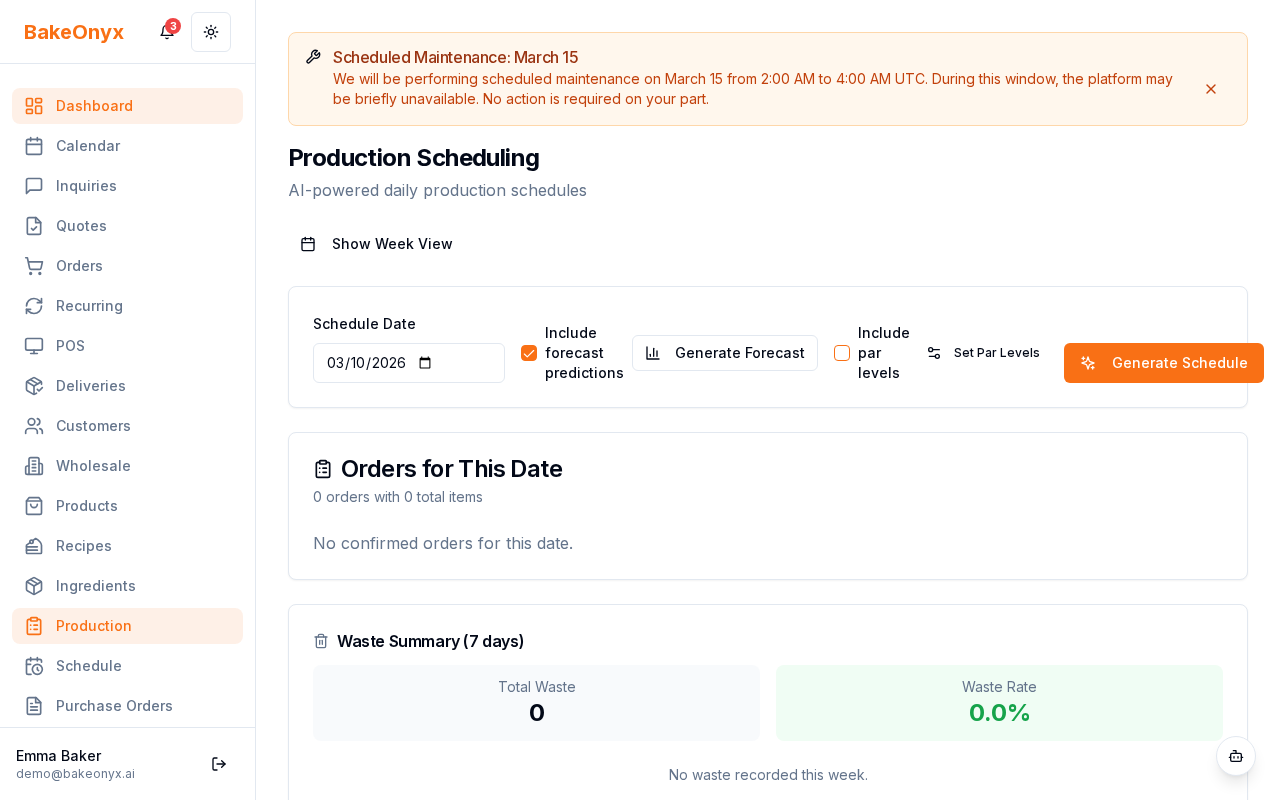
Navigate to the Production section in BakeOnyx. You'll see task cards displayed in a mobile-optimized layout, perfect for viewing on your phone, tablet, or kitchen display screen.
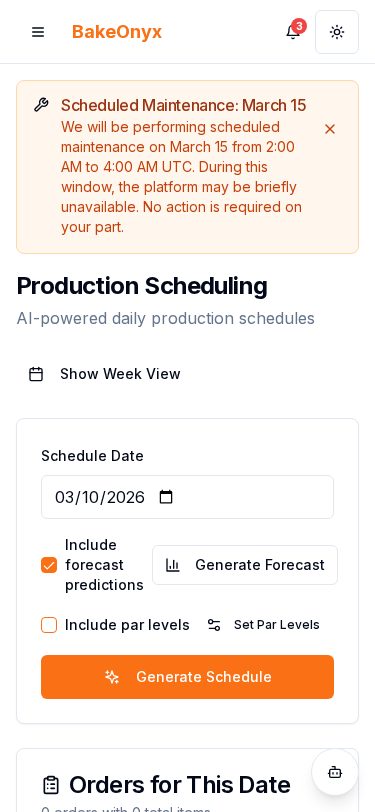
Each task card shows:
- Recipe name — What you're baking
- Quantity — How many batches or units to produce
- Equipment needed — Mixer, oven, proofer, etc.
- Dependencies — Other tasks that must be completed first
- Assigned staff — Who's responsible for this task
Starting a Task
- Find the task card in your Pending list
- Tap or click the task to open its details
- Select the Start Task or In Progress button
- The task status updates immediately and moves to your In Progress section
Completing a Task and Deducting Inventory
When your batch is finished and ready to move to the next stage (cooling, packaging, or storage), mark the task as complete. This automatically deducts the ingredients used from your inventory.
- Open the task card for the batch you've finished
- Review the Actual Quantity field — this is how many units you actually produced
- If the actual quantity differs from the planned quantity, update this field
- Tap or click Mark Complete
- BakeOnyx automatically calculates and deducts ingredients based on your actual production
How Inventory Deduction Works
When you mark a task complete, BakeOnyx uses the recipe's ingredient list to calculate what to deduct. Here's what happens behind the scenes:
- The system takes each ingredient in your recipe
- It scales the ingredient amount based on your actual production quantity versus the recipe yield
- It deducts that amount from your current ingredient stock
- It creates a log entry showing the deduction was for "production"
This process is automatic and happens only once per task — even if you accidentally mark it complete twice, the deduction won't happen twice.
Next Steps
- Learn how to create and set up recipes with accurate ingredient lists
- Set up par levels to automatically generate production tasks based on demand
- Use the calendar view to plan production tasks ahead of time