Creating Products from Recipes
Link a recipe to a product so the product cost is automatically calculated from the recipe.

Creating Products from Recipes
- Link a recipe to a product so costs are calculated automatically
- Set portion sizes to price individual items from a batch
- View profit margins and cost breakdowns at a glance
In BakeOnyx, you can create products that are directly tied to your recipes. When you link a recipe to a product, the material cost is calculated automatically based on your ingredient costs. You can then add labour and overhead costs to get a complete picture of what each product costs to make—and how much profit you're making on each sale.
Before You Start
Make sure you have:
- A recipe already created in BakeOnyx with ingredients and quantities
- Ingredient costs up to date in your inventory
- A selling price in mind for your product
Creating a Recipe-Based Product
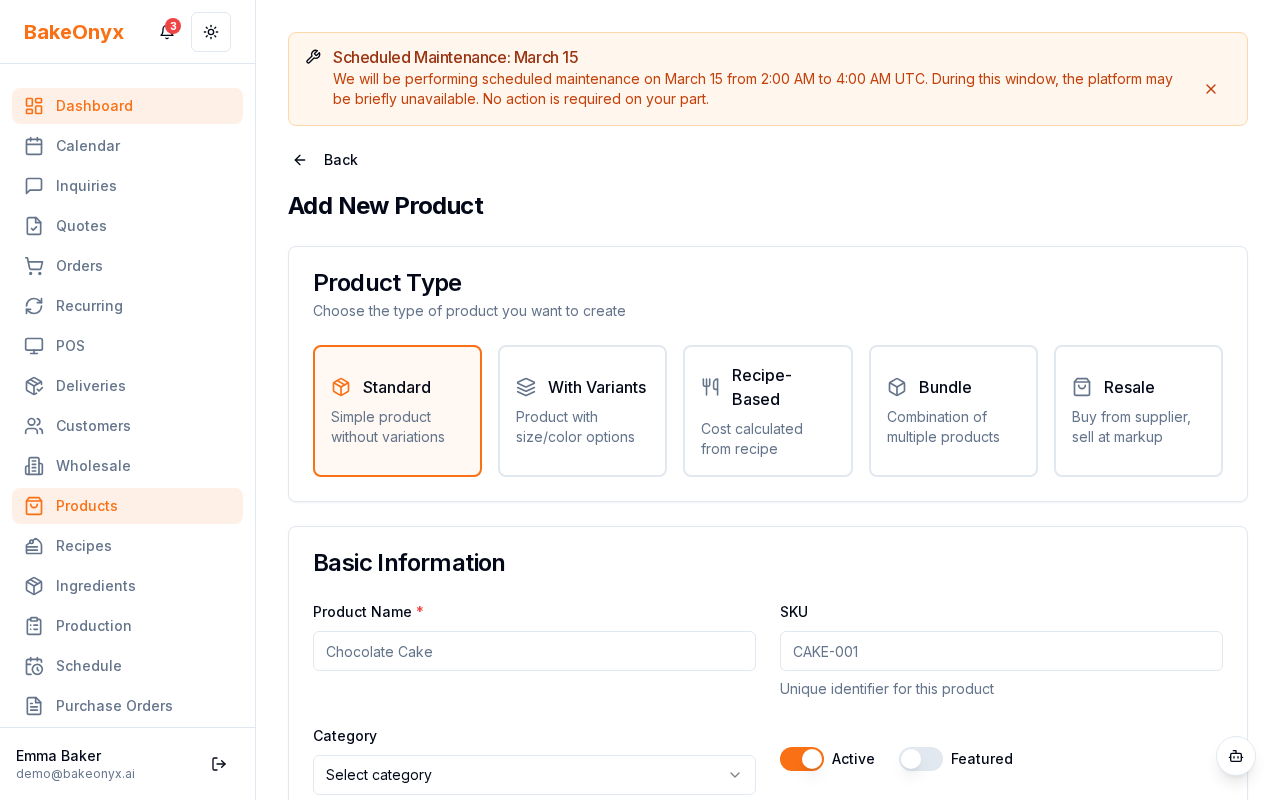
- Go to Products from the main menu.
- Click the + New Product button.
- In the product form, enter a Product Name (for example, "Sourdough Loaf 450g").
- Select Recipe as the product type.
- Click the Recipe dropdown and choose the recipe you want to link to this product.
Setting Your Portion Size
A portion size lets you price a specific amount from a batch. For example, if your sourdough recipe makes 2 kg of dough, but you sell 450g loaves, set the portion size to 450g. BakeOnyx will automatically calculate the material cost for that portion.
- In the Portion Size field, enter the weight or volume of one unit you're selling (for example,
450). - In the Portion Unit dropdown, select the unit (for example,
gfor grams,mlfor millilitres).
Adding Labour and Overhead Costs
The material cost comes from your recipe, but you can also add labour and overhead to get a complete cost picture.
- In the Labour Hours field, enter how many hours of labour this product requires (for example,
0.5for 30 minutes). - In the Overhead Amount field, enter any additional costs per unit (for example, packaging, utilities, or rent allocation).
- Enter your Sell Price—the amount you charge customers for this product.
Reviewing Your Cost Breakdown
Once you've filled in the details, BakeOnyx shows you a cost breakdown:
- Material Cost: Calculated from your recipe ingredients
- Labour Cost: Based on labour hours (if your account has an hourly rate set)
- Overhead: Any additional costs you've entered
- Total Cost: Material + Labour + Overhead
- Profit Margin: Shows your margin as a percentage and dollar amount
Saving Your Product
- Review all the details to make sure everything is correct.
- Click Save Product.
- Your product is now ready to use in orders and sales.
Next Steps
- Recipe Versioning and History — Learn how to track changes to your recipes over time
- Adding and Managing Ingredients — Keep your ingredient costs accurate so product costs stay current
- Creating a New Order — Use your new product in customer orders