Recipe Versioning and History
Track recipe changes over time with automatic versioning, diff views, and the ability to restore previous versions.
BakeOnyx automatically saves a snapshot of a recipe every time you make a meaningful change — so you can compare versions, see what changed, and restore a previous one without losing your current work. Here's how it works.

What Is Recipe Versioning?
Recipe versioning is a built-in safety feature that automatically saves a snapshot of your recipe every time you make meaningful changes. This means you can always see what your recipe looked like in the past, compare versions side-by-side, and roll back to an earlier version if needed.
BakeOnyx creates a new version automatically when you:
- Add, remove, or modify an ingredient
- Change baking instructions
- Adjust the recipe yield
- Make other significant changes to the recipe
View Your Recipe Version History
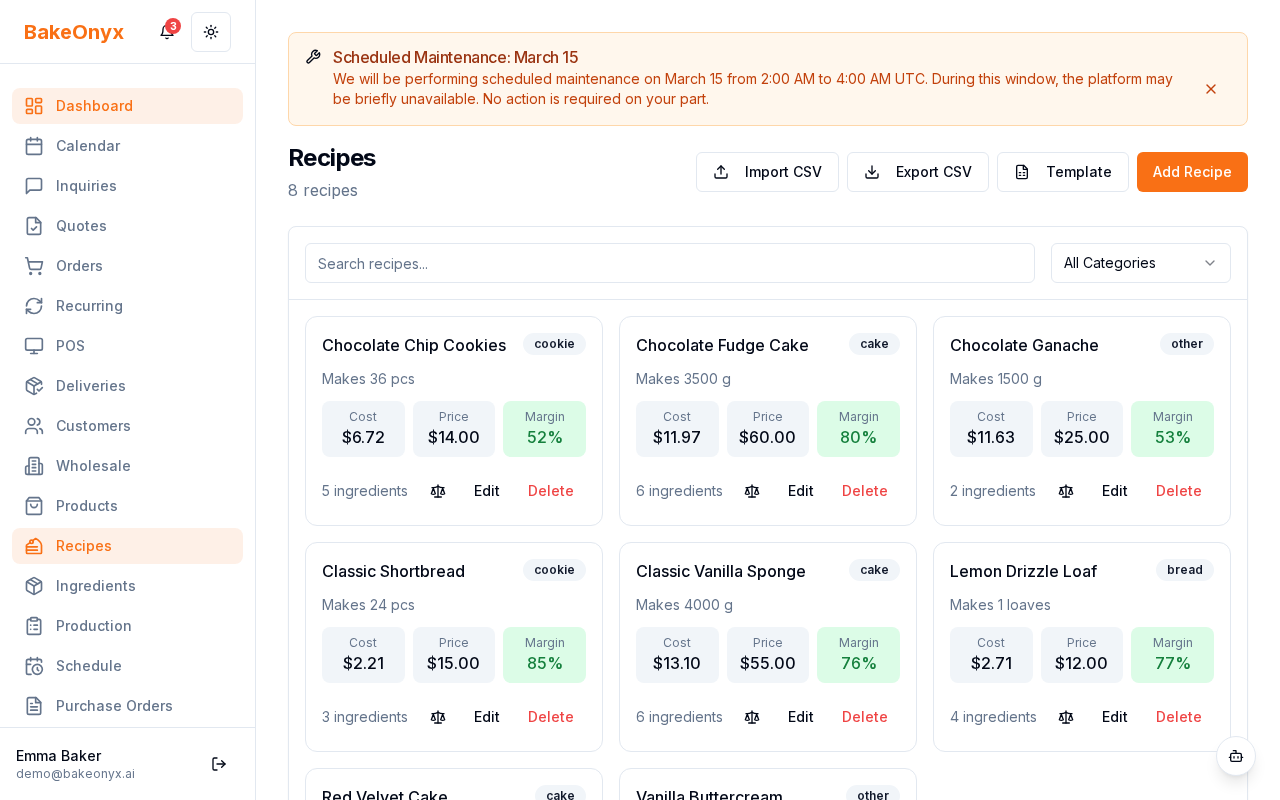
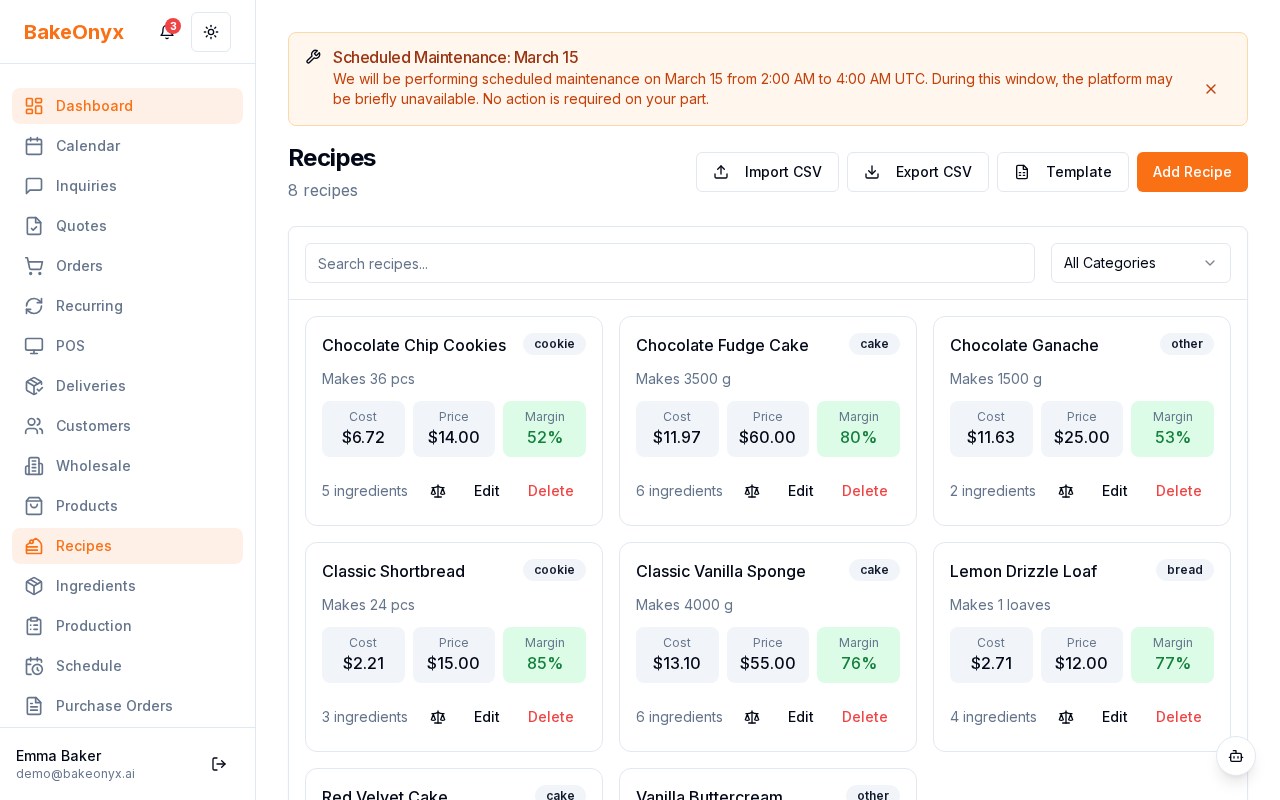
- From the dashboard, navigate to Recipes and select the recipe you want to review.
- Scroll down to the Version History section at the bottom of the recipe page.
- You'll see a list of all versions, starting with the most recent. Each entry shows:
- The version number
- When the version was created
- A summary of what changed
Compare Two Recipe Versions
The diff view shows exactly what changed between any two versions of your recipe.
- In the Version History section, click on any version entry to open the diff view.
- The diff view will highlight:
- Added items (shown in green)
- Removed items (shown in red)
- Modified items (shown in yellow)
- Scroll through to review all changes between the current version and the selected past version.
- Click Close to return to the version history list.
Restore a Previous Recipe Version
If you need to go back to an earlier version of your recipe, you can restore it in just a few clicks. The good news: restoring never deletes your current version. Instead, BakeOnyx creates a new version with the old recipe details, so your full history is always preserved.
- In the Version History section, find the version you want to restore.
- Click the Restore button next to that version.
- A confirmation dialog will appear. Review the change summary to make sure you're restoring the right version.
- Click Confirm Restore to proceed.
- BakeOnyx will create a new version with the restored recipe details. Your recipe is now updated, and your previous version remains in the history.
Why Ingredient Names Stay in History
You might notice that even if you delete an ingredient from your inventory, it still appears in your recipe version history with its original name. This is intentional—it keeps your version history accurate and readable, so you always know exactly what was in your recipe at any point in time.
Next Steps
- Tin Size Converter & Serving Guide — Adjust recipe yields for different pan sizes
- Adding and Managing Ingredients — Learn how to set up and organize your ingredient library
- Creating a New Order — Use your recipes to create customer orders