Exporting Reports (PDF & CSV)
Export any report as a PDF document or CSV spreadsheet for sharing or record-keeping.
Export any BakeOnyx report as a PDF (polished, for sharing) or a CSV (raw, for Excel/Sheets or your accountant). Here's how to export, and when to use each format.
Why Export Reports?
Exporting reports from BakeOnyx lets you save a snapshot of your bakery's performance, share data with your accountant or business partners, or import numbers into other tools like Excel or Google Sheets. Whether you need a polished PDF for a presentation or raw data for deeper analysis, BakeOnyx exports both in a click.
How to Export a Report
Step 1: Open the Report You Want to Export
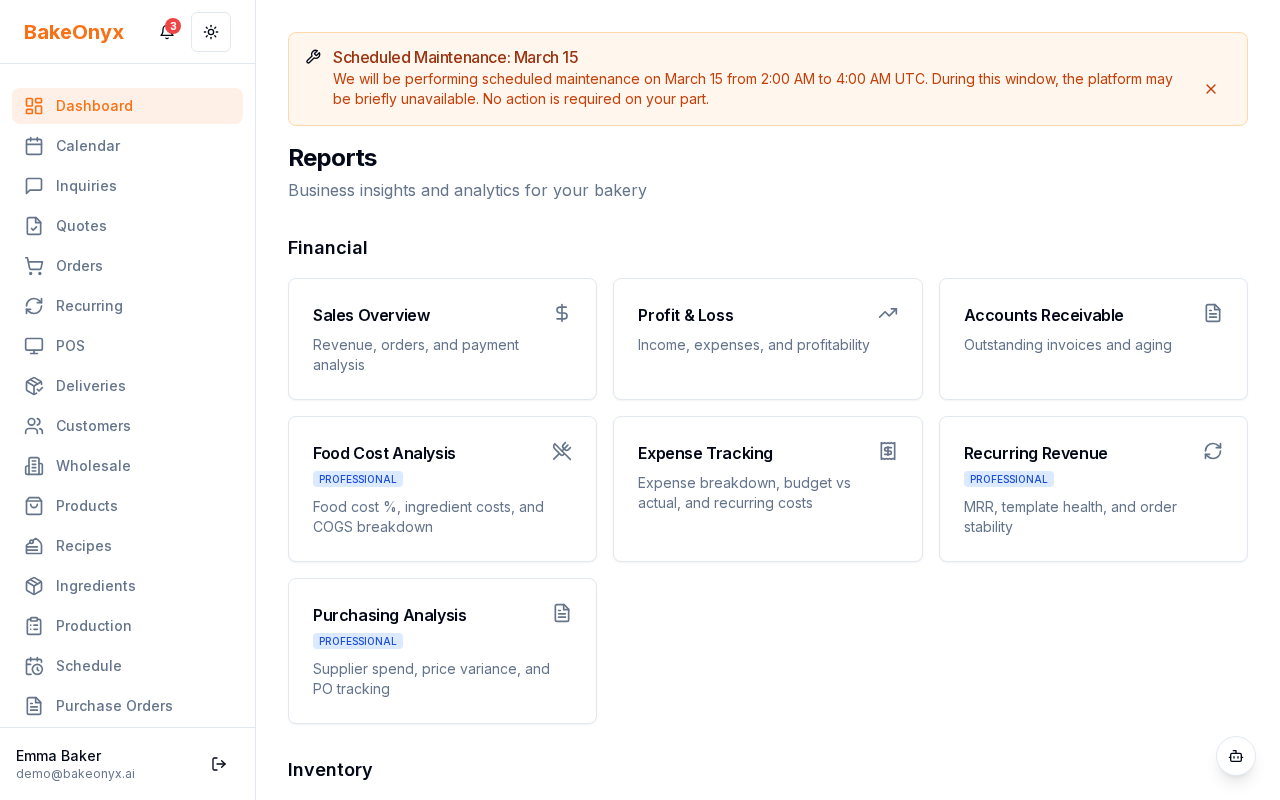
Navigate to the Reports section in BakeOnyx. Choose the report you'd like to export—for example, Sales Summary, Inventory Report, or Expense Breakdown. The report will display on your screen with all your data and charts.
Step 2: Click the Export Button
Look for the Export button at the top of the report. It's usually located in the toolbar next to filters or date range options.
Step 3: Choose Your Format
A small menu will appear asking you to select a format:
- PDF – Best for sharing with others or printing. Includes all charts, formatted tables, and your bakery's branding.
- CSV – Best for data analysis. Raw spreadsheet format that opens in Excel, Google Sheets, or other tools.
Step 4: Download Your File
Click your chosen format. BakeOnyx will generate the file and automatically download it to your computer. The file name will include the report type and date—for example, Sales_Summary_Jan_2024.pdf or Inventory_Report_Jan_2024.csv.
PDF vs. CSV: Which Format Should I Use?
Use PDF When:
- Sharing reports with accountants, investors, or business partners
- You want a professional-looking document with charts and formatting
- Printing the report for your records or a meeting
- Emailing the report and want to ensure it looks the same on any device
Use CSV When:
- Importing data into Excel or Google Sheets for custom analysis
- Creating pivot tables or performing calculations
- Combining data from multiple reports
- Feeding data into accounting software or other business tools
Troubleshooting
The Export Button Isn't Showing
Make sure you're viewing a complete report (not a summary page). Some custom or filtered views may have limited export options. Try resetting your filters or viewing the full report.
The Downloaded File Won't Open
Check that your computer has a PDF reader (for PDFs) or a spreadsheet application like Excel or Google Sheets (for CSVs). If you're still having trouble, try exporting again or contact support.
The Data Looks Different Than Expected
Make sure the date range and filters on your report are set correctly before exporting. The exported file will only include data matching your current view.
Next Steps
Now that you can export reports, explore what insights they contain:
- Understanding Key Metrics – Learn what the numbers in your reports mean
- Tracking Expenses – See how to log expenses so they show up in your reports
- Creating a New Order – Understand how orders feed into your sales reports