Team Management and Roles
Invite team members and assign roles — owner, manager, or staff — with different access levels.
Team Management and Roles
- Invite team members to your bakery workspace by email
- Assign roles (Owner, Manager, or Staff) with different access levels
- Change roles and remove team members as needed
Understanding BakeOnyx Roles
Every bakery workspace has one Owner and can have multiple Managers and Staff members. Each role has different access levels:
- Owner: Full access to everything — orders, recipes, inventory, customers, reports, bakery settings, and billing. Only one Owner per bakery.
- Manager: Operational access to orders, recipes, inventory, customers, and reports. Managers can't access bakery settings or billing.
- Staff: Limited access to view and edit assigned orders, and view recipes. Staff members can't access inventory, customers, or reports.
Invite a Team Member
- Go to Settings in the main navigation menu.
- Click Team from the settings menu.
- Click the Invite Team Member button.
- Enter the team member's email address in the Email field.
- Select their role from the dropdown: Manager or Staff.
- Click Send Invite.
BakeOnyx will send an invitation email to the team member. They'll need to click the link in the email and create a password to join your workspace. Once they accept, they'll appear in your team list with their assigned role.
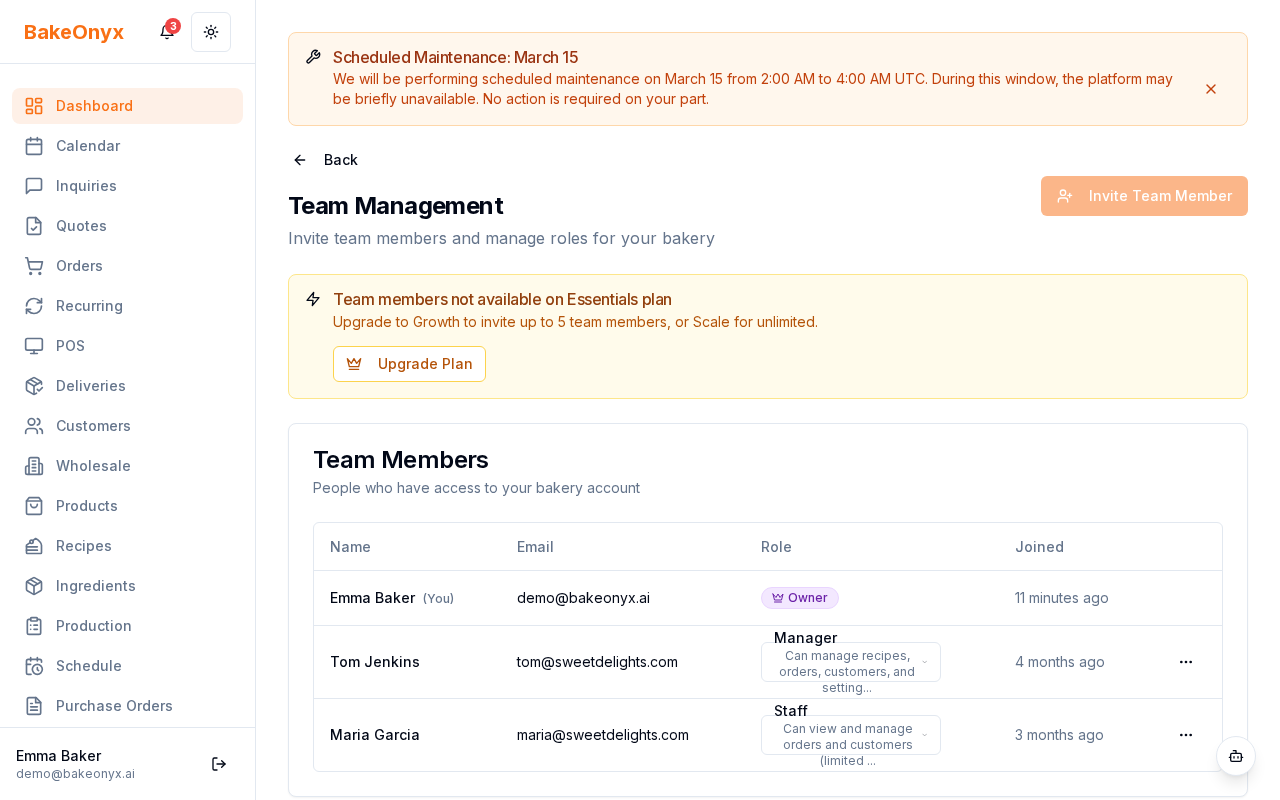
Change a Team Member's Role
- Go to Settings > Team.
- Find the team member in the list.
- Click the role dropdown next to their name.
- Select the new role: Manager or Staff.
- Confirm the change when prompted.
The team member's access level will update immediately. If you're promoting someone from Staff to Manager, they'll now see additional features like inventory and customer management. If you're demoting someone from Manager to Staff, some features will become hidden from their view.
Remove a Team Member
- Go to Settings > Team.
- Find the team member you want to remove.
- Click the three-dot menu icon next to their name.
- Select Remove Member.
- Confirm the removal.
Once removed, the team member will no longer be able to log in to your BakeOnyx workspace. They won't be able to access orders, recipes, inventory, or any other data. If you need to re-invite them later, you can send a new invitation.
Best Practices for Team Management
- Start with Staff roles: New team members should begin as Staff. Promote them to Manager once they're familiar with BakeOnyx and your bakery's processes.
- Keep your team list current: Remove members who no longer work at your bakery to keep your workspace secure.
- Assign roles by responsibility: Use Manager roles for supervisors and lead bakers who need full operational visibility. Use Staff roles for order fulfillment and production team members.
Next Steps
- Welcome to BakeOnyx — Get started with the basics of your bakery workspace
- Managing Suppliers — Set up and manage your ingredient suppliers
- Understanding Subscription Plans — Learn about your BakeOnyx subscription and billing