Customizing Invoice, Job Sheet, and Receipt Display
Control which fields appear on your generated PDF documents — invoices, job sheets, and receipts.
Customizing Invoice, Job Sheet, and Receipt Display
- Control which fields appear on your invoices, job sheets, and receipts
- Customize the look and content of your PDF documents to match your bakery's needs
- Make changes that apply to all future PDFs you generate
Understanding Document Display Settings
BakeOnyx lets you decide exactly what information appears on your printed or emailed documents. Whether you want to hide certain pricing details, remove your bakery logo, or simplify your receipts, you have full control. Each document type — invoices, job sheets, and receipts — has its own set of customizable fields.
By default, most fields are visible. You can toggle them off if you don't need them. Your changes take effect the next time you generate a PDF.
Accessing Document Settings
- Log in to BakeOnyx and go to your Dashboard
- Click Settings in the main menu
- Select Documents from the settings options
You'll see three tabs at the top: Invoice, Job Sheet, and Receipt. Each tab contains a list of fields you can show or hide.
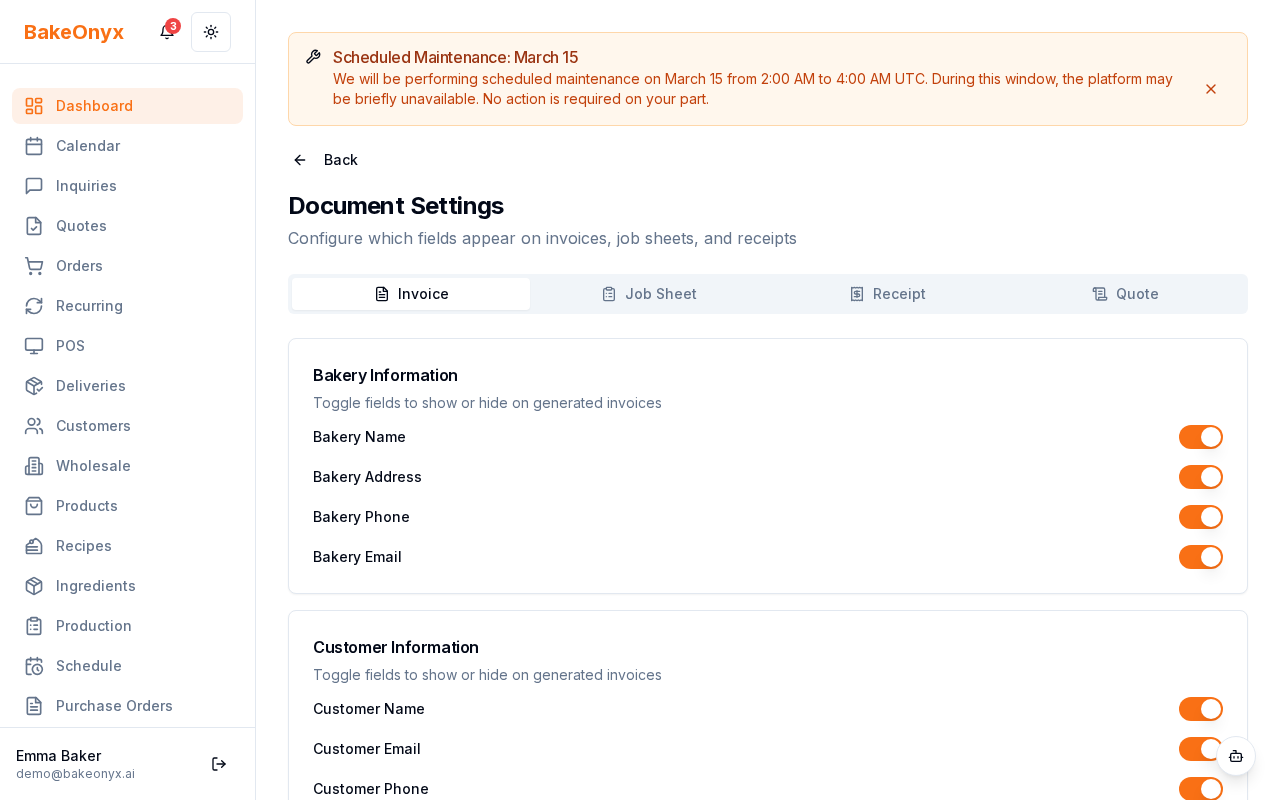
Customizing Your Invoice
The Invoice tab includes 22 fields organized into categories like bakery information, customer details, order specifics, and payment amounts.
- Click the Invoice tab
- Review the list of available fields. Common fields include:
- Bakery name and logo
- Invoice number and date
- Customer name and contact details
- Order items and quantities
- Subtotal, tax, and total amounts
- Payment terms and notes
- Toggle the switch next to any field to hide it from your invoices. The switch will turn gray when disabled
- Your changes save automatically
Customizing Your Job Sheet
Job sheets are internal documents your baking team uses. The Job Sheet tab has 17 fields that help your staff track production details.
- Click the Job Sheet tab
- Toggle fields on or off based on what your team needs to see. Typical fields include:
- Order ID and due date
- Customer name
- Item list with quantities and special instructions
- Pricing and profit margins (helpful for your team)
- Allergen information
- Delivery or pickup instructions
- Save your preferences — changes apply to the next job sheet you generate
Customizing Your Receipt
Receipts are shorter documents, ideal for counter sales or quick transactions. The Receipt tab includes 13 essential fields.
- Click the Receipt tab
- Toggle fields to customize what appears on your receipts. Common fields include:
- Bakery name
- Transaction date and time
- Items purchased and prices
- Total amount and payment method
- Thank you message
- Keep receipts concise by hiding unnecessary details
Best Practices
- Test before rolling out: After making changes, generate a sample PDF to see how it looks
- Keep it consistent: Use the same settings for all invoices, job sheets, or receipts unless you have a specific reason to change them
- Hide sensitive info: Remove cost details and profit margins from customer-facing documents
- Include essentials: Always show enough information for customers to understand what they're paying for
Next Steps
- Email Templates — Customize the messages that accompany your invoices and receipts when sent via email
- Welcome to BakeOnyx — Get started with the basics of BakeOnyx
- Understanding Subscription Plans — Learn which features are available on your plan