Email Settings
Configure your email sender name, reply-to address, and CC/BCC preferences for outgoing emails.
Email Settings
What you'll learn
- How to set your bakery's sender name for customer emails
- How to configure where customer replies are directed
- How to add optional CC, BCC, and email footer text to all outgoing messages
Overview
Email settings control how your bakery appears in every message BakeOnyx sends to customers—from order confirmations to delivery reminders. You can customize the sender name, set up a reply-to address, and add optional copies or footer text. These settings apply to all system-generated emails automatically.
Accessing your email settings
- Log in to BakeOnyx and go to your dashboard.
- Click Settings in the left sidebar.
- Select Email Settings from the menu.
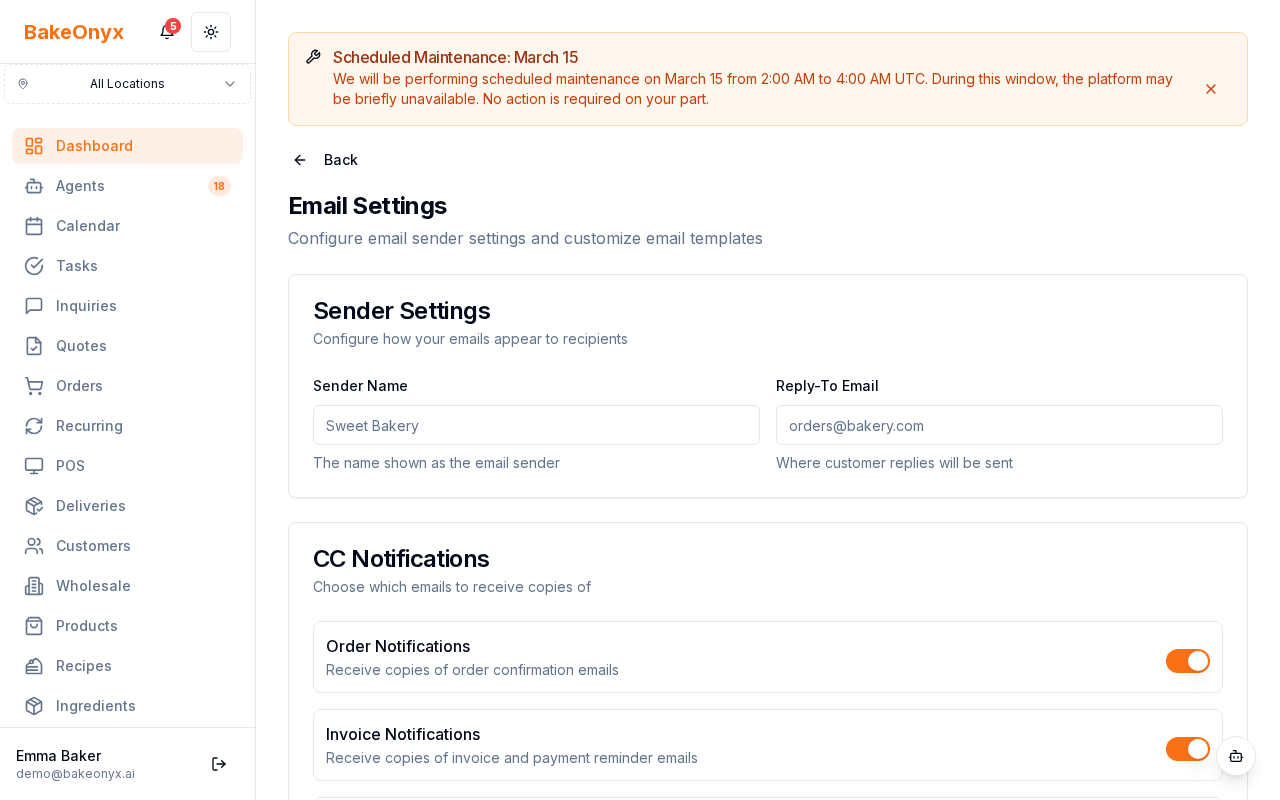
Configuring your sender name
The sender name is what appears in the "From" field when customers receive emails from your bakery. This is typically your bakery's name.
- In the Sender Name field, enter the name you want customers to see (for example, "Sweet Delights Bakery" or "The Cake Studio").
- Click Save to apply the change.
Setting your reply-to address
The reply-to address is where customer responses go when they hit "Reply" on an email from BakeOnyx. This should be an email address you check regularly—typically your main business email or a shared team inbox.
- In the Reply-To Email field, enter the email address where you want customer replies to arrive.
- Click Save.
noreply@bakeonyx.ai), but replies always go to your reply-to address. This keeps your customer conversations in one place while protecting your primary email from being exposed in customer inboxes.Adding optional CC and BCC addresses
CC (carbon copy) and BCC (blind carbon copy) let you receive copies of every outgoing email automatically. Use these if you want a manager, team member, or archive inbox to track all customer communications.
CC address
- In the CC Email field, enter an email address (optional).
- This person will receive a visible copy of every email sent to customers.
- Click Save.
BCC address
- In the BCC Email field, enter an email address (optional).
- This person will receive a hidden copy—customers won't see this address.
- Click Save.
Adding an email footer
The email footer appears at the bottom of every outgoing message. Use it to include your bakery's contact information, website, social media links, or business hours.
- Click in the Email Footer text field.
- Type any text you'd like to appear at the end of all emails (for example: "Thank you for your order! Call us at (555) 123-4567 or visit www.yourbakery.com").
- Click Save.
Emails affected by these settings
Your email settings apply to all system-generated messages, including:
- Order confirmations
- Invoice emails
- Delivery reminders
- Payment receipts
- Review requests
- Welcome emails
Next steps
- Customer Notification Preferences – Control which emails customers receive and when.
- Welcome to BakeOnyx – Learn the basics of setting up your account.
- Understanding Subscription Plans – Review what features are available on your plan.