Customer Notification Preferences
Control which events trigger automatic email, WhatsApp, or SMS notifications to customers.
Customer Notification Preferences
- Enable or disable automatic notifications for key customer events
- Choose which channels (email, WhatsApp, SMS, Messenger) receive notifications
- Control when customers hear from you — from order confirmation to payment reminders
What Are Customer Notifications?
BakeOnyx automatically sends your customers updates about their orders, payments, and other important events. You control exactly which notifications go out and through which channels. This keeps customers informed without overwhelming them — and helps reduce support requests by keeping everyone on the same page.
Accessing Notification Settings
- Log into your BakeOnyx dashboard
- Click Settings in the main menu
- Select Notifications from the settings options
You'll see the notification preferences page with toggle switches for each event type.
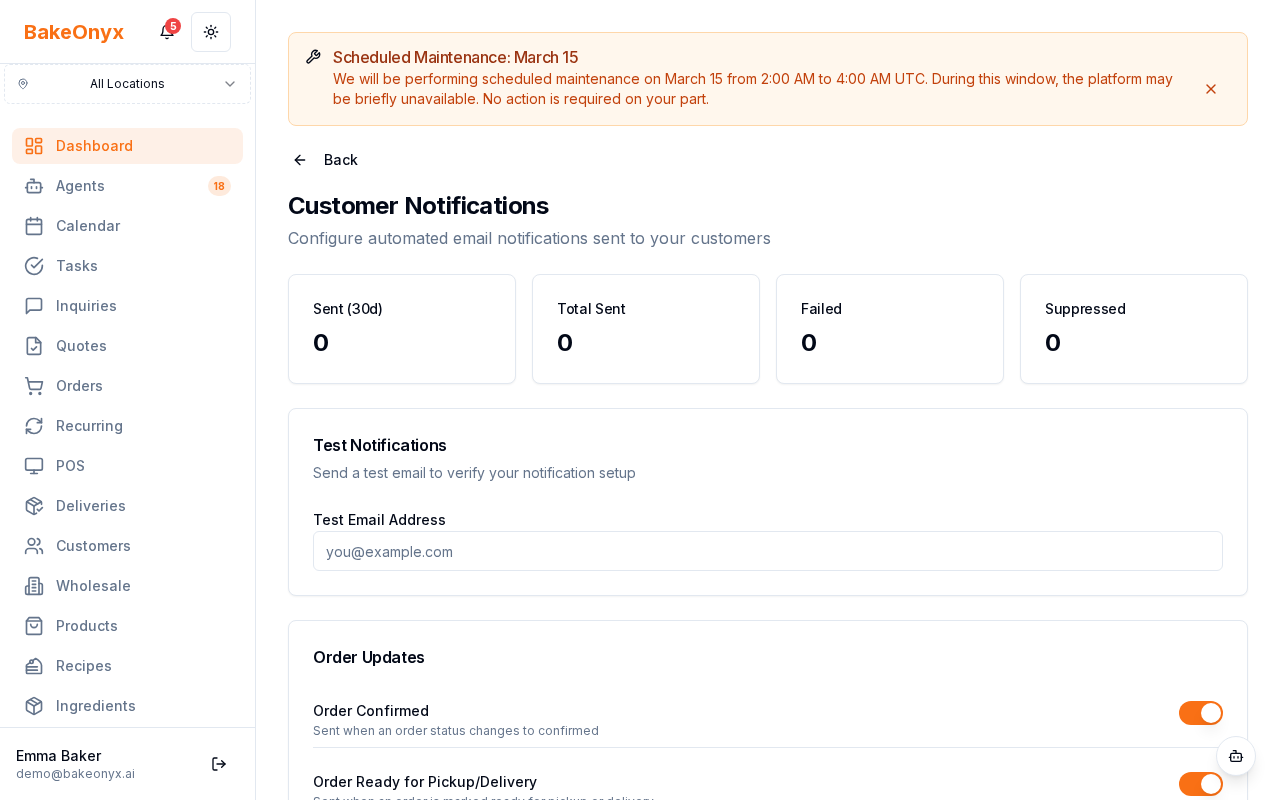
Available Notification Events
Here are the notifications you can control:
- Order Confirmed — Sent when a customer places an order
- Order Ready for Pickup — Sent when the order is ready to collect
- Order Delivered — Sent when a delivery order reaches the customer
- Delivery Reminder — Sent the day before delivery
- Payment Receipt — Sent when payment is successfully processed
- Payment Overdue — Sent at 1, 7, and 14 days past due date (3 separate toggles)
- Review Request — Sent to invite customers to leave feedback
- Welcome Email — Sent to new customers when they first sign up
Enabling or Disabling Notifications
- On the Notifications settings page, find the event you want to control
- Toggle the switch On to enable the notification or Off to disable it
- The setting saves automatically — no need to click a save button
How Notifications Are Sent
When you enable a notification, BakeOnyx sends it through two channels:
- Email — Always sent (if the customer has an email address on file)
- Messaging — Sent via the customer's preferred channel: WhatsApp, Messenger, or SMS (if configured in your account)
The messaging channel is determined by each customer's preference. If a customer hasn't set a preferred channel, the notification still goes out via email.
Payment Reminder Notifications
If you enable payment overdue notifications, you have three separate toggles for timing:
- 1 Day Overdue — First reminder sent 1 day after payment is due
- 7 Days Overdue — Second reminder sent 7 days after payment is due
- 14 Days Overdue — Final reminder sent 14 days after payment is due
You can enable all three, just one, or any combination. This gives you flexibility in how aggressively you follow up on late payments.
Best Practices
- Start with all notifications enabled and disable only those that don't fit your workflow
- Test notifications by placing a test order to see how customers experience them
- Review settings quarterly as your business grows — your notification needs may change
- Ensure messaging is configured if you want WhatsApp, SMS, or Messenger notifications to work
Team Alerts (emails to you, not your customers)
The notifications above go to your customers. BakeOnyx also emails your own team so you never miss activity. These have their own on/off switches on this same Notifications page:
- New online order alerts — get an email the moment a customer places a direct order in your online store, so online orders don't sit unseen in your Orders list.
- Inbox & Messenger email alerts — get an email when a new customer message arrives in your Inbox.
Turning a team alert off stops the emails only — your orders and messages still appear in the dashboard in real time, so nothing is missed.
Who on your team gets these alerts
By default, team alerts go to the bakery owner. To send them to specific roles instead, open Notification Recipients from this page and choose which roles receive each alert. If you don't set anyone, the owner still receives it.
Next Steps
- Welcome to BakeOnyx — Get started with the basics
- Customizing Your Navigation Menu — Personalize your dashboard
- Understanding Subscription Plans — Learn which features are included in your plan