General Settings
Configure default pricing, labour rate, overhead percentage, and other global bakery settings.
General Settings
Your General Settings are the foundation of BakeOnyx. They control how your bakery's costs are calculated, how prices are suggested, and how the system displays information across your dashboard. Let's walk through setting them up.

What you'll learn
- How to set your default labour rate and overhead percentage for accurate recipe costing
- How to configure currency, timezone, and business type to match your bakery
- How these settings affect pricing calculations and when they apply
Accessing General Settings
- Log in to your BakeOnyx dashboard
- Click the Settings icon in the left sidebar (usually at the bottom)
- Select General from the settings menu
You'll now see the General Settings page with all the fields you need to configure.
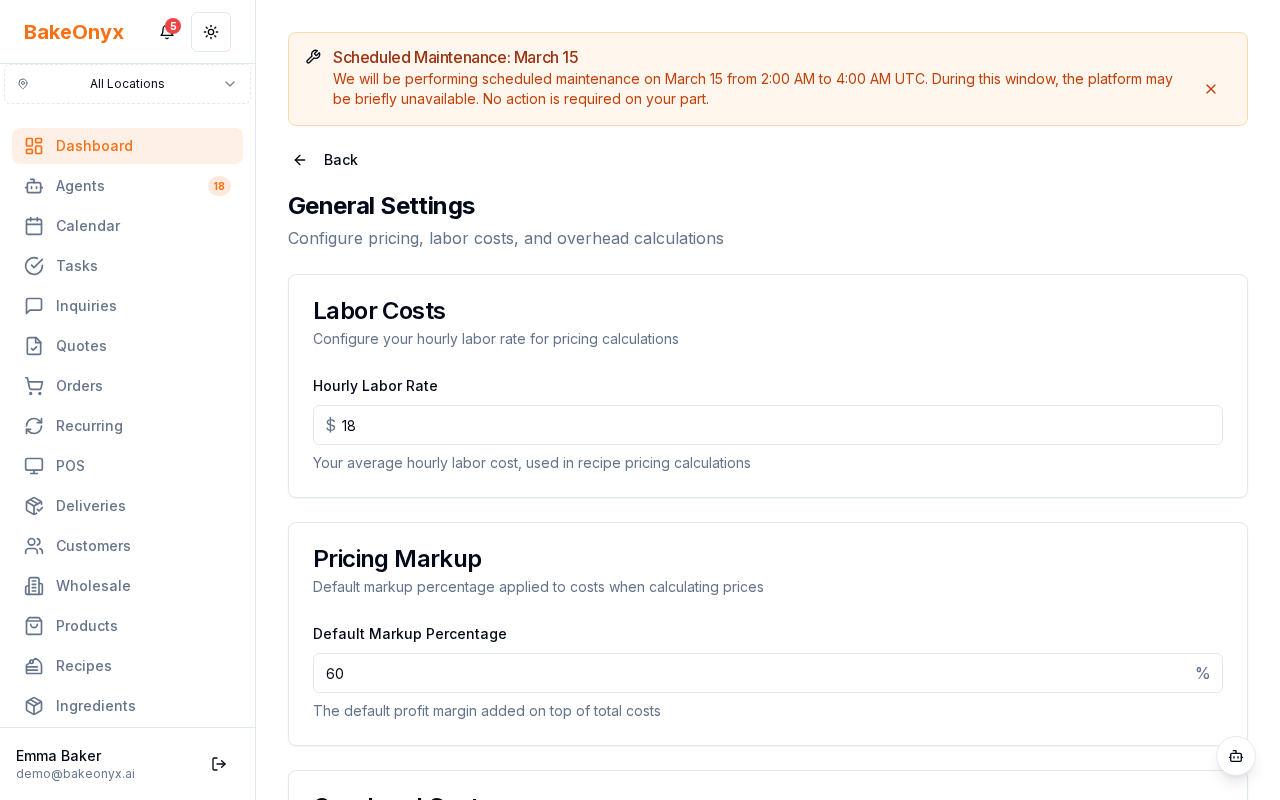
Setting Your Labour Rate
Your labour rate is the hourly cost you pay staff to make your products. BakeOnyx uses this to calculate labour costs in your recipes.
- Find the Default Labour Rate field
- Enter your hourly rate in your local currency (for example, $20 or £15)
- This rate is multiplied by the prep time in your recipes to calculate labour cost
Configuring Overhead Percentage
Overhead covers fixed costs like rent, utilities, equipment, and insurance. The overhead percentage is applied on top of your ingredient and labour costs.
- Locate the Default Overhead Percentage field
- Enter a percentage (for example, 25 or 40)
- This percentage is added to every recipe's ingredient and labour costs to give you a true product cost
Setting Default Markup Percentage
The markup percentage is used to calculate suggested selling prices. It's applied on top of your total product cost (ingredients + labour + overhead).
- Find the Default Markup Percentage field
- Enter your desired markup (for example, 50 means a 50% markup on costs)
- When you create a new recipe, BakeOnyx suggests a selling price based on this markup
Choosing Your Currency
- Click the Currency dropdown
- Select your local currency (USD, GBP, EUR, AUD, etc.)
- This currency will display across all financial fields in BakeOnyx — invoices, reports, recipe costs, and orders
Setting Your Timezone
Your timezone affects scheduling, order timing, and Bake Buddy (our AI assistant) greetings.
- Click the Timezone dropdown
- Search for and select your timezone (for example, "America/New_York" or "Europe/London")
- All times in BakeOnyx will now display in your local timezone
Selecting Your Business Type
Your business type helps BakeOnyx tailor features and recommendations to your bakery model.
- Click the Business Type dropdown
- Choose from options like "Retail Bakery," "Wholesale," "Café with Baking," or "Custom Cakes"
- This selection may affect default settings for inventory, orders, and reporting
Saving Your Settings
- Review all fields to ensure they're correct
- Click the Save button at the bottom of the page
- You'll see a confirmation message that your settings have been saved
Next Steps
- Customize your invoices to match your brand
- Return to the Welcome guide for a full platform overview
- Review your subscription plan to understand what features are available