Product Configurator
Set up step-by-step product builders that let storefront customers customize cakes, cupcakes, and more.
Product Configurator
- Create step-by-step customization flows for cakes, cupcakes, and other products
- Set up single-select, multi-select, text input, and image upload options
- Add price modifiers to each customization option (e.g., +£5 for fondant covering)
What is the Product Configurator?
The Product Configurator lets you build guided customization experiences for your customers. Instead of a simple "Add to Cart" button, customers can click Customize and walk through a wizard that lets them choose size, flavors, toppings, add inscriptions, upload reference photos, and more. Each choice can add to the final price.
For example, a customer ordering a custom birthday cake might:
- Select cake size (Small, Medium, Large)
- Choose flavor (Vanilla, Chocolate, Lemon)
- Pick frosting type (Buttercream, Fondant — fondant adds £5)
- Add toppings (Sprinkles, Fresh berries, Edible flowers)
- Enter a custom inscription
- Upload a reference photo
The final price automatically includes the base product price plus all selected modifiers.
Access the Product Configurator
- Log in to your BakeOnyx dashboard
- Go to Settings in the left sidebar
- Click Product Configurator
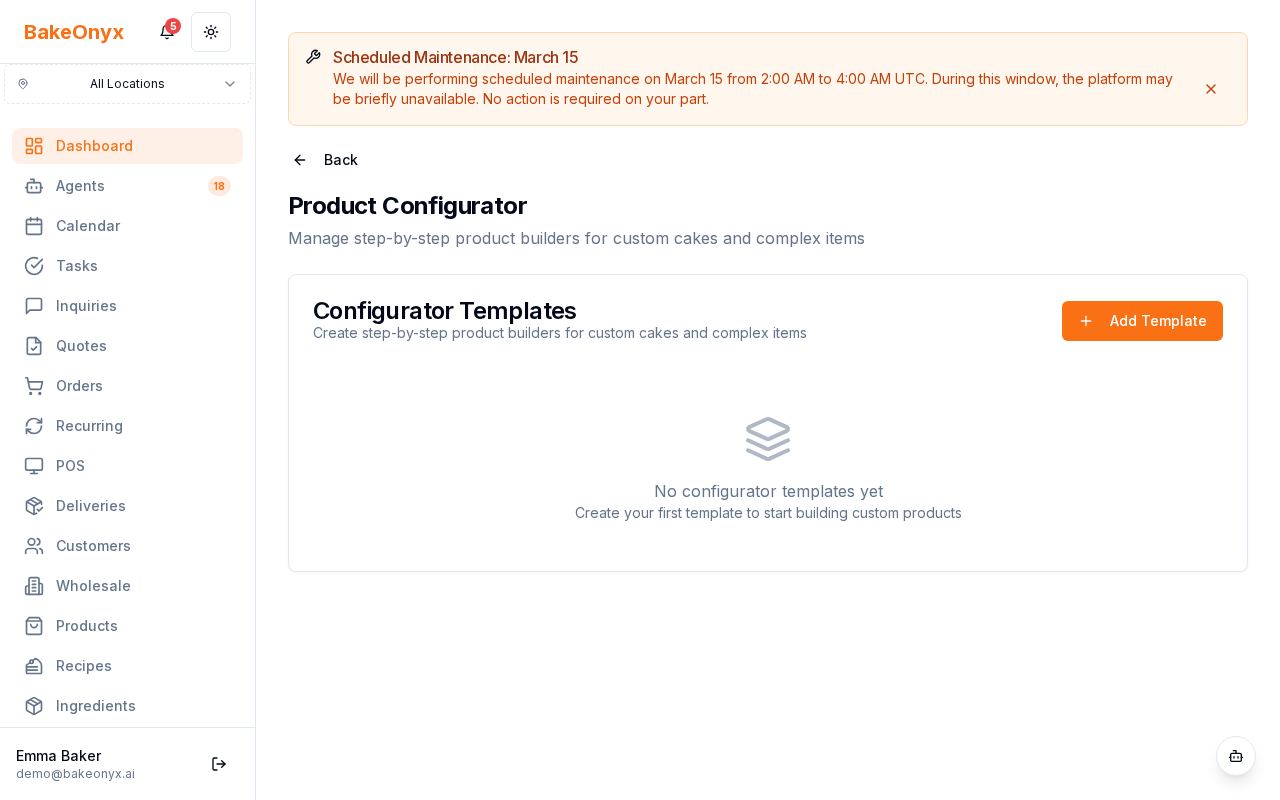
Create a New Configurator
- Click the Create New Configurator button
- Enter a Configurator Name (e.g., "Custom Birthday Cake")
- Select the Product Type this configurator applies to (e.g., Cakes, Cupcakes)
- Click Create
Add Configuration Steps
Once your configurator is created, you'll add steps in order. Customers will see these steps one at a time in the storefront wizard.
Step 1: Add a Step
- Click Add Step
- Give the step a name (e.g., "Choose Your Size")
- Select the step type from the dropdown:
- Single Select — customer picks one option (e.g., size)
- Multi-Select — customer can pick multiple options (e.g., toppings)
- Text Input — customer types text (e.g., inscription)
- Image Upload — customer uploads a file (e.g., reference photo)
Step 2: Add Options (for Select Steps)
For Single Select and Multi-Select steps, add the available choices:
- Click Add Option
- Enter the Option Name (e.g., "Small", "Medium", "Large")
- Optional: Enter a Price Modifier (e.g., +£5 for a larger size, or leave blank for no extra cost)
- Click Save Option
- Repeat for each option in this step
Step 3: Configure Text and Upload Steps
For Text Input steps (like inscriptions):
- Set a character limit if needed
- Add placeholder text (e.g., "Enter up to 50 characters")
- Optionally set a price modifier (e.g., +£2 for personalization)
For Image Upload steps (like reference photos):
- Set the maximum file size allowed
- Specify accepted file types (JPG, PNG, etc.)
- Optionally set a price modifier
Arrange and Edit Steps
- Drag steps to reorder them — customers will see them in this order
- Click Edit to change a step's name or options
- Click Delete to remove a step
Link to Storefront Products
Once your configurator is saved, it's automatically linked to products of the matching type. When customers view those products on your storefront, they'll see a Customize button. Clicking it launches your configurator wizard.
Next Steps
- Welcome to BakeOnyx — learn the basics of your dashboard
- AI Agent Settings — automate customer support responses
- Understanding Subscription Plans — review features available on your plan