Common Questions and Troubleshooting
Answers to the most common questions and how to fix typical issues in BakeOnyx.
Common Questions and Troubleshooting
- Find answers to the most common questions BakeOnyx users ask
- Learn how to fix typical issues with orders, recipes, inventory, and invoices
- Understand the difference between key features and how to use them correctly
Orders and Inventory
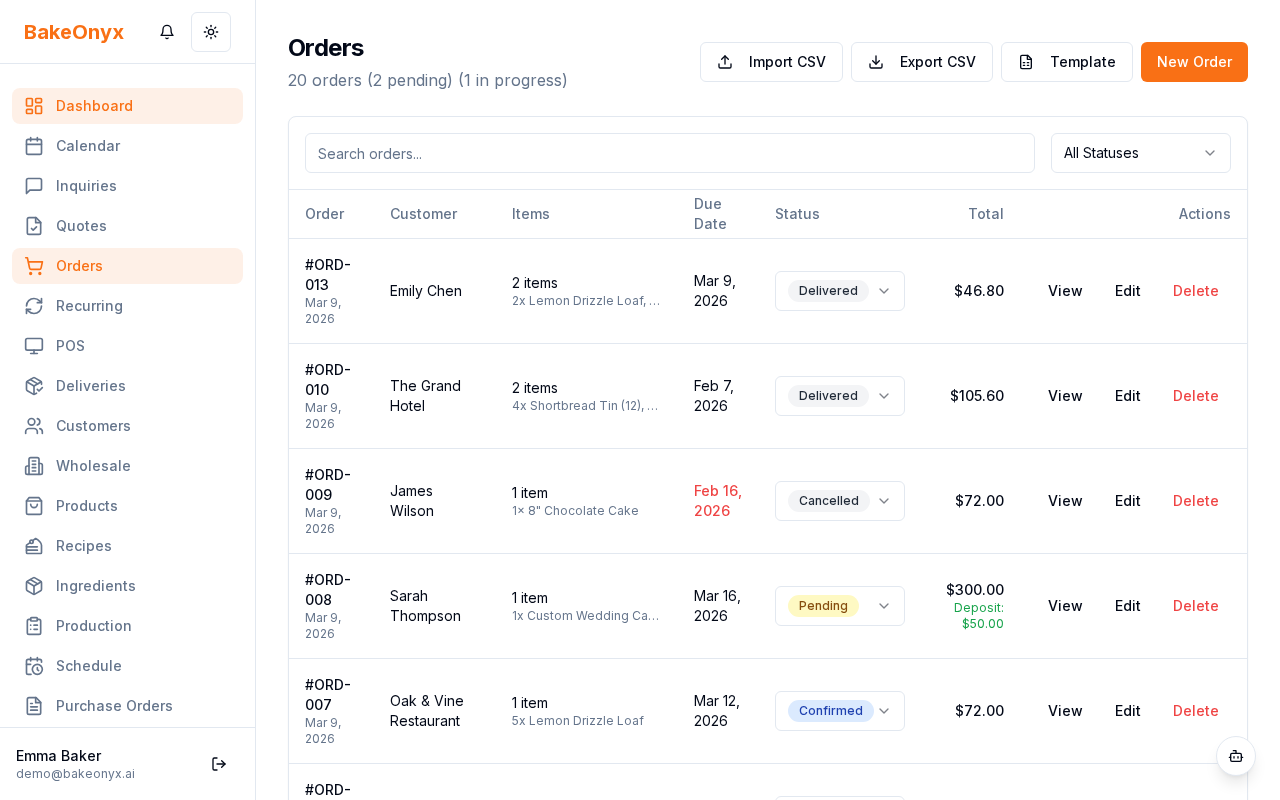
Where did my order go?
If you can't find an order on your Orders page, it's likely filtered out by status. By default, cancelled and delivered orders may be hidden from view.
- Go to Orders in the main menu
- Look for the status filter tabs at the top of the list
- Click All to see every order, or clear individual filters to show cancelled and delivered orders
- Use the search bar to find a specific order by order number or customer name
My stock shows negative — how is that possible?
Negative stock happens when a production batch is deducted from inventory before a purchase order arrives. BakeOnyx allows negative stock so you can track exactly how much you're short.
- Go to Inventory to see your current stock levels
- Check your pending Purchase Orders to find the incoming delivery
- Once the PO is received and marked as complete, your stock will return to positive
How do I undo a production deduction?
If you cancel an order after inventory has already been deducted, use the Reverse Deduction option to restore your stock.
- Open the cancelled order
- Click Reverse Deduction
- Confirm the action — your ingredient stock will be restored immediately
Recipes and Costs
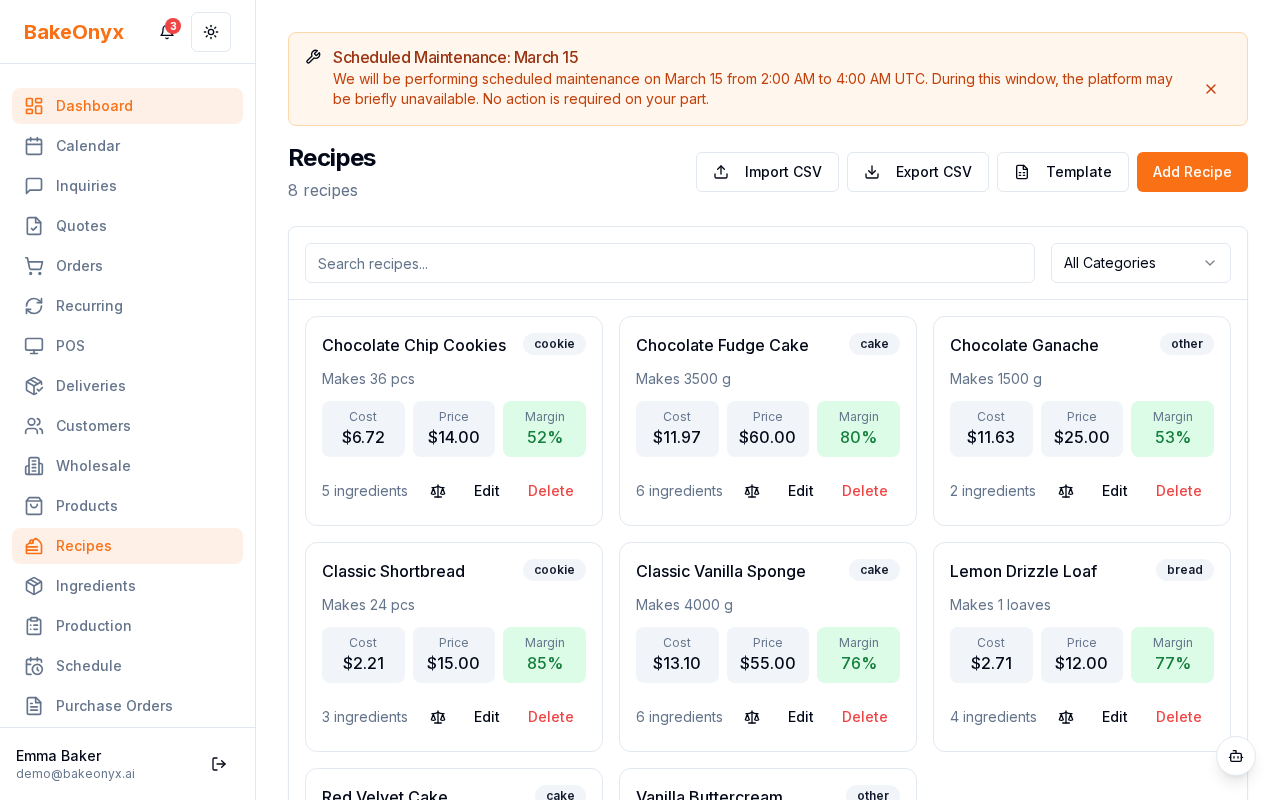
Why is my recipe cost showing $0?
Recipe cost is calculated automatically from your ingredient costs. If a recipe shows $0, one or more of its ingredients has a $0 cost per unit.
- Go to Ingredients in the main menu
- Find each ingredient used in the recipe with the $0 cost
- Click the ingredient to edit it
- Enter the correct Cost per Unit (for example, $0.50 per pound of flour)
- Save your changes
Documents and Settings
My invoice looks wrong — missing fields or information
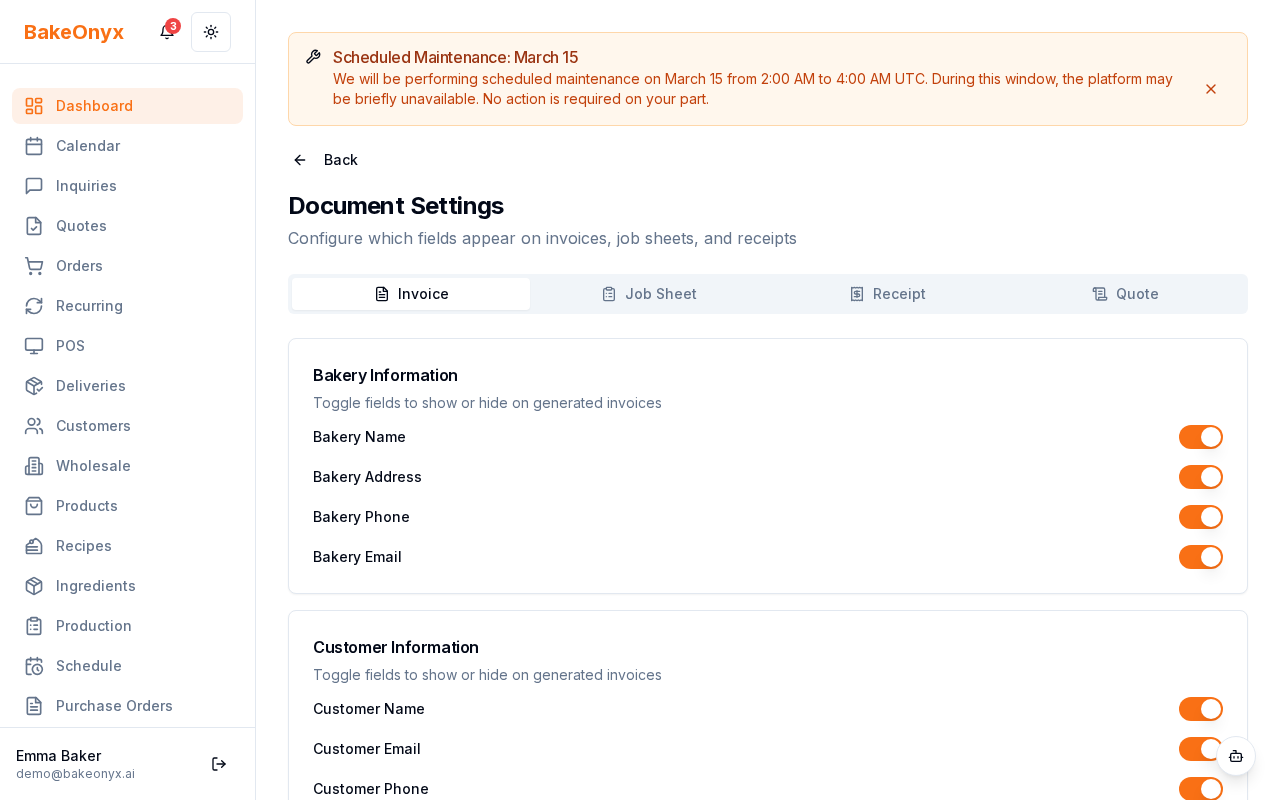
Invoice appearance is customizable. If a field is missing, it may be toggled off in your document settings.
- Go to Settings in the main menu
- Click Documents
- Select the Invoice tab
- Review the list of available fields (business name, customer address, payment terms, etc.)
- Toggle on any fields you want to appear on your invoices
- Click Save
I cannot see a feature — it's grayed out or missing
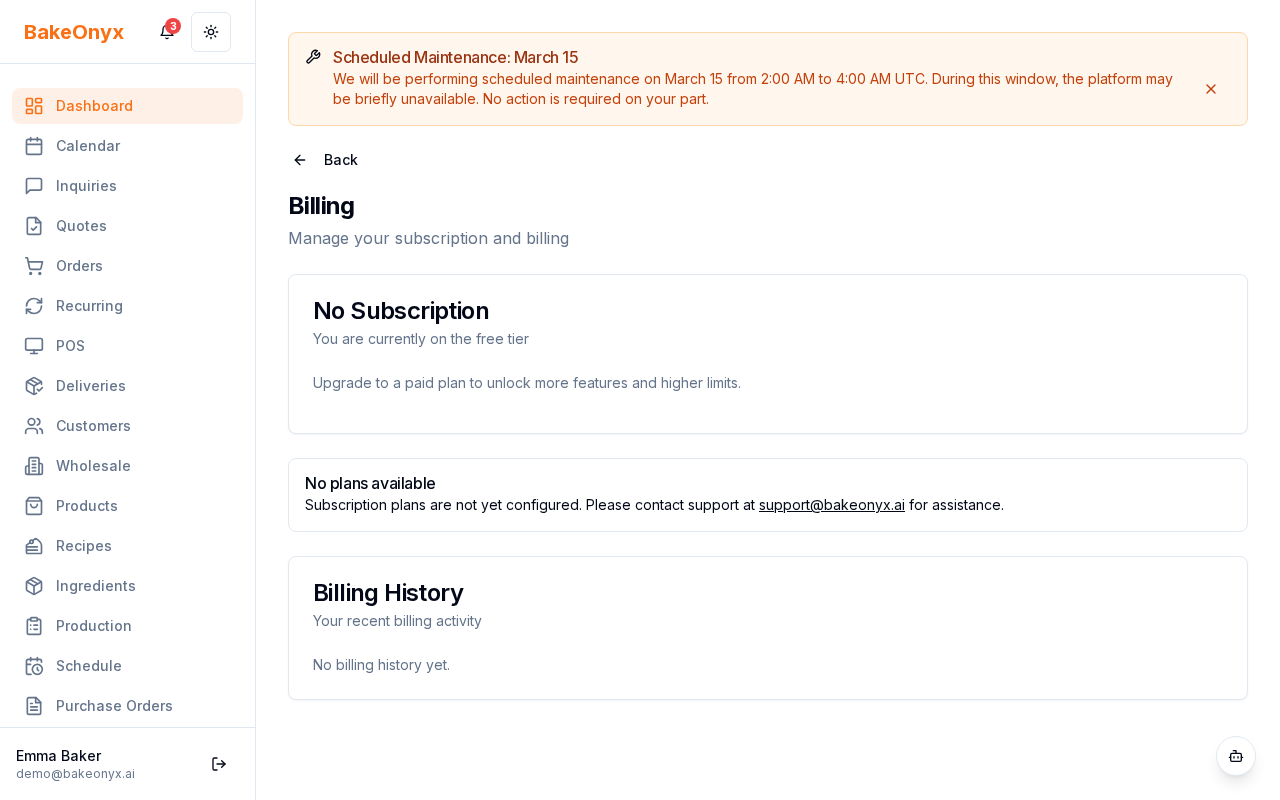
Some features are locked by your subscription plan. Check your current plan to see what's available.
- Go to Settings
- Click Billing
- Review your active plan
Plan breakdown:
- Essentials: Basic order and recipe management
- Growth: Purchase orders, recurring orders, online store, delivery tracking, loyalty programs
- Scale: Multi-location management, staff scheduling, AI agents
Expenses vs. Purchase Orders
These two features serve different purposes:
- Purchase Orders: Used for ingredient purchases (flour, milk, eggs). They update your inventory and flow into recipe costs.
- Expenses: Used for business costs (rent, utilities, packaging supplies). They don't affect inventory or recipe costs — they're tracked separately for accounting.
Bake Buddy (AI Assistant)
Bake Buddy doesn't understand what I mean
Bake Buddy works best with clear, specific language. Here are tips for better results:
- Use exact customer and product names when possible (not "the chocolate cake" — say "Deluxe Chocolate Layer Cake")
- For dates, use natural language like "today," "tomorrow," or "next Monday"
- If Bake Buddy finds multiple matches, it will ask you to clarify — just pick the right option
Next Steps
- Welcome to BakeOnyx — Get started with the platform basics
- Understanding Subscription Plans — Learn what each plan includes
- News Feed and Platform Announcements — Stay updated on new features and changes